Connect using a password
For security reasons, password login is disabled by default - out of the box, SFTP/SSH access only works with SSH keys. To enable password based SFTP/SSH login, please follow the simple steps below.
In this guide we will first enable the SFTP/SSH password, and then use this password to connect to your site with an SFTP client like FileZilla or Cyberduck, and by SSH via the Terminal. You can also connect with browser based SSH in our panel, and we'll show you that as well.
Enable the SFTP/SSH password
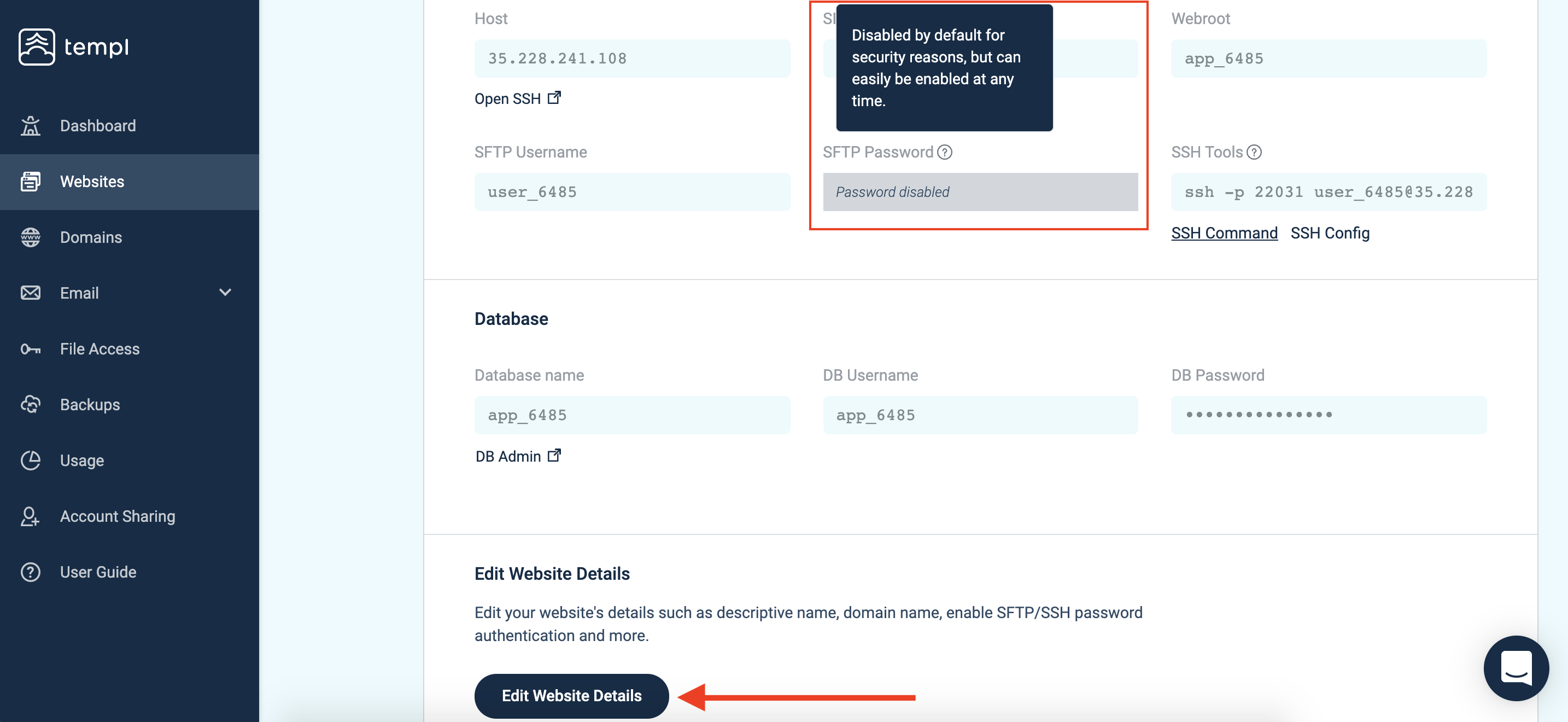
Step 1 - Open the website details page for the website you want to enable the SFTP & SSH password for.
Click Edit Website Details as shown below:
Step 2 - Enable the SSH/SFTP password.
You can choose to generate a password or set your own password.
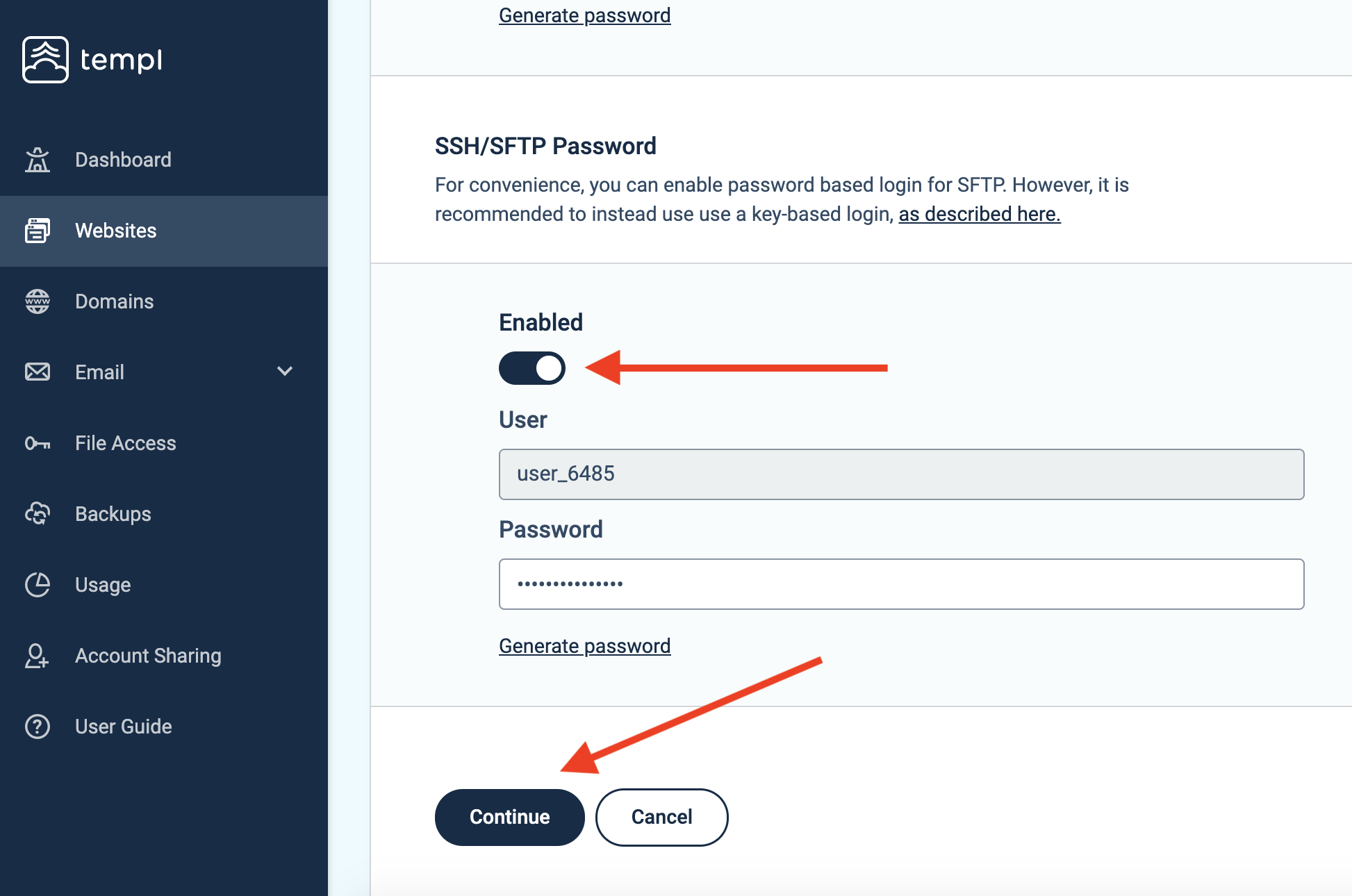
Scroll down and click Continue and you're done!
Connect to your website using SFTP (with password)
The details to connect to your website with the SFTP password are shown on the website details page.
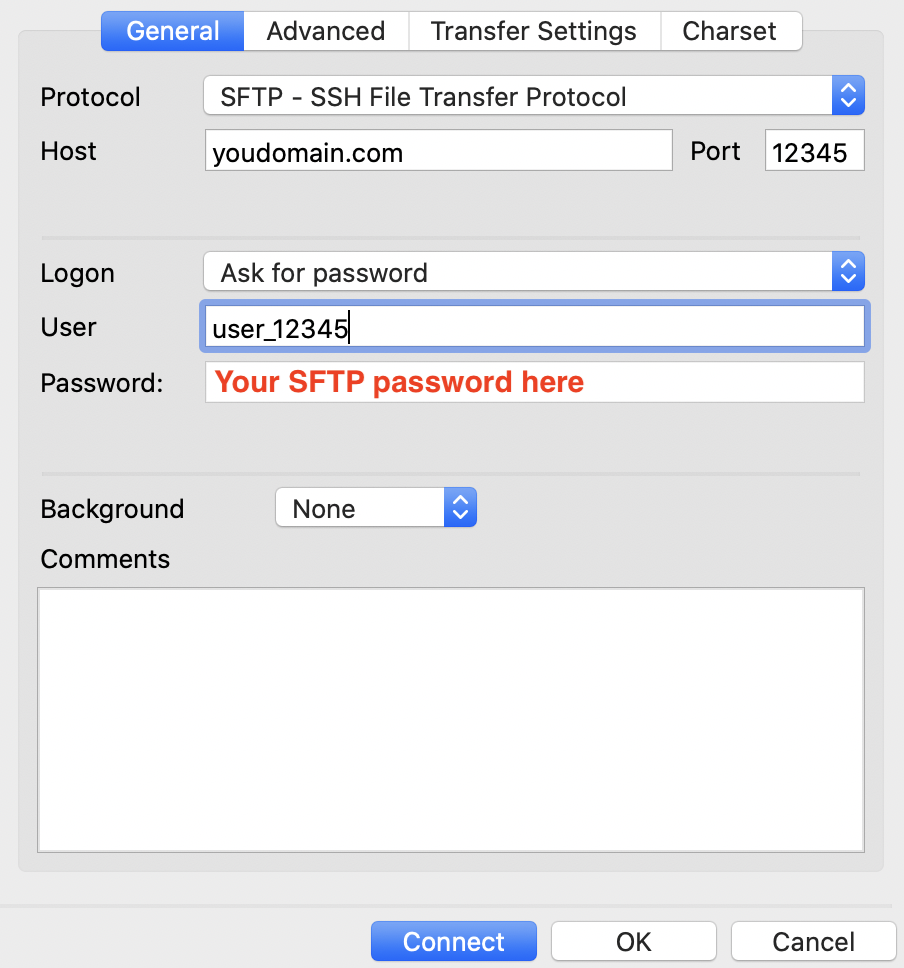
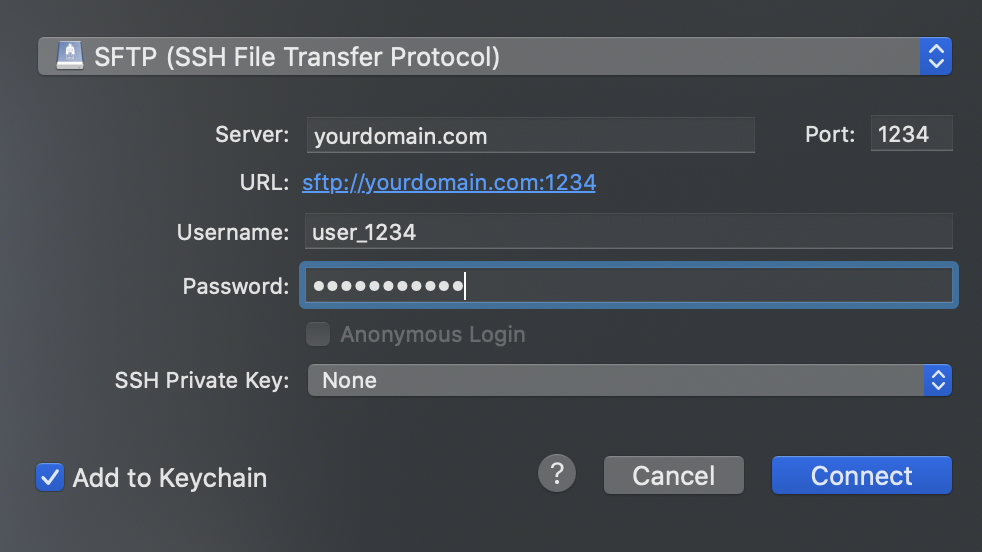
In your SFTP client (FileZilla or similar), enter the following:
Host: Your domain name or server IP
(If you are using Cloudflare or similar, then you need to connect with your IP address).
Username: Check the website details page (step 1) for the username.
Password: Check the website details page (step 1) for the password.
Port: Check the website details page (step 1) for the port.
FileZilla reference:
Cyberduck reference:
Other ways to connect to your site (with SSH)
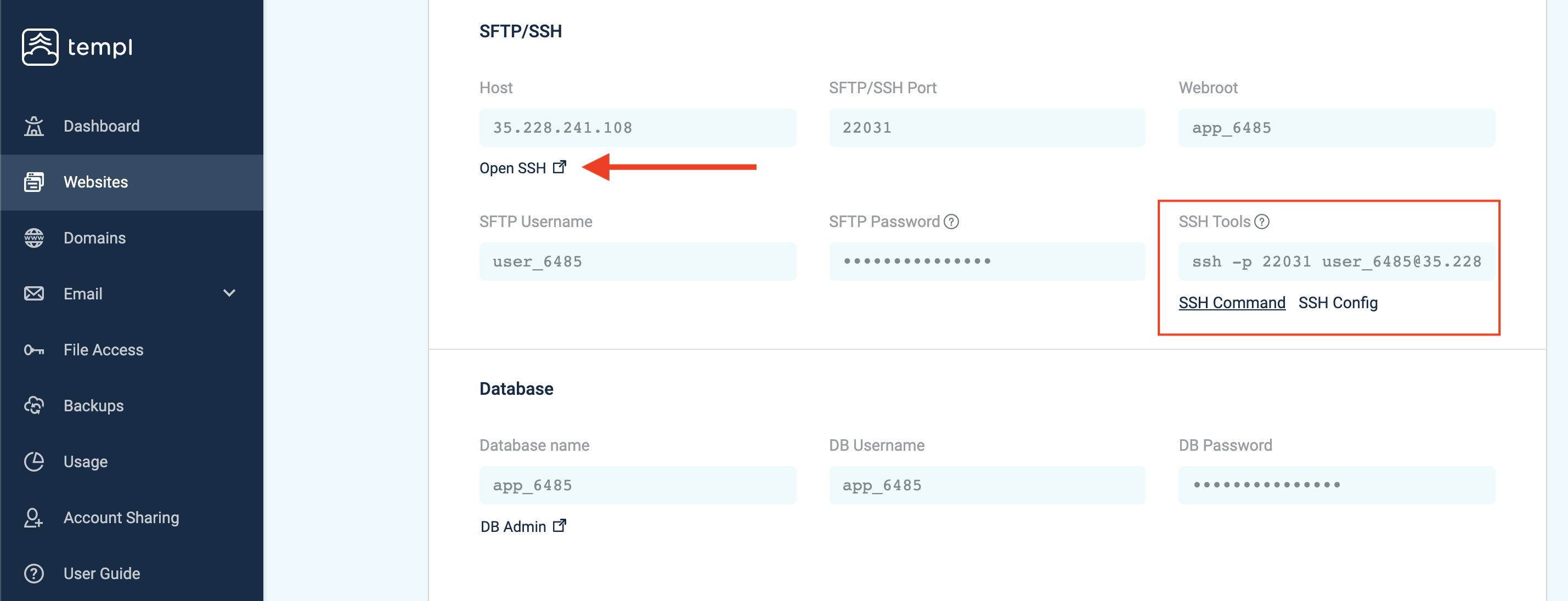
You can also connect with SSH directly in your browser, or from your own computer by copying the SSH command shown in the Templ Panel:
- Open the website details page in the Templ Panel and click the Connect button in the top right.
- Choose Open SSH to open a terminal directly in your browser, or copy the SSH Command and paste it into the terminal on your own computer. When prompted, enter the SSH password you enabled above.
To connect with SSH keys instead of a password, see Connect with SSH keys.