Clone a website
Cloning copies a website's files and database to another site on your account. Use it to spin up a copy as a starting point for a new project, to get a separate environment for testing big changes, or to move work between two sites you already have.
Both clone options live on the Import/migration tab of the website you're copying from, under Clone Website.
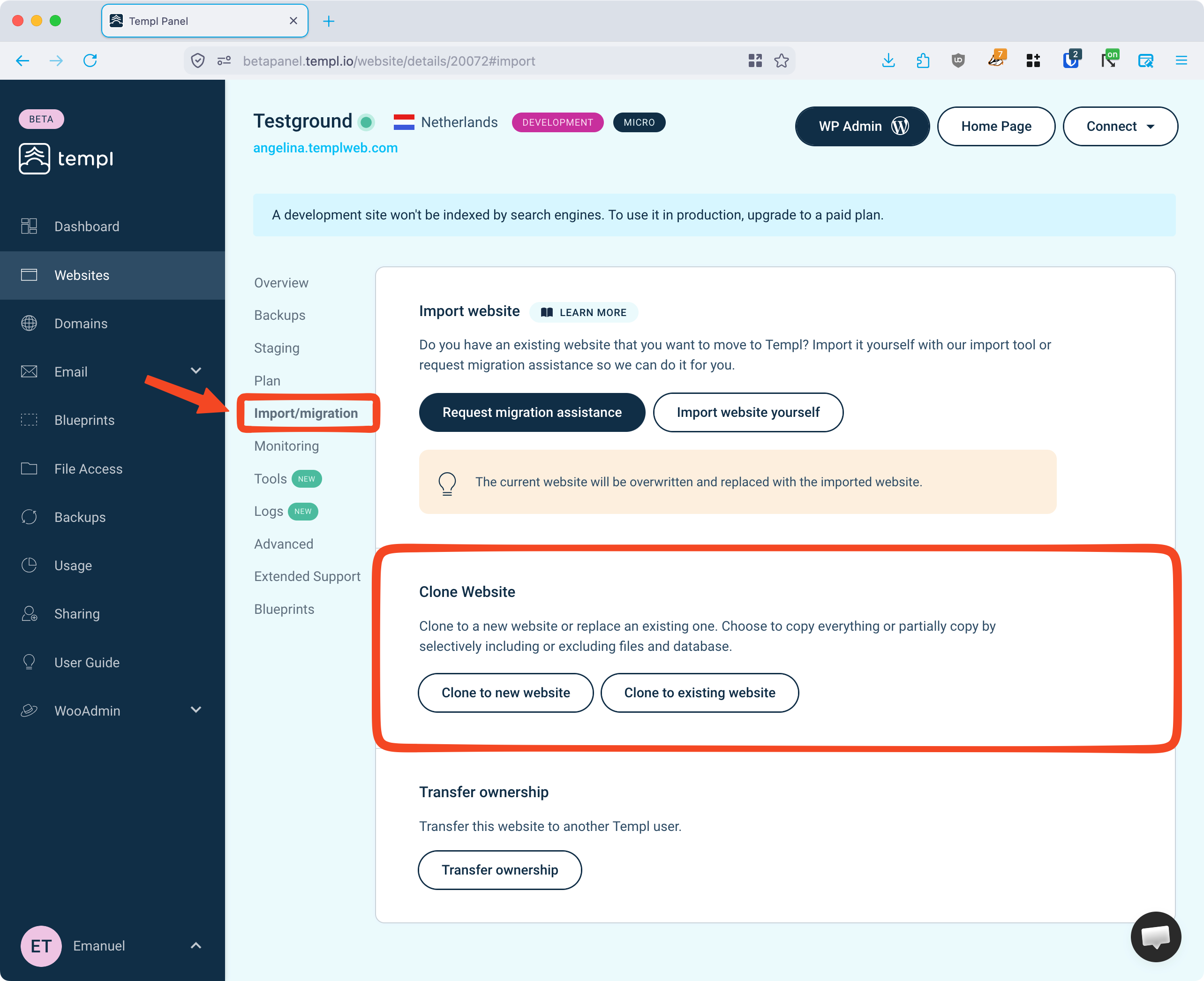
Clone to a new website
Click Clone to new website, then pick the plan for the copy.
The plan selector offers the same plans as normal site creation, including the free Development (Micro) and Development (Small) plans. Cloning onto a development plan is the cheapest way to get a second environment for an existing site.
Your new site is created on a temporary domain name that we provide, and the site address is search-replaced in the database automatically. The source site stays unaffected.
Clone to an existing website
Use this to copy a site over one you already have, in either direction: refresh a development site from production, or push finished work from a development site back to production.
- Click Clone to existing website.
- Under Select website, choose the site you're copying to, then click Continue to Partial Copy.
- Choose what to copy (see below), then click Start copying and confirm.
Both sites must be on the same Templ account.
Copy everything or just part of it
By default the whole site is copied: all files and the database. To narrow it down, tick Partial Copy, then choose:
- Do not copy database - copies files only and leaves the target's database untouched. This is what you want when pushing code changes to a live site, so you don't wipe out orders, comments, or content created since you last copied.
- Copy all folders except those listed below - copies everything apart from the paths you enter.
- Only copy folders listed below - copies nothing but the paths you enter, for example
wp-content/themes/mytheme.
Enter one path per line in the text field.
We recommend excluding wp-config.php, since it holds settings specific to each WordPress installation.
Cloning compared to staging
A clone and a staging site solve different problems.
A clone is a full, independent website with its own plan, its own disk allocation, and its own billing. That plan can be a free development plan, so a clone doesn't have to add to your bill.
A staging site is free and has no plan of its own, but it shares the production site's disk allocation, and each production site can only have one. It's built for quick test-and-push cycles, with one-click copying in both directions.
If you want a staging site for everyday tests and a longer-lived environment for bigger work, keep staging and clone the site onto a development plan for the second environment.