Password protection
Password protection keeps visitors out until they enter the correct username and password. It's also an effective way to make sure Google and other search engines won't find and index your site, for example while it's still under construction.
Enable password protection
To enable password protection on a website, navigate to that website in the Templ Panel and then click Edit Website Details.
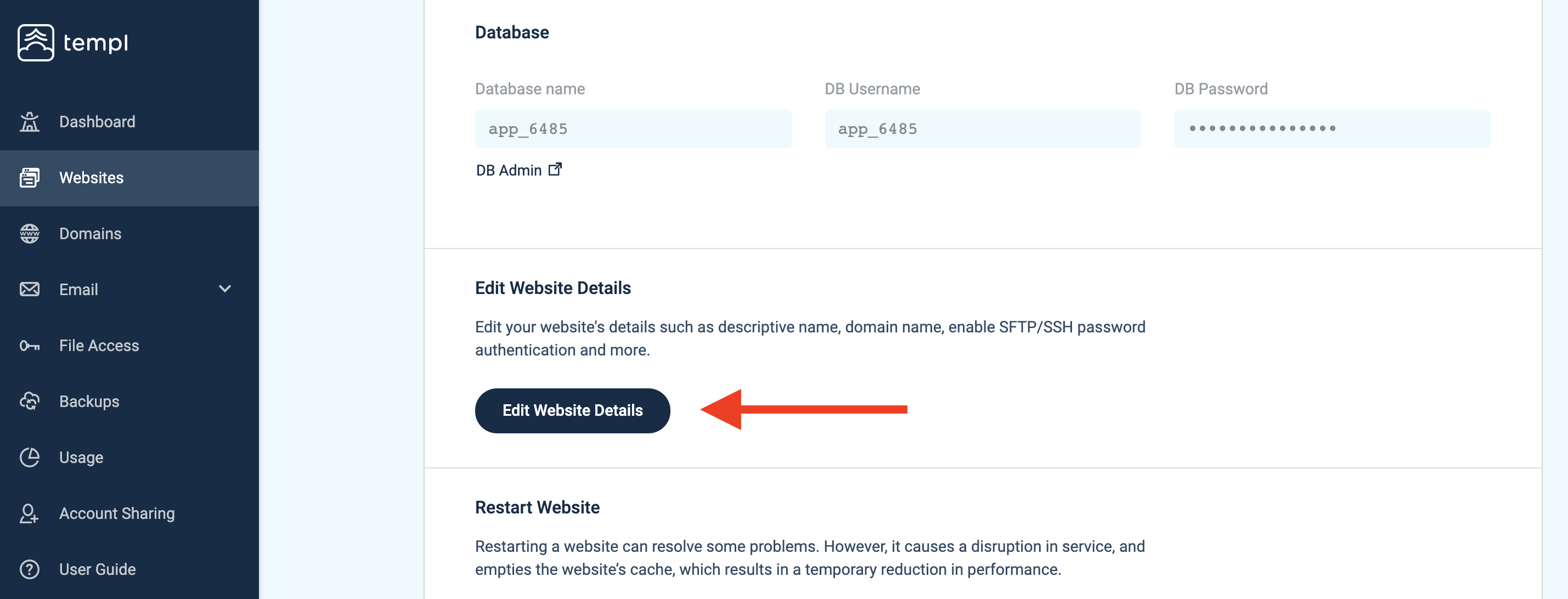
Scroll down to Password Protection and click the button to enable it. You will also need to enter a username and password, or generate a password.
Once you're done, scroll down to the bottom of the page and click Continue.
Your website is now password protected with the username and password that you entered.
Disable password protection
To disable password protection on a paid account, open the website in the Templ Panel, click Edit Website Details, scroll down to Password Protection, turn it off, and click Continue at the bottom of the page.