File Access (SFTP/SSH)
There are several ways to access your website's files at Templ, from the browser-based file manager to SFTP and SSH. Pick the method that suits you, ordered below from easiest to most advanced.
Use the file manager (Easiest)
Our file manager lets you upload, download, edit, rename, and delete files directly in your web browser, with nothing to install. It's handy for verifying domain ownership, uploading a plugin, reading log files, or downloading a local backup.
Connect with a password (Easy)
If you'd rather use an SFTP client like FileZilla or Cyberduck, or connect over SSH, you can enable a username and password in the Templ Panel.
Connect with SSH keys (Advanced)
SSH keys let you connect over SFTP and SSH without a password, and are more secure. This is a one-time setup, on Mac or Windows.
Open SSH in the Templ Panel
You can open an SSH session straight from the browser: navigate to the website in the Templ Panel, click the Connect button at the top right, then click Open SSH. This opens a new window with the SSH session.
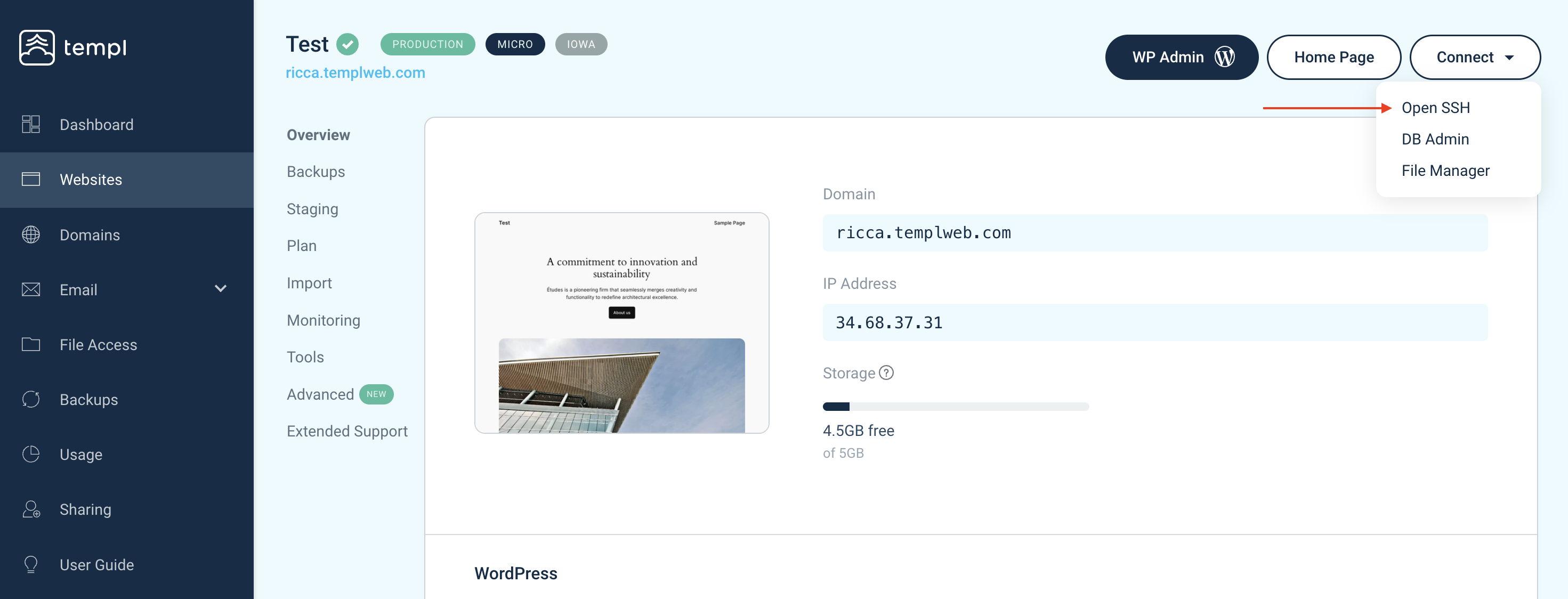
Once connected, see SSH & WP-CLI for what you can do over SSH, including WP-CLI and the Templ CLI.
Locked out by an IP ban
Repeated failed SFTP or SSH logins can get your IP banned, which blocks all access to the website from your connection. Lift it with the Clear banned IPs tool in the Templ Panel.