Download a backup
You can download any backup of your website to keep a local copy. There are two backup types:
- Remote backup files contain the database for your website and a .txt file with a link to download all the WordPress files.
- Local backups contain all files (database and WordPress files).
Create the download link for your backup
Before you can download your desired backup, you must generate a download link for that backup. To do that, navigate to the Backup list and click on the website you want to download a backup for.
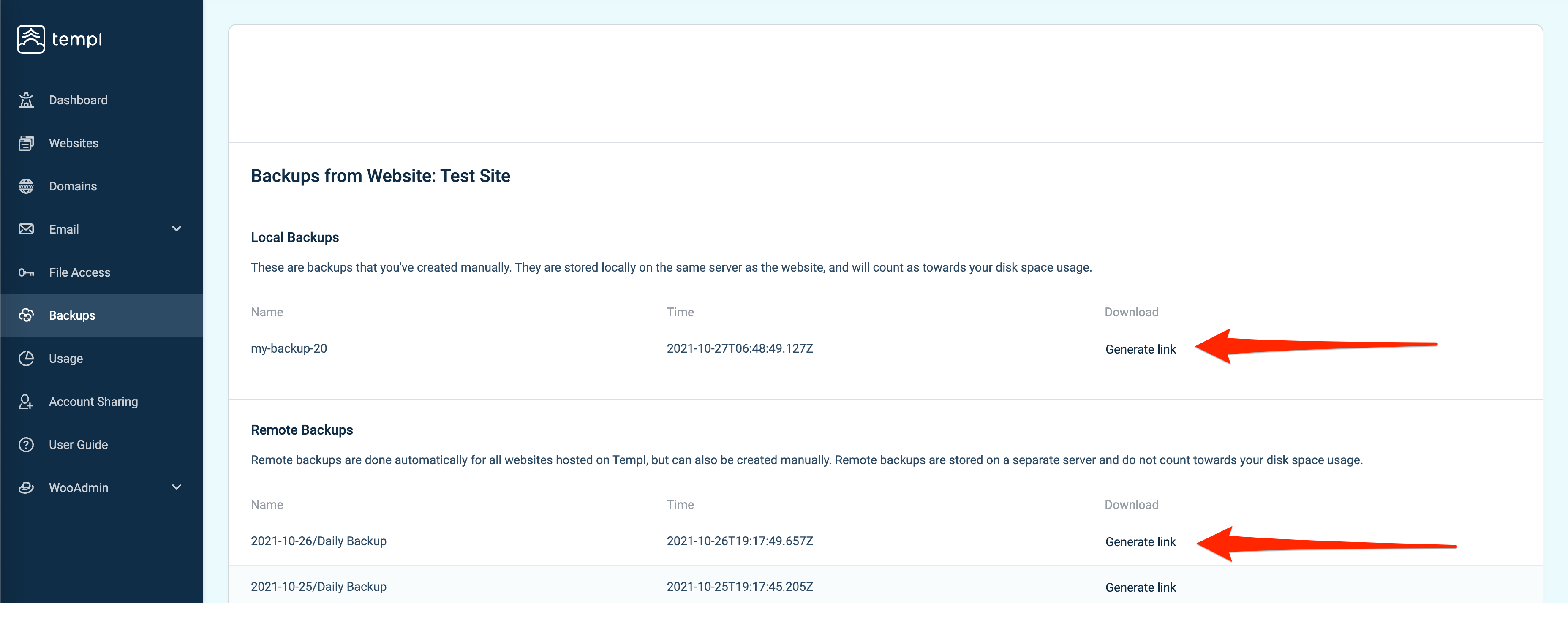
Next to the backup, click the button Generate link to generate the download link. The timestamp of each backup is in your local time zone.
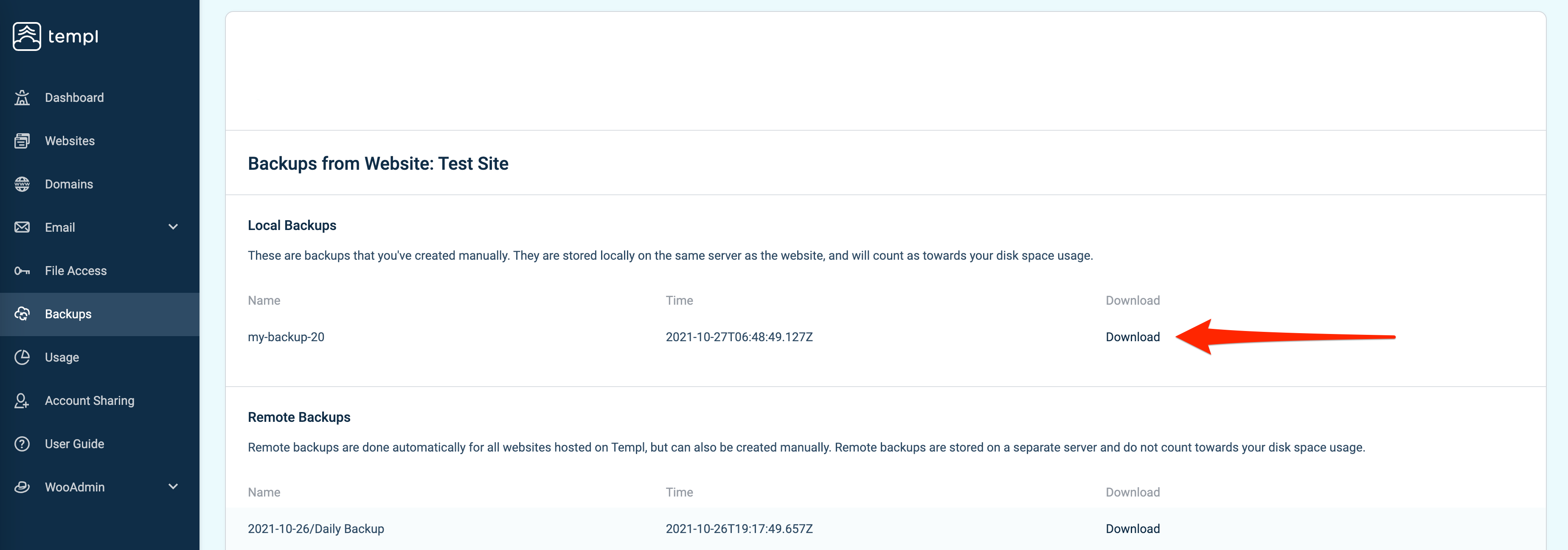
Click on the Download link to start the download.
Extract the backup
Once you have downloaded the backup, extract the file and open the folder. Inside you will find the database for your website and another folder named wordpress.
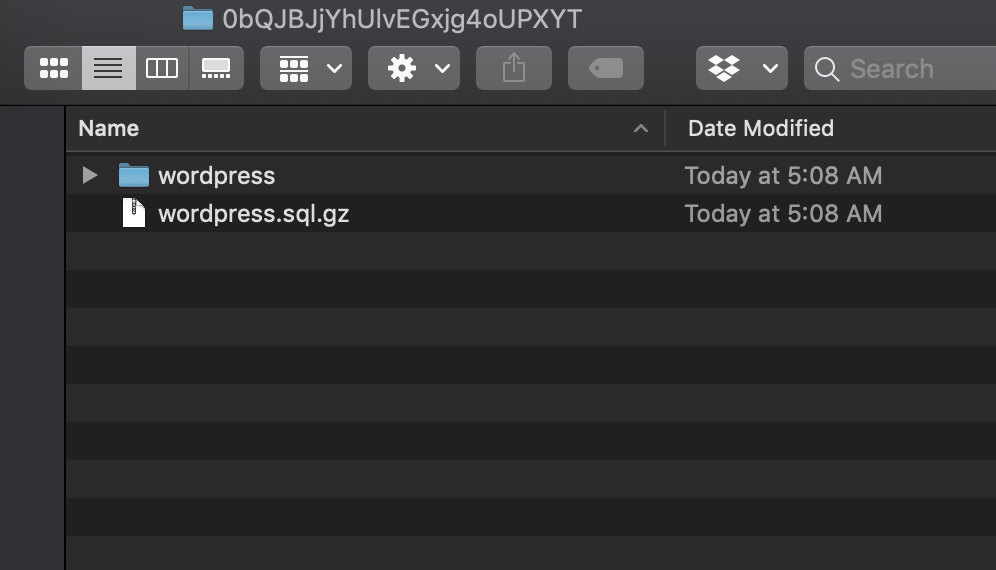
If you downloaded a remote backup, the wordpress folder contains a TEMPLIO_README.txt file with a link used to download all the WordPress files.
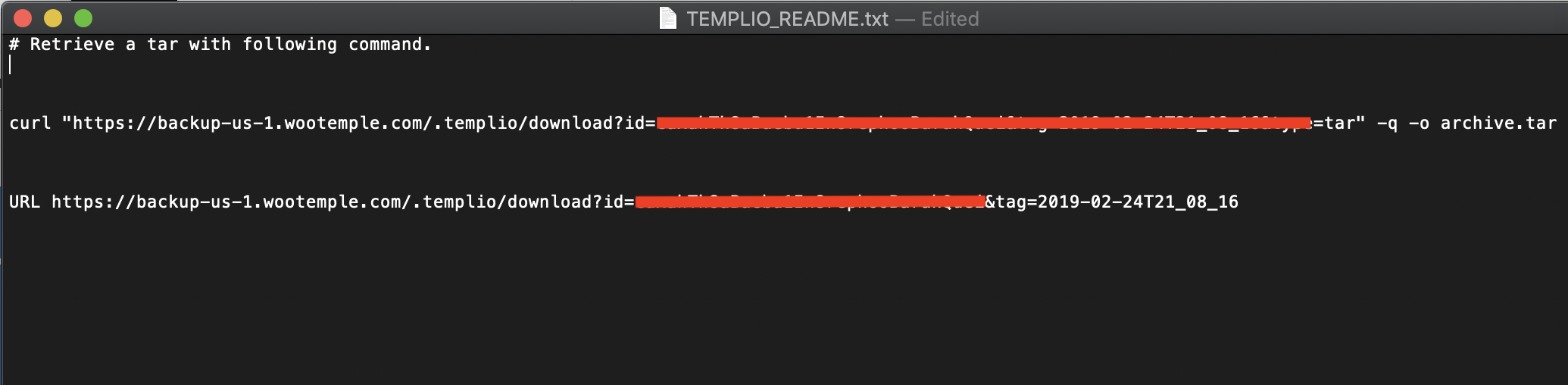
Use the first link: it's a curl command you run in a terminal.
Run the curl command in a terminal
On Mac, paste the curl command in the Terminal app and press enter:
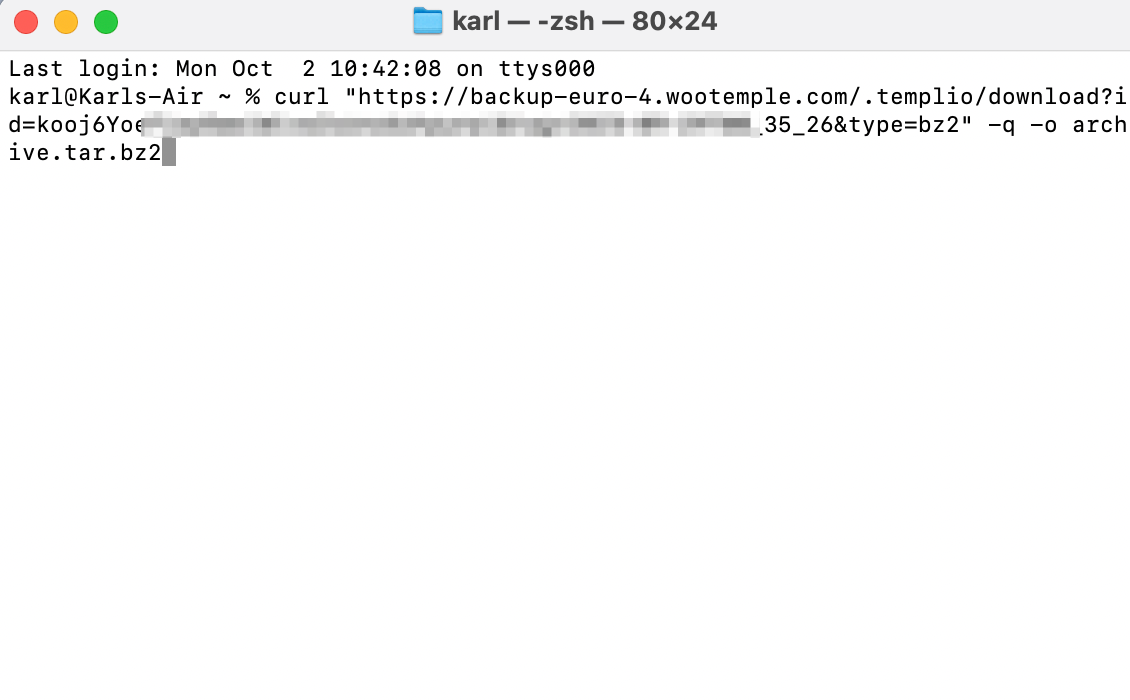
On Windows 10 and later, curl is built in as well - paste the same command in Command Prompt or PowerShell.
When the download finishes, extract the downloaded file called archive.tar to access your WordPress files.