Create a backup
All websites hosted on Templ (except for staging sites) are automatically backed up daily, and each backup covers your WordPress files and the site's own database. You can also create a backup manually at any time - handy right before a risky change like a plugin update or theme switch.
Create a backup manually
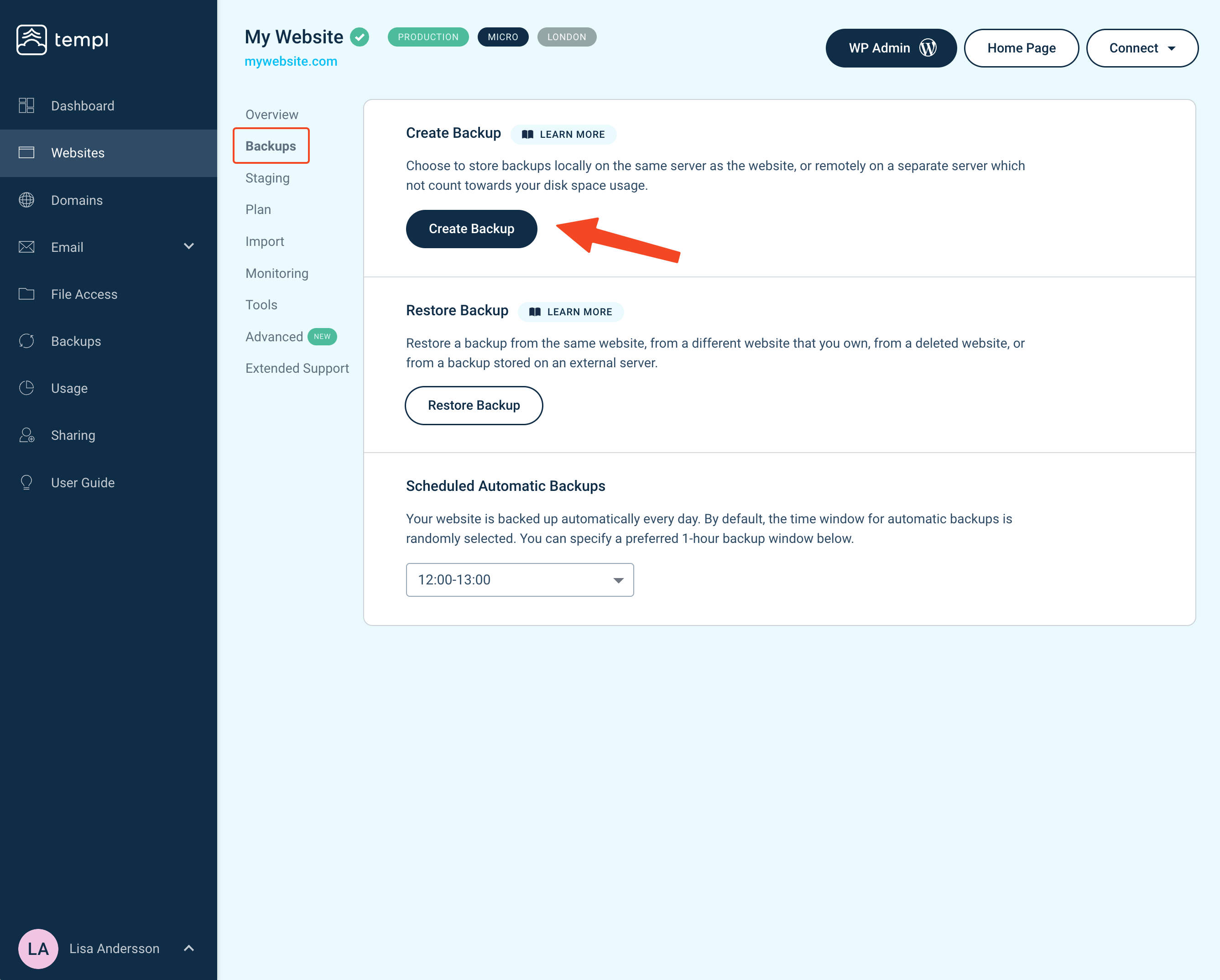
Start by opening the backups view for your site:
- Click on Websites in the left menu.
- Select the website you wish to back up.
- Click on the Backups menu item.
- Below the list of existing backups, click Create Backup.
Next, name the backup and choose where it's stored:
- Give the backup a name you'll easily recognize later.
- Set the Store on remote server option:
- On (remote storage): the backup is stored on a separate server. It does not count towards your disk space usage, but creating or restoring it counts towards your monthly data transfer.
- Off (local storage): the backup is stored inside your website's environment, in the
backupsfolder in the site's home directory (~/backups, alongside the webroot). You can reach it over SFTP or SSH. It counts towards your disk space usage, but is kept indefinitely (see Backup retention).
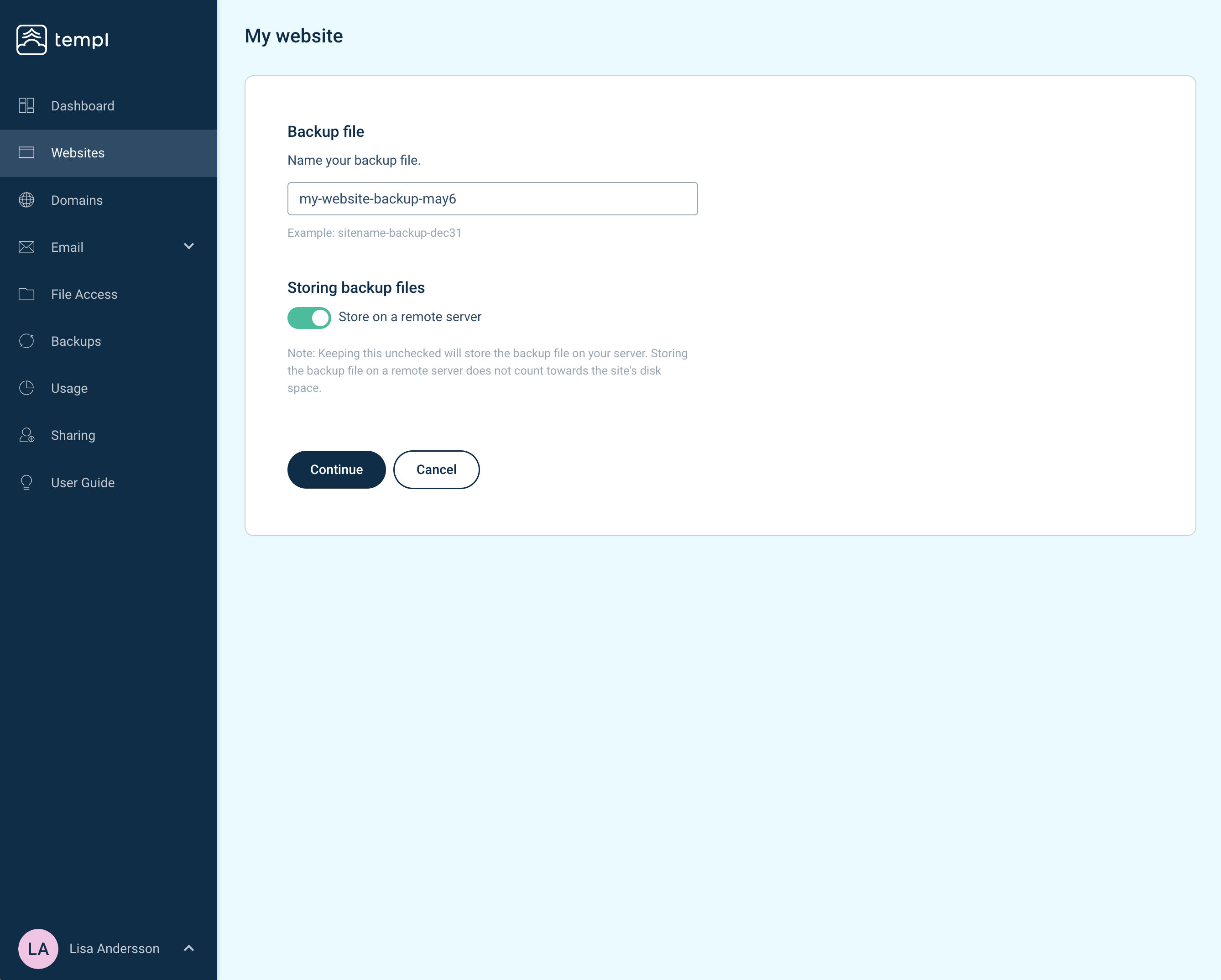
- Click Continue to start the backup.
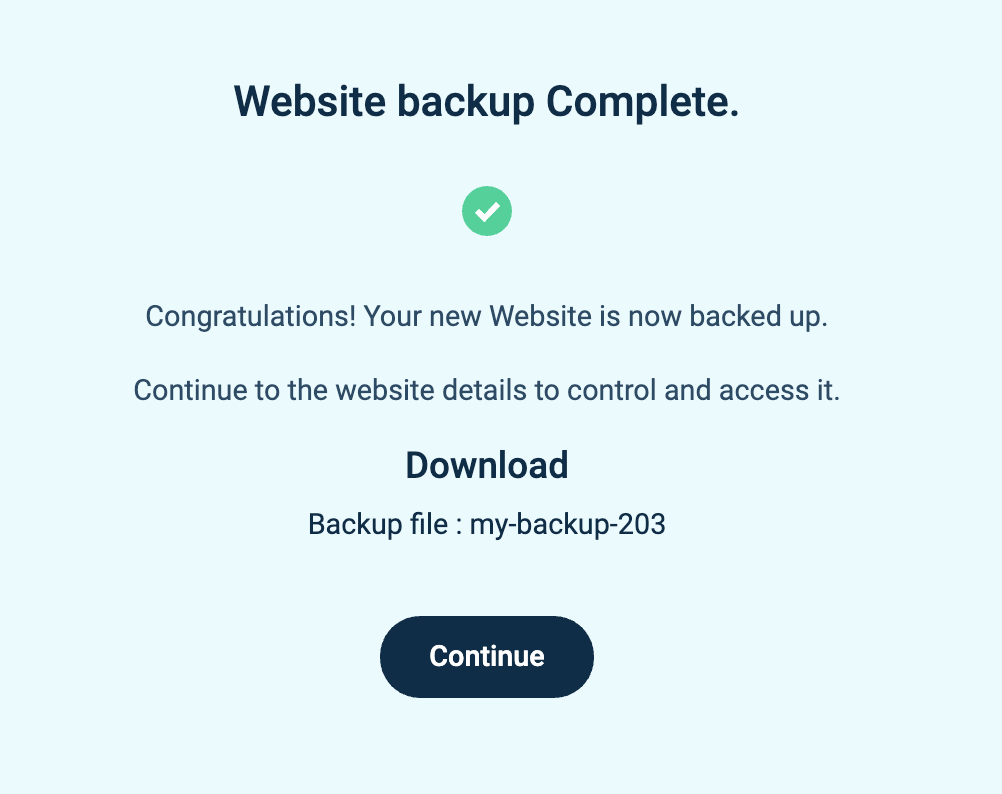
When the backup finishes, you'll get a confirmation and a download link to save a copy to your computer.
For how long backups are kept, see Backup retention.