Log in to the database
You can open your website's database straight from the Templ Panel using DB Admin, a built-in Adminer interface, without setting up any external tools or credentials.
Log in with DB Admin
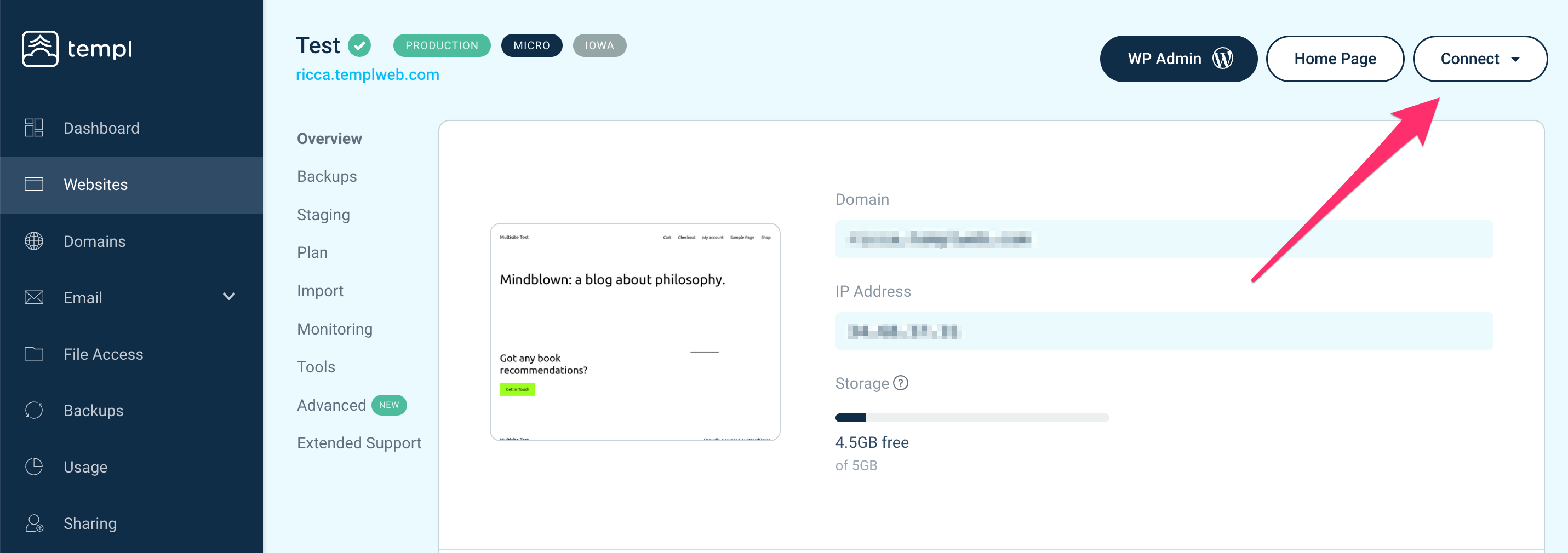
- Open the Templ Panel and click on the website that you want to access the database for.
- Click on the Connect button in the top right corner. From the dropdown menu, select DB Admin
- In the database login form, click Login without entering or changing any details - you will be logged in to the database automatically.
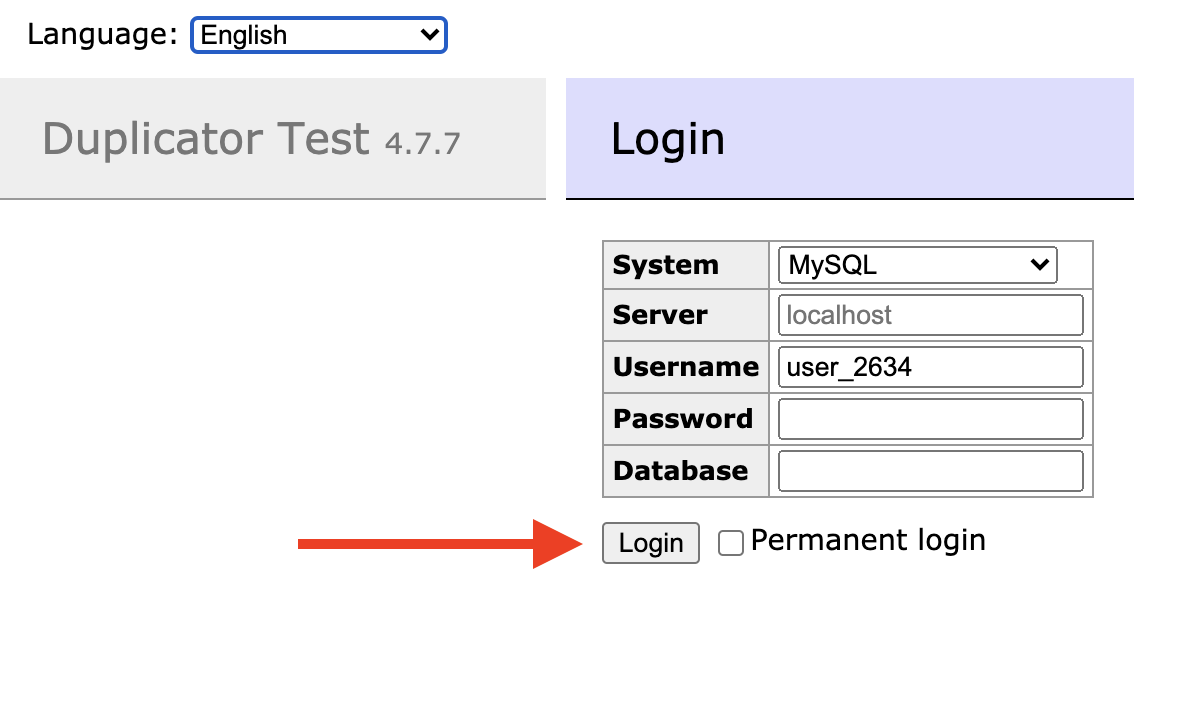 Even though you see a login form, access uses token-based authentication behind the scenes. Leave the form fields exactly as they are and simply click Login - there is no need to fill in any credentials.
Troubleshooting
Getting a 404? The first time you use DB Admin, a new secret URL is generated for it, which can take a brief moment. If you land on a 404 page, wait a moment and refresh, or click the link again.
Recommendations
- Create a backup: We strongly recommend creating a backup before making any changes to your database. This ensures you can restore your data if needed.
- Test changes on a staging site: Consider testing any changes on a staging site first. This practice helps prevent issues on your live site due to untested changes.