Subdomains
A subdomain is a prefix on your domain, like blog.yourdomain.com or shop.yourdomain.com, that you can point at a Templ website.
How you add one depends on whether Templ manages your domain's DNS or you manage it elsewhere.
Subdomains require a domain you control - you can't create them under a website's temporary domain (*.templweb.com or *.templtrial.com), where they don't exist in DNS.
See multisite for the alternatives.
Adding a subdomain for a domain already pointing to Templ with name servers
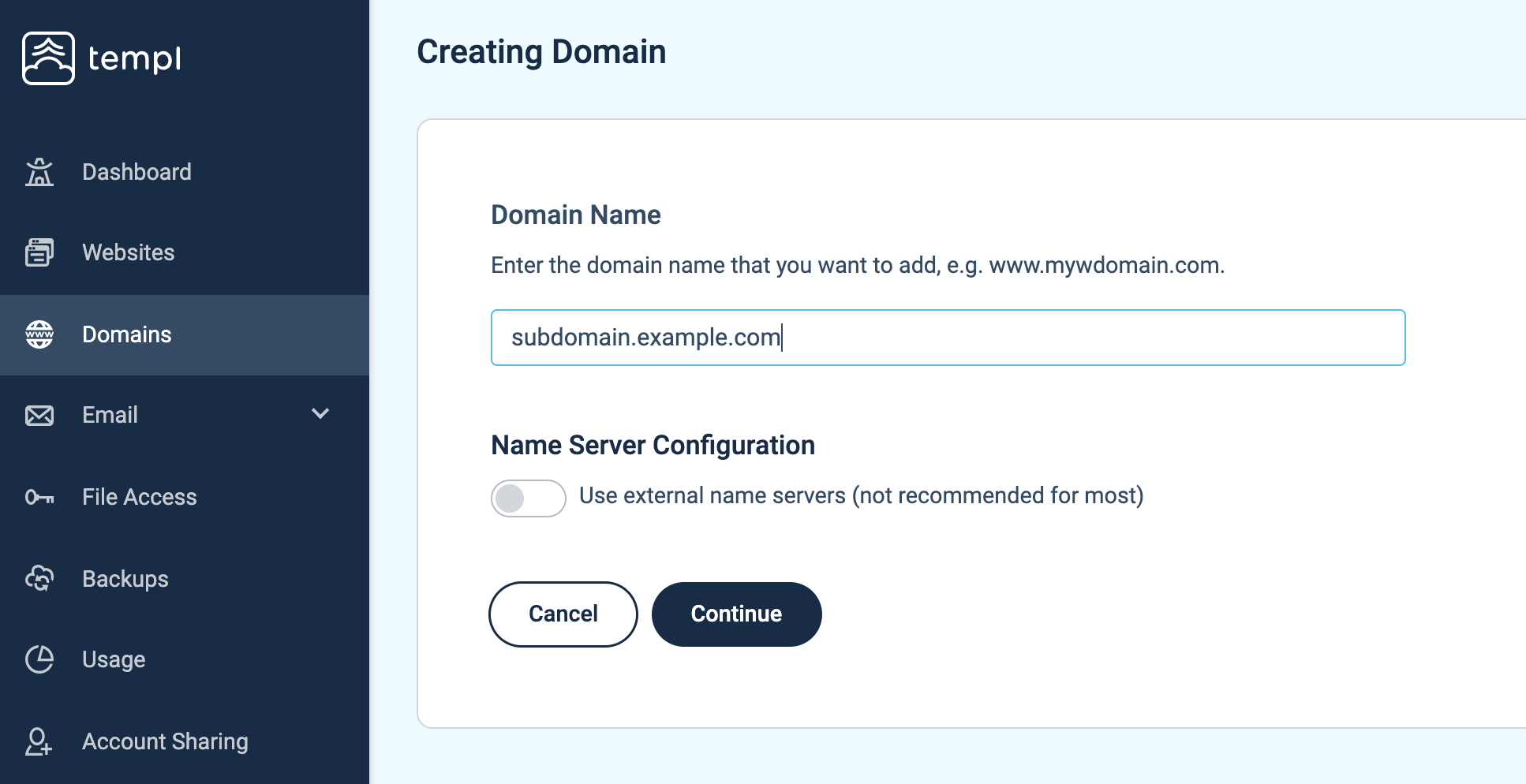
If you have added your domain and pointed it to Templ using our name servers, then all you need to do is to add your subdomain in the domain list and attach it to the website you want to use the subdomain on (see Choosing how to attach the subdomain below).
Do not activate the Use external nameservers option when you add the subdomain.
Adding a subdomain for domains with external DNS
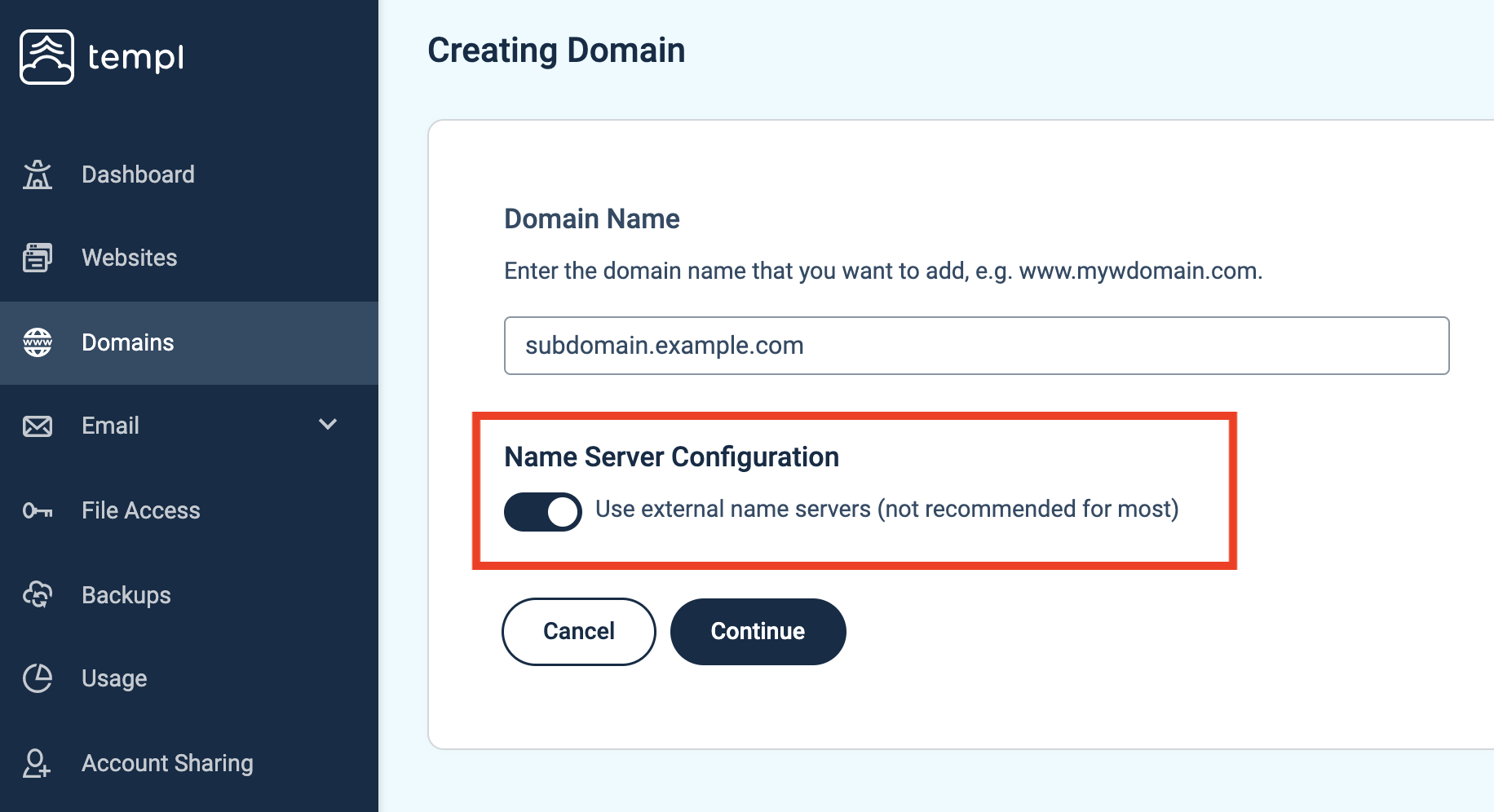
If you manage DNS for your domain externally, e.g. at Cloudflare or another DNS provider, then you need to add your subdomain in the Templ Panel with the Use external nameservers option selected.
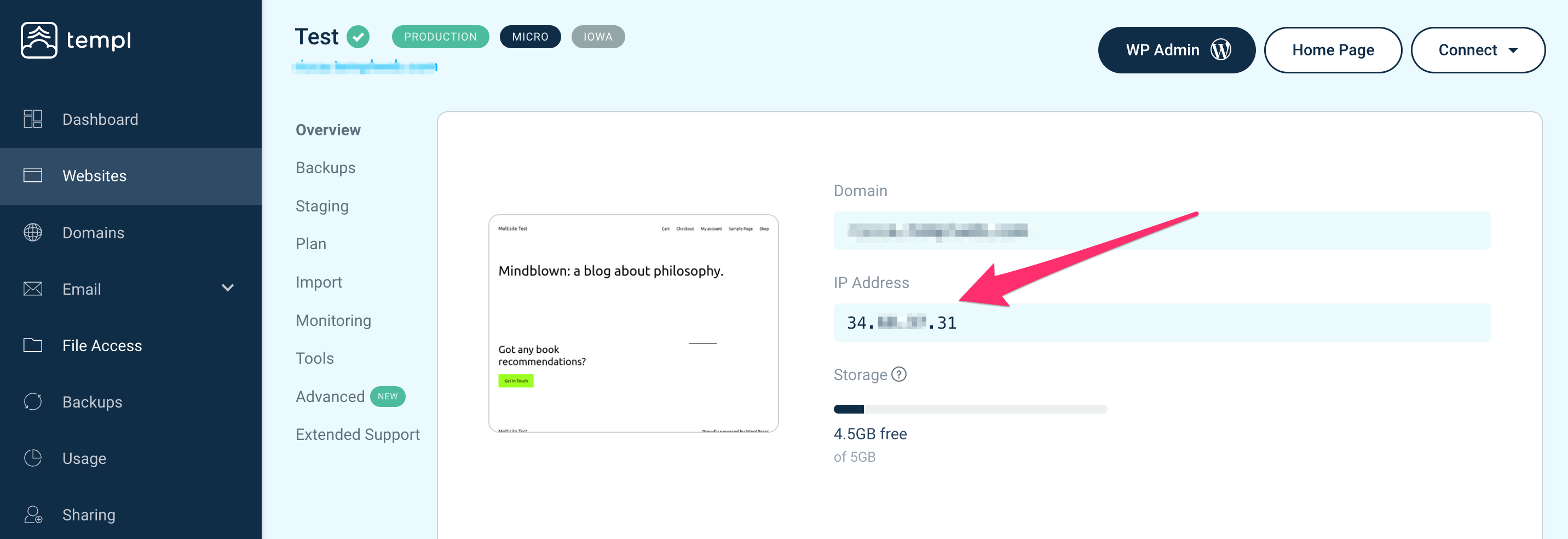
Before directing public traffic to Templ, attach the subdomain to the intended website - see Choosing how to attach the subdomain below. Then point the subdomain to Templ using an A-record. The A-record should point to your website's IP address, which can be found on the website details page - see the screenshot below for where to find your website's IP address.
For more detailed info on how to change A-records please see this guide.
Attach the subdomain
Once your subdomain is added, attach it to a website before directing public traffic to it. With Templ-managed DNS, attachment may update DNS automatically, so it is not a private testing step. Choose one of two ways depending on what you want:
- Make it the primary domain - use the change domain flow. This swaps the site's primary domain and runs a search-replace in the WordPress database.
- Attach it as an additional domain - keep the site's current primary domain unchanged and serve the subdomain alongside it, with no search-replace. This is the right choice for multilingual setups (for example TranslatePress serving different languages from different subdomains). See Additional domains.
Until the subdomain is attached to a website, it shows Website: - in the domain list, meaning it isn't connected to any website yet, and requests to it can return errors (such as HTTP 520 behind Cloudflare).
Subdomains for multisite networks
If the subdomain is part of a multisite network, add it as described above, then contact support with the subdomain and the website it belongs to. Multisite subdomains need an extra step on our side, so Templ staff attach them as additional domains and configure them for the network.
See multisite for the full setup, including how to enable multisite in WordPress.