Configure Cloudflare
Templ has partnered with Cloudflare, allowing you to access Cloudflare's features directly through Templ.
Why use Cloudflare with Templ
Cloudflare's free global CDN serves your content from data centers around the world, which strengthens your site's security and cuts your bandwidth costs by offloading traffic from the origin server. On top of that, Cloudflare protects your site against threats like DDoS attacks.
For sites that want to squeeze out even more performance, Cloudflare offers Automatic Platform Optimization (APO) as a paid add-on, which further reduces Time to First Byte (TTFB) and First Contentful Paint (FCP). All setup is handled by Templ.
Cloudflare is managed through our support team or the Cloudflare dashboard, not the Templ Panel. See Manage DNS for how to access your DNS settings.
Once your site is behind Cloudflare, you can also add WAF rules to block spam bots at the edge.
Get started
To enable this, we need to change your name servers and access your current DNS zone. If your domain and DNS are not already managed by Templ, we would appreciate it if you could transfer them to Templ first for a seamless experience.
Your email provider and DNS provider can be different. Changing nameservers (the servers that host your domain's DNS records) does not require moving email hosting, but all required email DNS records must be copied to the new DNS provider before the switch to keep email working.
Once that's done, simply contact our support team to get started. If you'd like direct access to the Cloudflare dashboard for your site, just let us know and we'll set it up for you.
Pricing
It's free of charge to use Cloudflare with Templ; however, please note that some Cloudflare products, such as Automatic Platform Optimization (APO) or other specific features, may incur additional costs.
Using your own Cloudflare account
You're welcome to set up Cloudflare yourself in your own account if you prefer. That said, we strongly recommend letting us handle the Cloudflare setup for you. This way we can offer managed DNS and more extensive support, just like you're used to.
If you'd like our help, contact our support team.
Clearing the Cloudflare cache
There are two ways to clear the Cloudflare cache:
- Via the Cloudflare dashboard: Under Caching → Configuration, clear the entire cache (Purge Everything) or perform a custom purge.
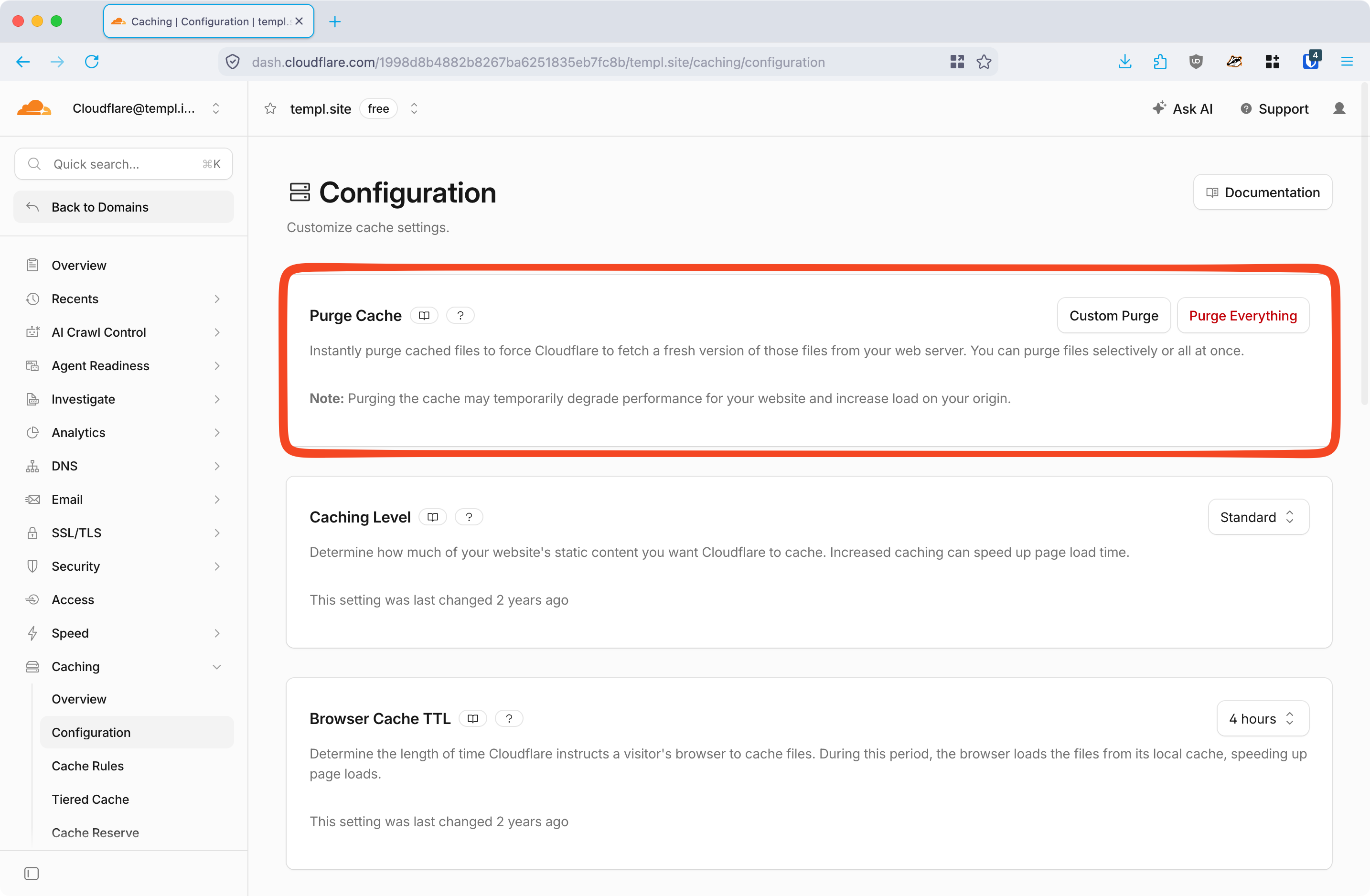
- Using the WordPress plugin: Install the Cloudflare WordPress plugin to manage cache and settings directly from WP Admin.
Troubleshooting
Error "ERR_TOO_MANY_REDIRECTS"
Flexible mode connects Cloudflare to Templ over HTTP. Templ redirects HTTP to HTTPS, which can cause a redirect loop.
Templ automatically issues, installs, and renews your website's SSL certificate. Once the certificate for your domain is ready, choose Full (strict) under SSL/TLS → Overview in Cloudflare. This secures the connection between Cloudflare and Templ and verifies the certificate.
If you just changed your website's domain, wait for Templ to replace the temporary certificate before enabling Full (strict). If you're unsure whether it's ready or Cloudflare shows error 526, contact support and we'll check it for you.
Error 520
Cloudflare returns a 520 error when it receives an unexpected or empty response from the origin server. There are two common causes:
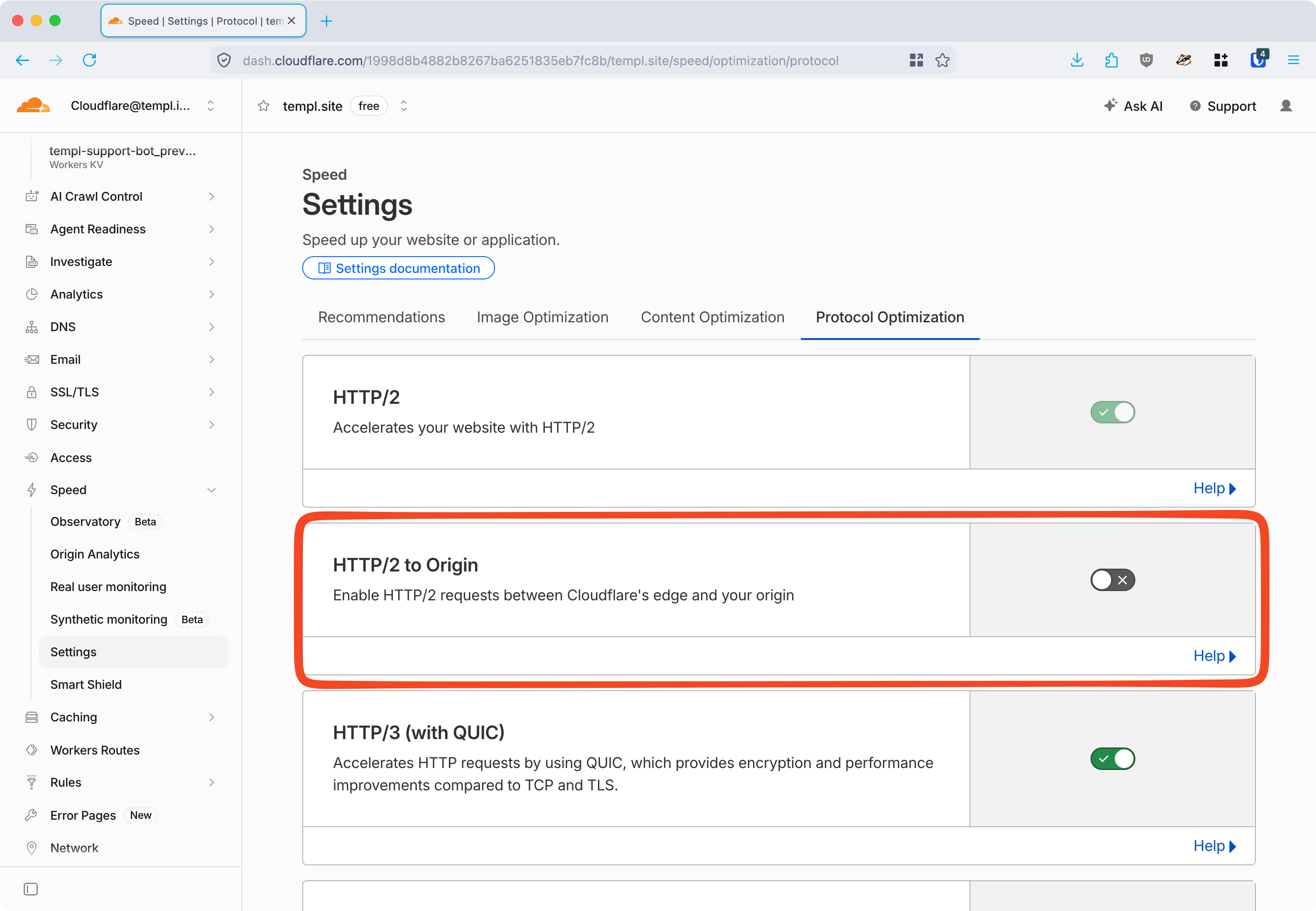
- HTTP/2 to Origin. These errors can often be avoided by disabling HTTP/2 to Origin in Cloudflare, under Speed → Settings → Protocol Optimization.
- The domain isn't linked to any website. Attach it first - see Additional domains.
Origin SSL certificate is pending
Cloudflare's visitor-facing certificate is separate from the certificate on Templ's server. A completed primary-domain change does not mean the final origin certificate has been issued yet.
Check that your Cloudflare DNS records point to Templ and that certificate-validation requests can reach the website. You can request issuance with Generate SSL Certificate in the Templ Panel. See Certificate validation through Cloudflare for troubleshooting and the HTTPS risks of changing proxy settings.
Origin certificate renewal fails
If you manage your own Cloudflare account, check that its security rules allow certificate-validation requests to reach Templ. See Certificate renewal with Cloudflare for the required path and the risk of expiry with Full (strict).