SSL certificates
Every website hosted on Templ gets a free SSL certificate from Let's Encrypt that is installed and renewed automatically. You do not need to buy, install, or renew anything.
Automatic SSL certificates
Changing the primary domain completes immediately, without waiting for DNS or final SSL issuance - see domain assignment and search-replace. Templ uses a trial-domain certificate while the final Let's Encrypt certificate is pending. It does not match your custom domain, so a browser connecting directly to Templ on that domain will show a certificate warning. The final certificate is issued automatically once your domain resolves to Templ, activated automatically once issued, and renewed automatically before it expires.
- If Templ manages your DNS (your domain uses Templ's name servers), there is nothing for you to do. The certificate is generated automatically once the domain is added and its records have propagated.
- If you manage your DNS externally (the domain points to Templ via A-records or your own name servers), the certificate can only be generated once those records are correct and have propagated. Most delays and failures come from this case.
Why is my certificate taking long or not generated yet?
When a domain is waiting for certificate issuance, you may see this Panel message:
Your domain has been added, but it has no SSL certificate yet. A certificate will be generated once the DNS records are up to date and propagated.
This message concerns final certificate issuance, not whether the primary domain has been assigned. A temporary certificate does not mean the final Let's Encrypt certificate is ready. DNS that does not yet point to Templ prevents Let's Encrypt from verifying the domain. If Templ manages your DNS, this resolves on its own once records propagate. If you manage DNS externally, check the following - in order of how common they are.
1. DNS hasn't propagated yet
DNS changes take time to spread across the internet.
- Name server changes: allow 4 to 8 hours for .com and .net domains, and 24 to 48 hours for other extensions.
- A-record changes: usually faster, but still depend on your previous TTL.
We recommend DNS Checker to verify your records from locations around the world: enter your domain, select the record type (A for A-records, NS for name server changes), and confirm it resolves to Templ everywhere before expecting a certificate.
Green checkmarks across all locations mean the change has propagated.
2. A-records for @ and www don't match
The A-records for both @ and www must point to your website's IP address on Templ, and they must be identical.
A certificate covers both the root domain and the www version, so if only one is correct - or they point to different IPs - generation fails.
Find your website's IP under Websites → your website → Overview in the Panel, then set both @ and www A-records to it.
See Change an A record for the full steps.
To verify, use DNS Checker: enter your domain, select A from the dropdown, and confirm it returns your Templ IP - then repeat for the www version.
3. AAAA (IPv6) records exist on @ or www
@ and www.
These are IPv6 records and are not used on Templ.
If they exist, DNS resolves over IPv6 to somewhere other than Templ, which contradicts your A-record and blocks automated SSL generation.Confirm none exist with DNS Checker: enter your domain, select AAAA from the dropdown, and check that no records are returned for either @ or www.
4. Validation through Cloudflare
When Cloudflare's proxy is enabled, public DNS returns Cloudflare's IP addresses rather than Templ's. Check that the records in your Cloudflare dashboard point to the Templ website and that security rules allow certificate-validation requests to reach it. See Certificate renewal with Cloudflare for the validation path.
If the final certificate is missing, try Generate SSL Certificate as described below. If issuance fails, contact support with the domain and error message.
Switching a live domain to DNS only sends visitors directly to Templ and exposes its origin certificate. If that certificate is not yet valid for the domain, visitors can encounter HTTPS errors; coordinate any proxy change with support.
5. A temporary queue on Templ
Occasionally there's a short delay on our side: when many certificates are being generated or renewed at the same time, new requests queue up and take a little longer to process. If your DNS is correct and fully propagated but the certificate still isn't there, wait a bit longer or trigger it manually below. If it still doesn't appear, contact support and we'll look into it.
Generate the SSL certificate manually
If the certificate hasn't been generated automatically after your DNS is correct and fully propagated, you can trigger it yourself.
- Go to Domains in the left menu of the Templ Panel.
- Find your domain, click on it, and click Generate SSL Certificate.
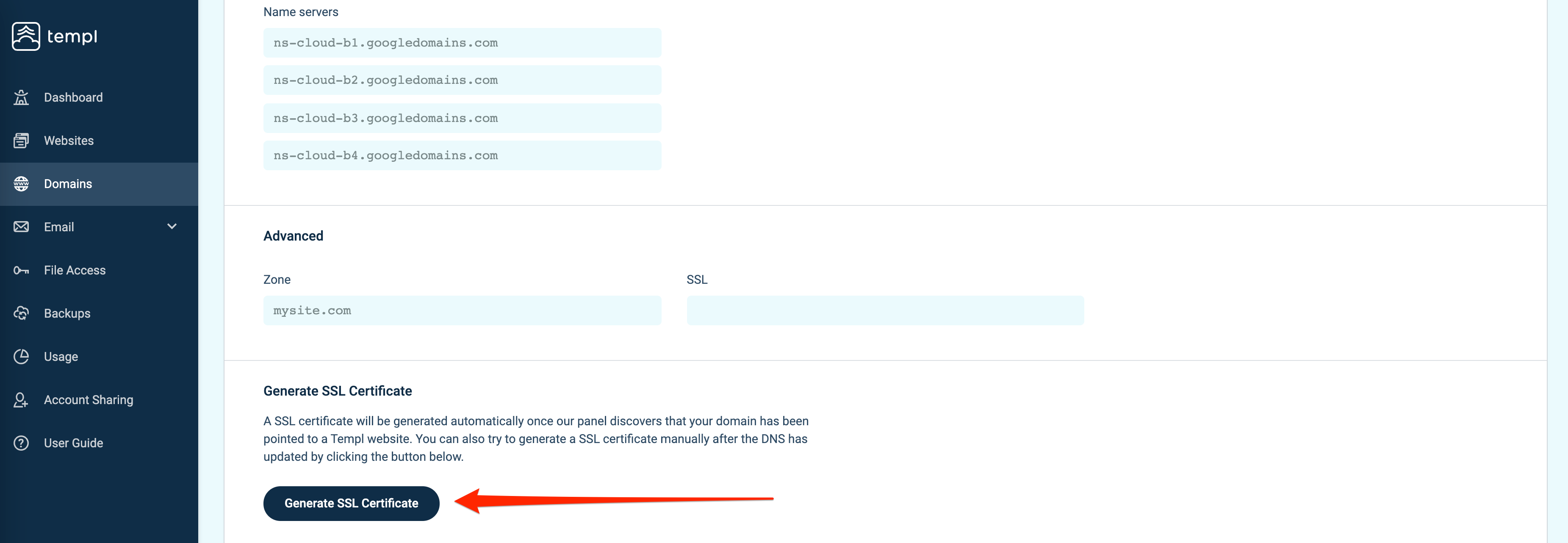
The Generate SSL Certificate button is shown whenever that domain has no certificate and no other operation is running on it - it does not wait for DNS to propagate.
If you don't see it, the domain already has a certificate, or an operation on it is still in progress: wait for it to finish and reload the page.
Each domain entry has its own button, so check the entry for the exact domain you added (for example www.example.com if you added it separately).
If it still fails, contact support - the DNS records are almost always the cause.
Renew certificates through Cloudflare
When Cloudflare's proxy is enabled, visitors see Cloudflare's certificate, which is separate from the origin certificate on Templ's server. With the proxy disabled (DNS only), visitors connect directly to Templ and see its certificate. If you manage your own Cloudflare account, its proxy or settings can interfere with Templ's automatic renewal.
With Full (strict) enabled, an expired origin certificate causes Cloudflare to reject the connection, making your website unavailable.
For renewal, Let's Encrypt requests http://<your-domain>/.well-known/acme-challenge/<token> over HTTP port 80. Cloudflare WAF rules, bot challenges, and access restrictions must not block these requests or prevent them from reaching Templ. Scope any exceptions to /.well-known/acme-challenge/, not the whole website.
If renewal fails, contact support before expiry to resolve it while keeping certificate verification enabled.
Install a custom SSL certificate
The free automatic certificate is enough for the vast majority of sites. If you need to install a certificate from a third-party provider (for example an EV or wildcard certificate purchased elsewhere), you can.
Preparation
This assumes you have already bought your certificate and downloaded the certificate files. The files needed for installation on Templ are the SSL certificates for Nginx:
- domain.com.cert - the SSL certificate, which should also include the certificate chain
- domain.com.key - the private key
Some providers deliver the certificate and its chain as two separate files:
- domain.com.cert
- domain_com.ca-bundle (the certificate chain as a separate file)
These must be combined into a single domain.com.cert file, which then has to match the private key.
Make sure the certificate matches the private key
Keep the private key on your computer; do not paste it into an online certificate checker. Use OpenSSL locally to compare the public keys. These commands work for both RSA and EC keys and do not print the private key.
Extract the public key from your certificate:
openssl x509 -in domain.com.cert -pubkey -noout
Extract the public key from your private key:
openssl pkey -in domain.com.key -pubout
Both commands must succeed and print the same complete BEGIN PUBLIC KEY block. If either reports an error, fix the file path or format before comparing. Matching public keys confirm the pair belongs together, not that the certificate is unexpired or valid for your domain.
Installation
Installing a custom certificate is handled by Templ Support. Contact support to arrange installation and a secure transfer method for the combined domain.com.cert (certificate plus chain, in Nginx format) and matching domain.com.key. Keep the private key out of the initial message; it must remain confidential.
Enforce HTTPS with HSTS
Final SSL issuance and the HTTP-to-HTTPS redirect are automatic, but HSTS is not. Verify that your domain loads over trusted HTTPS without certificate warnings before enabling HSTS. If a security scan flags a missing Strict-Transport-Security header, see Add HSTS and security headers for how to add it.