Verify Google Search Console
There are several ways to verify domain ownership when you add your website in Google Search Console.
Verifying by DNS TXT record is the best method as it doesn't require you to add any code on your website.
How to verify domain ownership via DNS record for Google Search Console
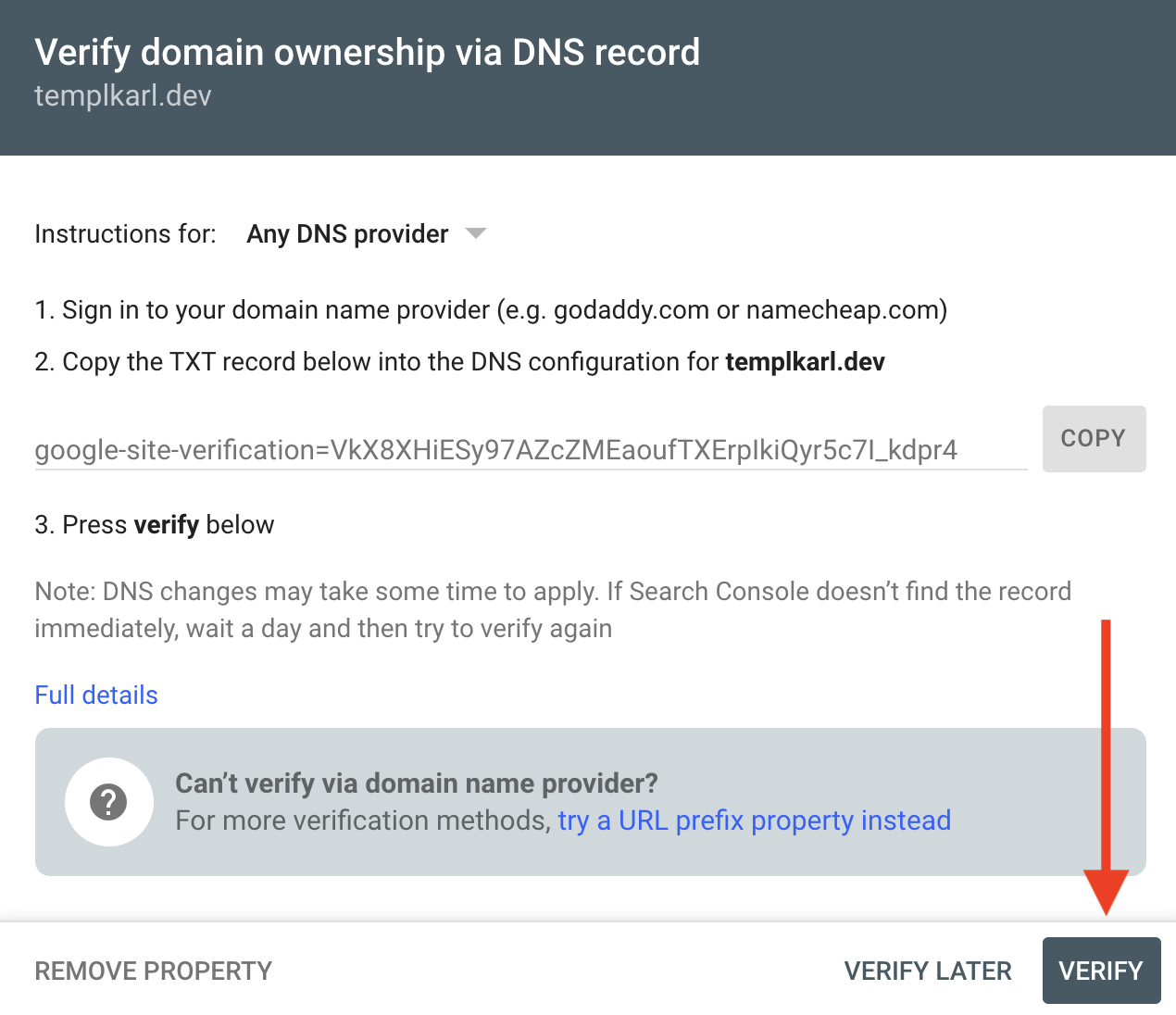
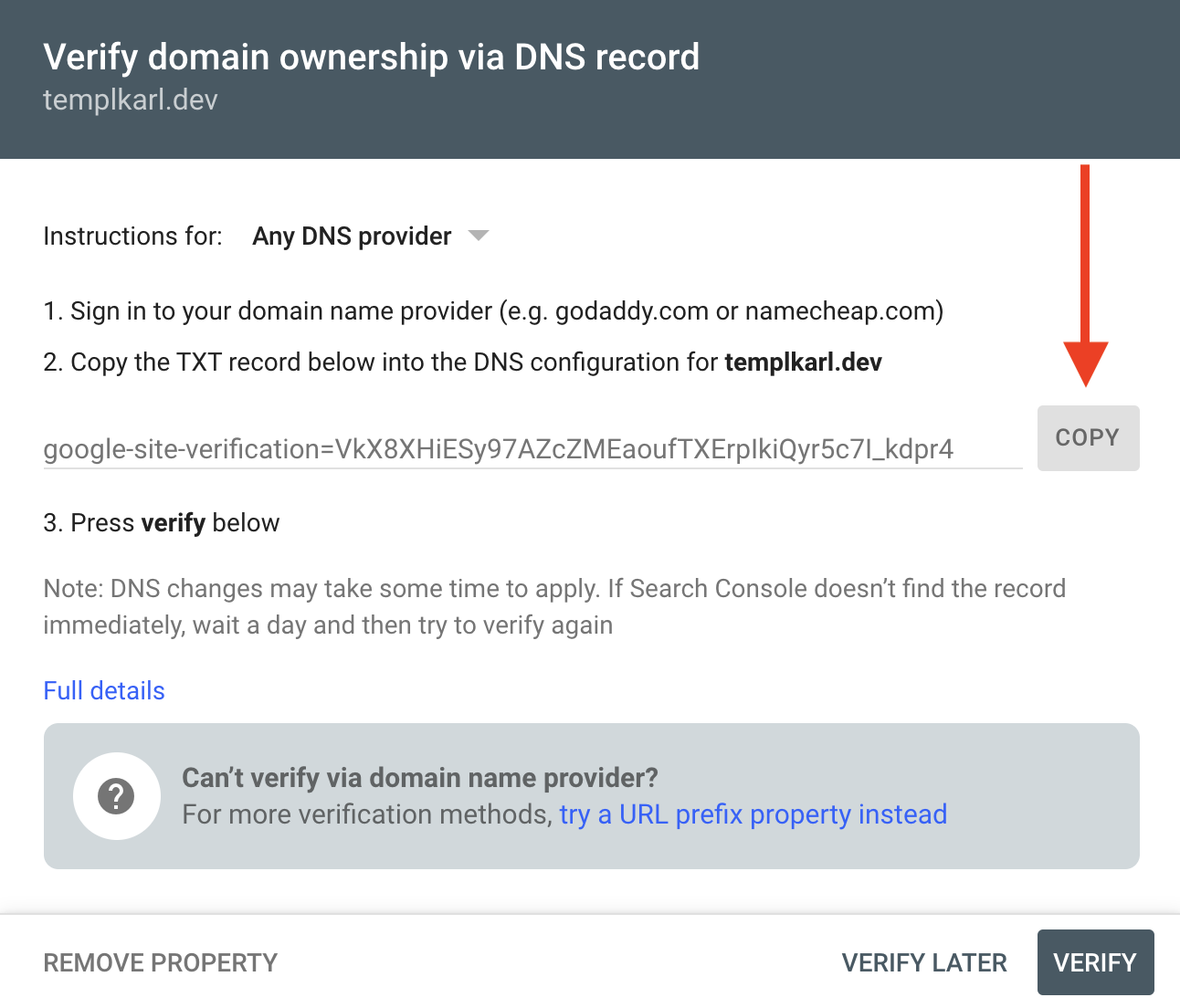
When you first add your website in Google Search Console you will be greeted by a screen that gives verification options. Select DNS verification and copy the verification code.
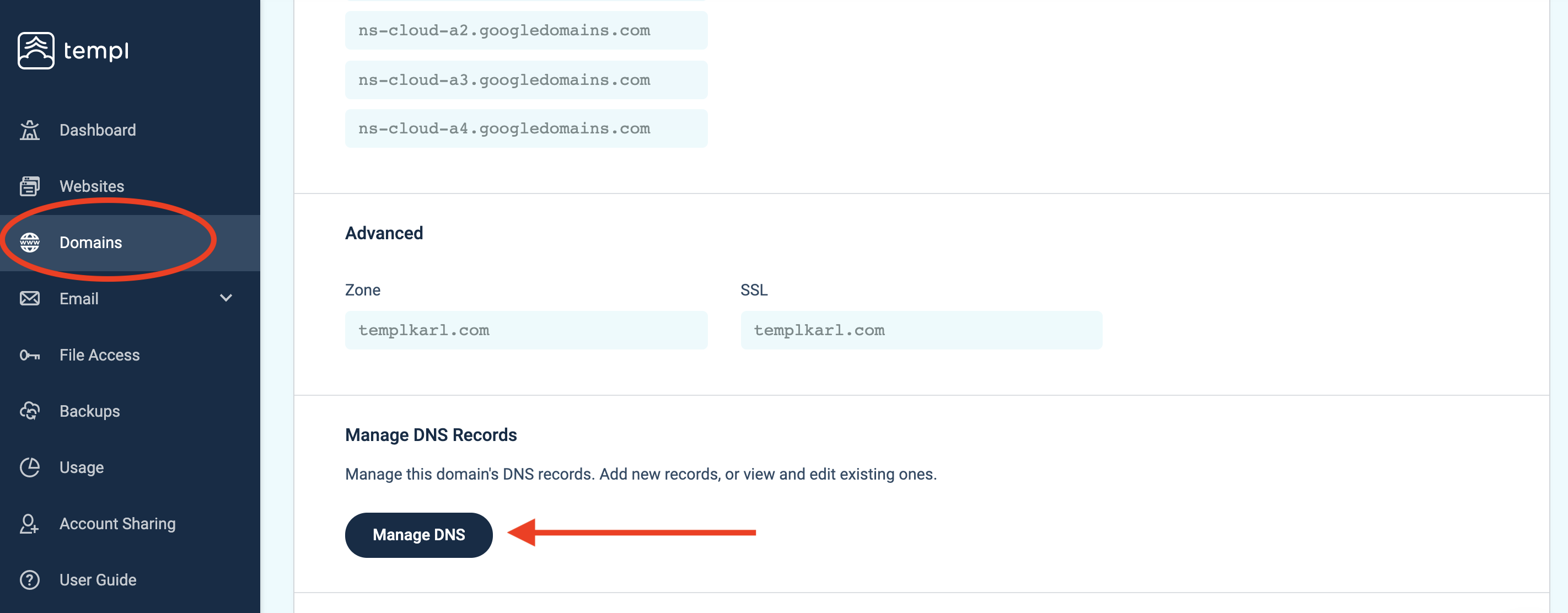
The next step is to navigate to the Templ Panel and click Domains → YourDomain.com → Manage DNS.
These Panel instructions apply to domains using Templ's Google Cloud DNS. For Templ-managed Cloudflare DNS, add the TXT record in the Cloudflare dashboard or ask support to add it. If your DNS is managed elsewhere, add the same TXT verification record at your DNS provider instead, or switch to Templ-managed DNS.
Add the verification code
It's likely there will already be a TXT record for your domain that you need to edit and add the verification code to. See below screenshot for reference:
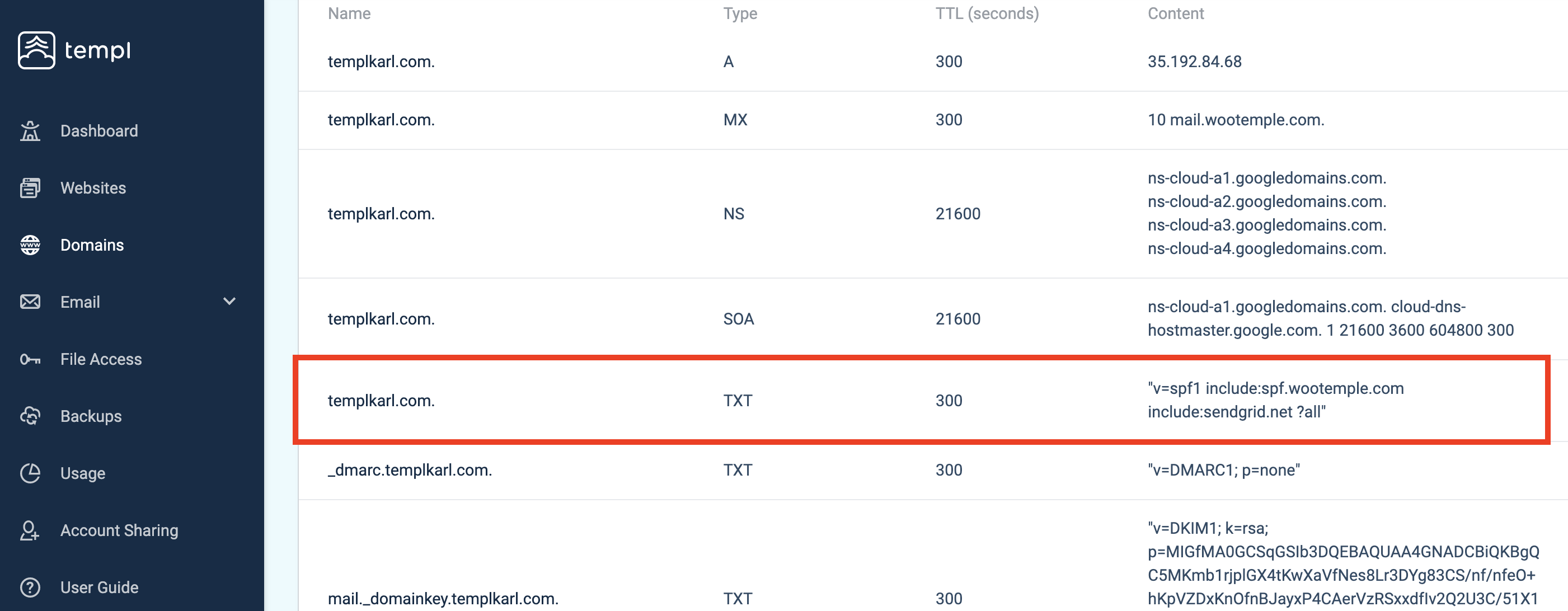
Click on the TXT record for your root domain (e.g. yourdomain.com without any prefix or subdomain) to edit the record.
Add your Google site verification code wrapped in quotes on a new line like this:
"google-site-verification=VkX8XHiESy97AZcZMEaoufTXErpIkiQyr5c7I_kdpr4"
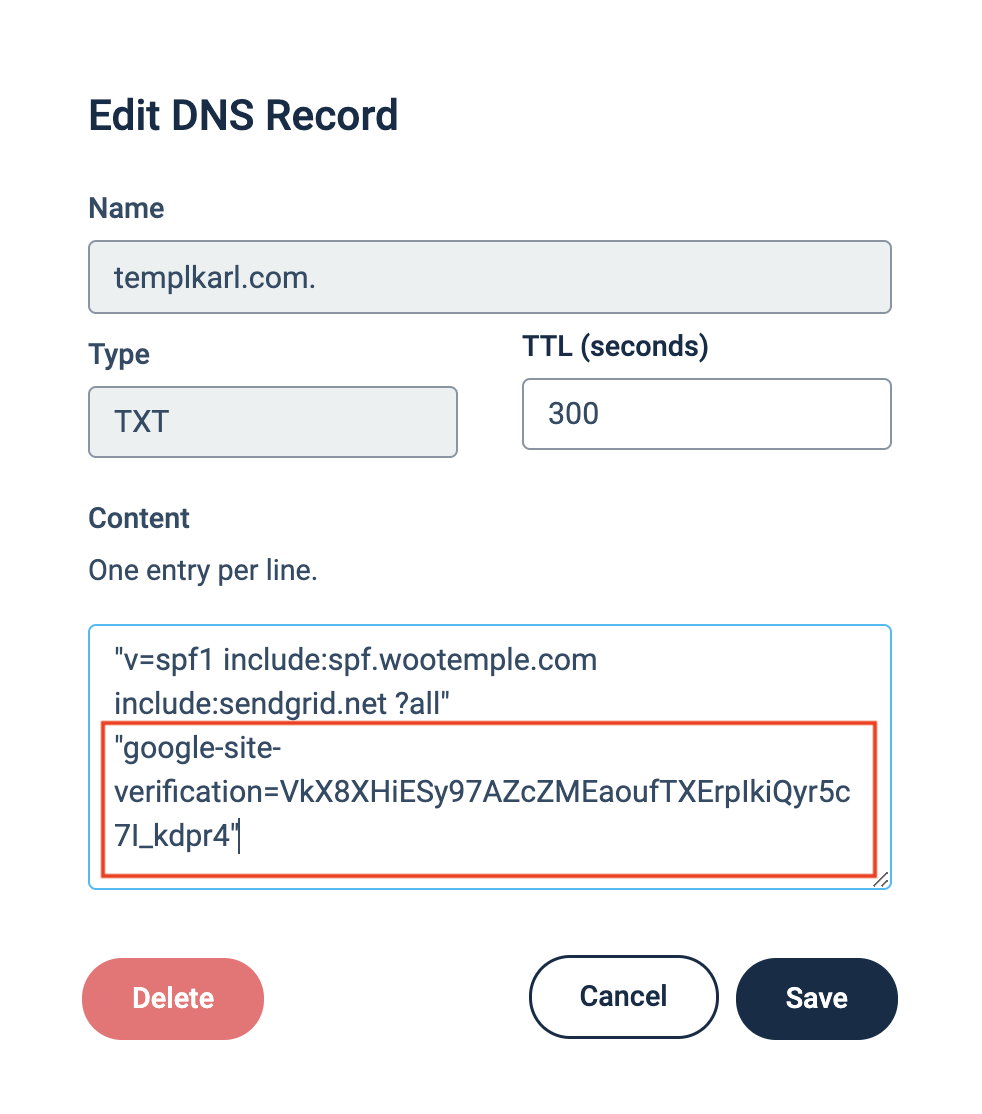
Once you have added your Google site verification code on a new line, go ahead and click Save.
Then wait a minute or two for the DNS to propagate then go back to Google Search Console and click Verify and you're all done.