Manage your domain registration
This article describes how to manage a domain registered with Templ: renewals, contact information, ownership transfers, name servers, DNSSEC, and deletion. For a domain registered elsewhere, manage these settings at your registrar, or transfer the domain to Templ to manage it here.
Renewing a domain name
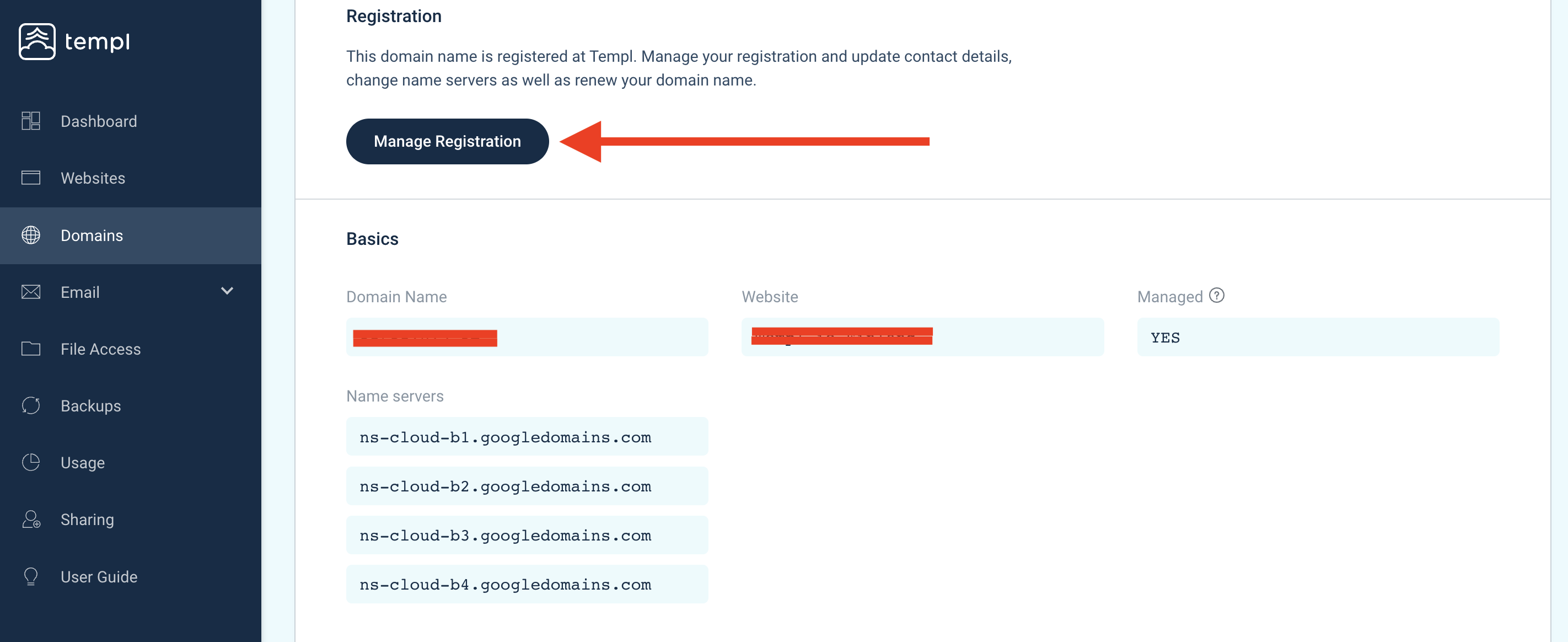
In the Templ Panel, navigate to Domains and click on the domain you would like to renew/extend. Then click on Manage Registration.
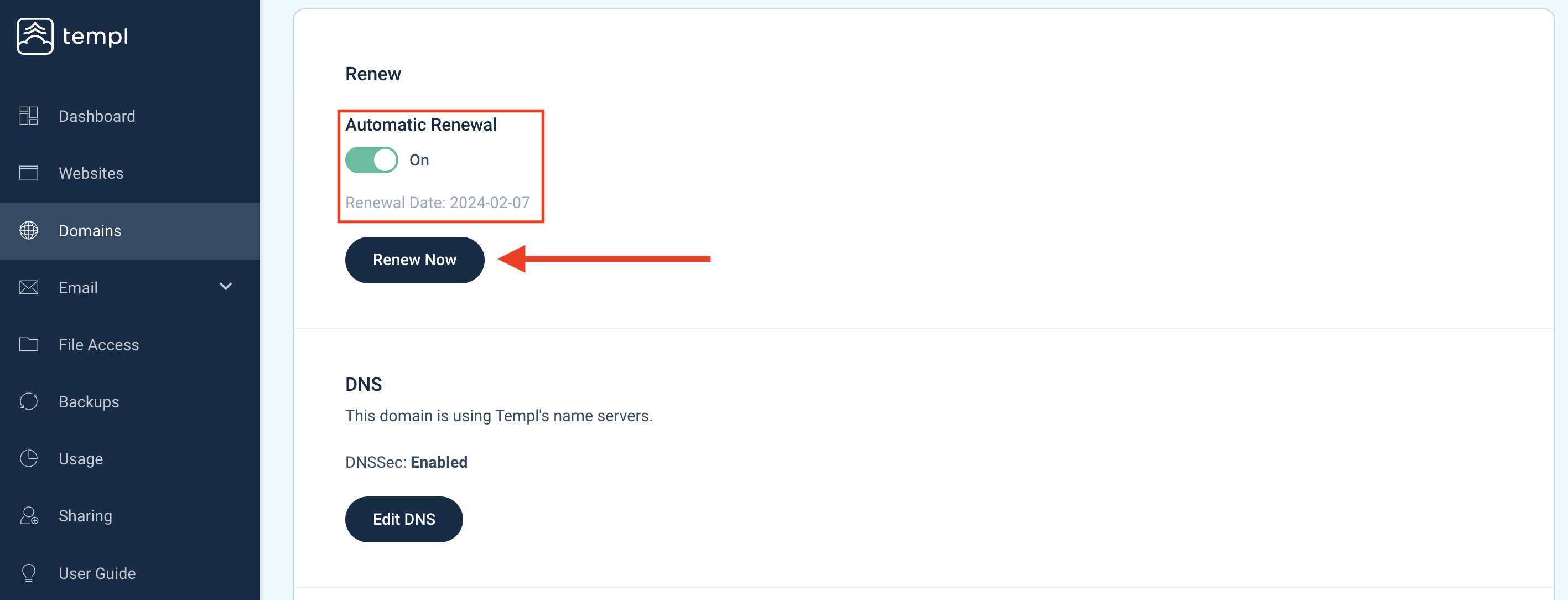
After that you will see if your domain is set to renew automatically or not. If you want to activate automatic renewal for your domain, simply switch the toggle to On.
You can also choose to renew your domain manually here by clicking Renew Now.
Updating domain contact information
In the Templ Panel, navigate to Domains and click on the domain you would like to update the contact information for. Then click on Manage Registration followed by Edit Contacts, after that you will be able to change the contact details for the domain.
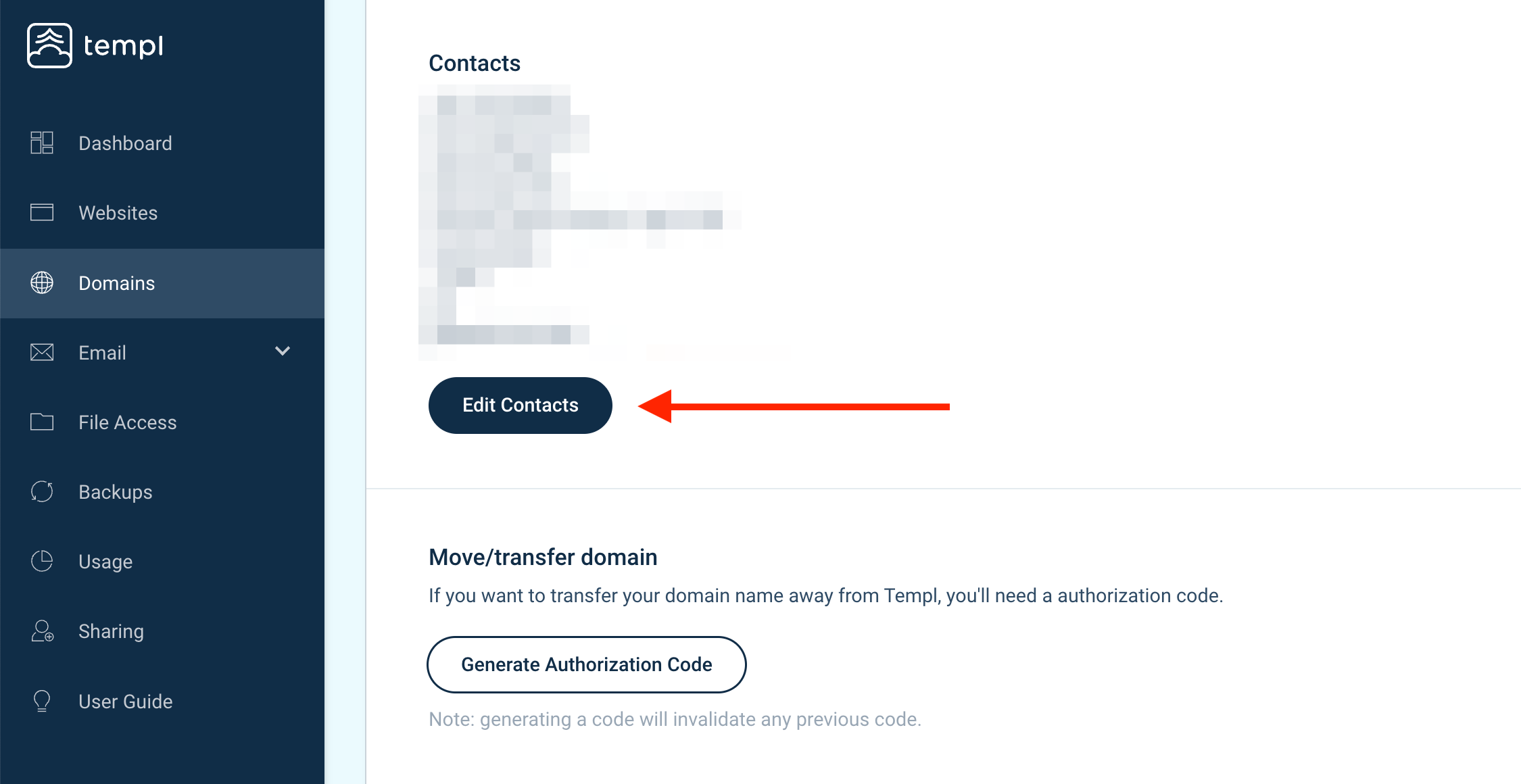
Required information includes personal identity/business registration number, name, address, email and phone number.
Use this to correct or update the details of the current holder. Changing the registrant to a different person or company is a change of holder - a formal operation at the domain registry with extra requirements. See Transfer domain ownership for how it works and which method to use.
Administration of name servers
In the Templ Panel, navigate to Domains and click on the domain you would like to update the name servers for. Then click on Manage Registration followed by Edit DNS.
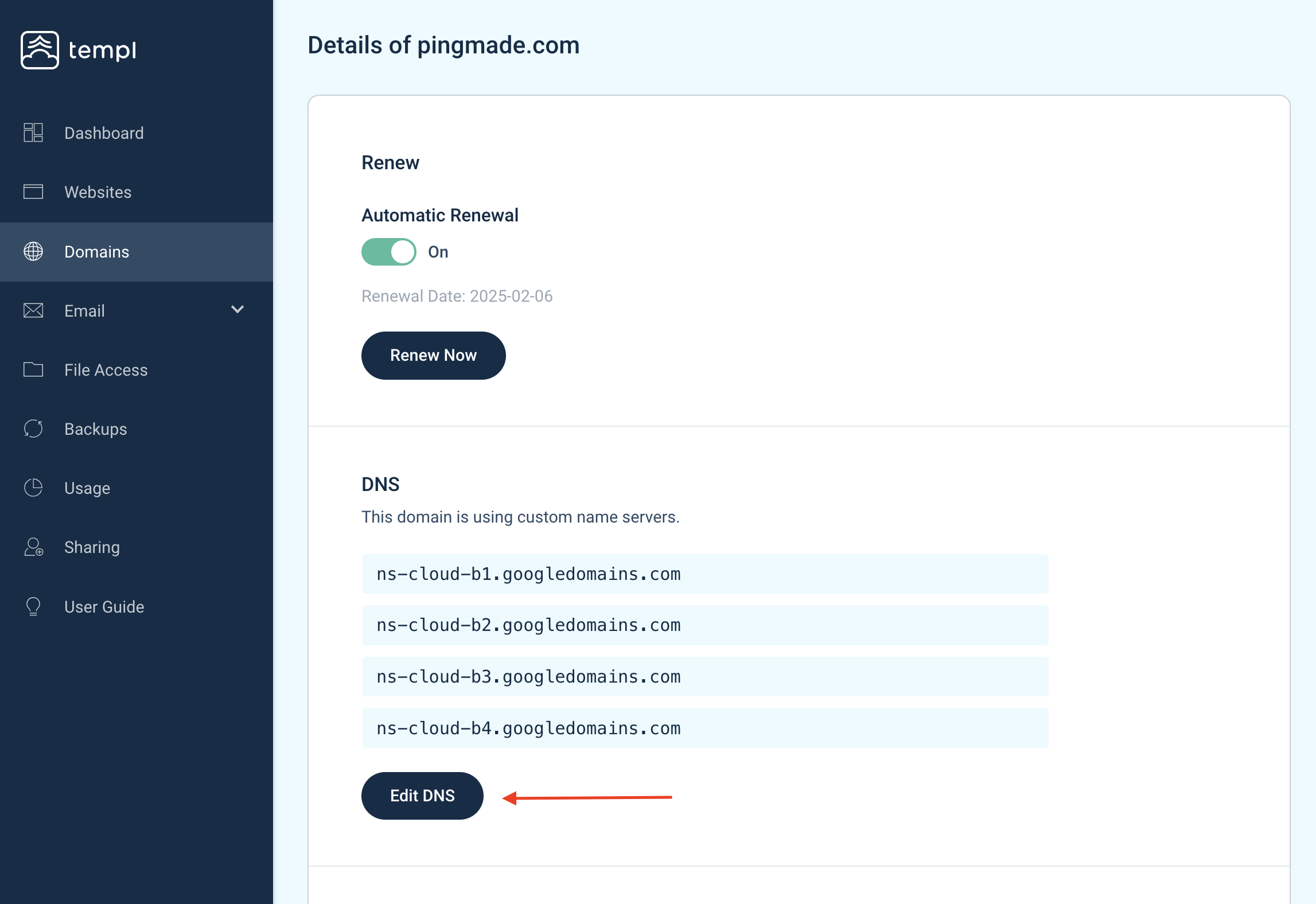
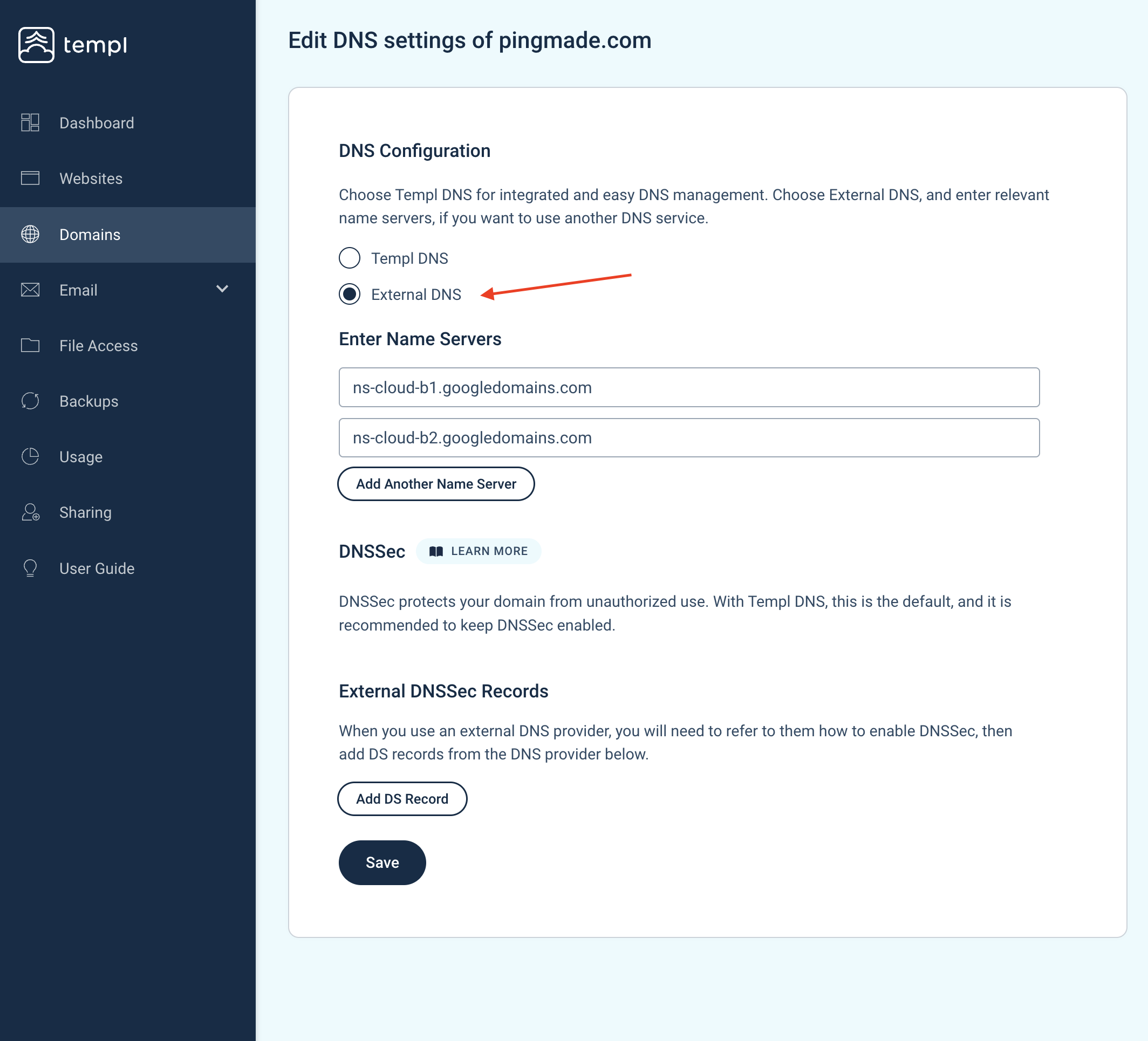
From here you can choose between Templ DNS and External DNS.
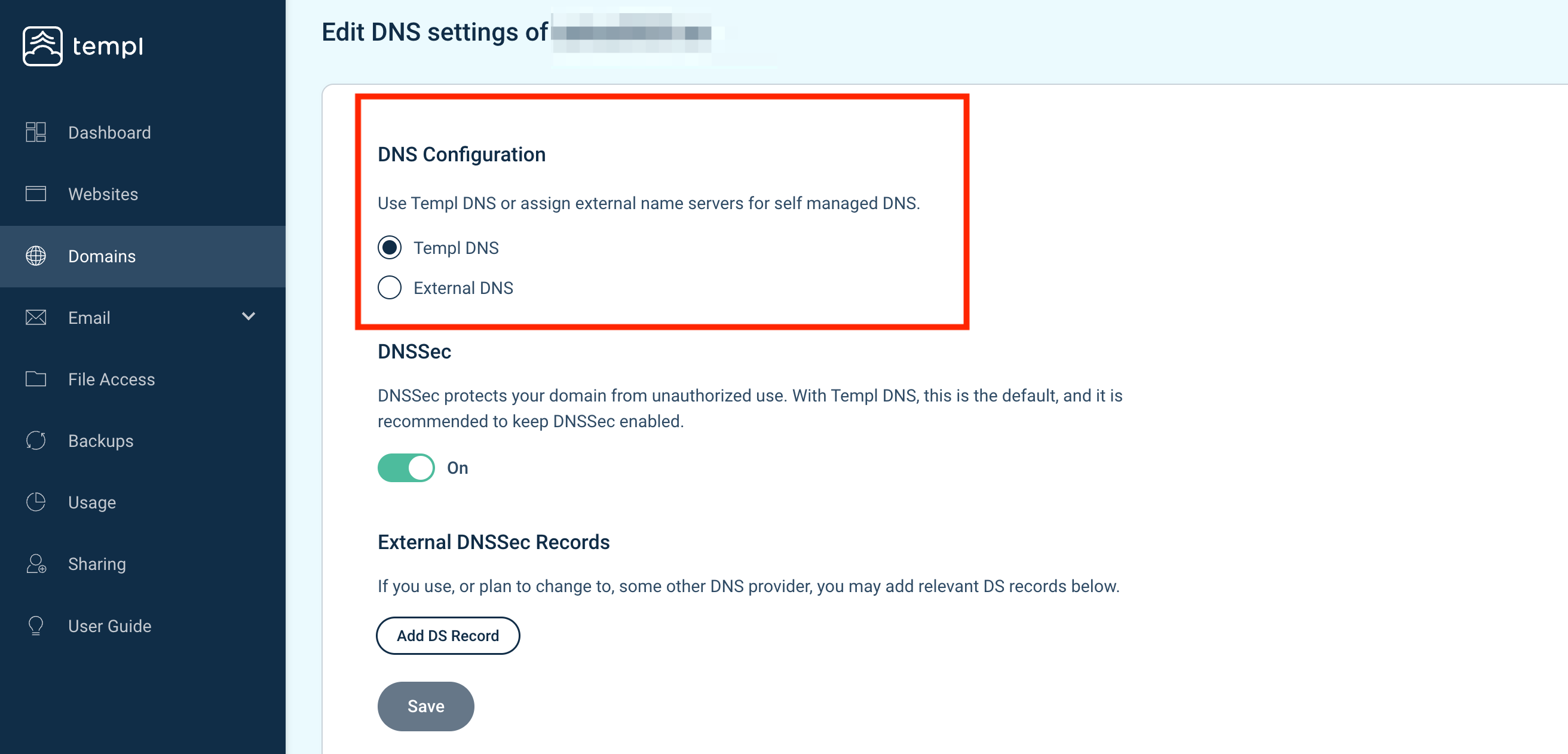
We generally recommend using our DNS because of two reasons:
- Fast propagation times.
- Our support can help make DNS changes if DNS managed by us.
To hand DNS to an external provider like Cloudflare, choose External DNS, fill in the new name servers, and click Save.
Move/transfer domain
If you for any reason need to transfer your domain away from Templ you can do so by generating an authorization code.
In the Templ Panel, navigate to Domains and click on the domain you would like to transfer/move away. Then click on Manage Registration followed by clicking on Generate Authorization Code.
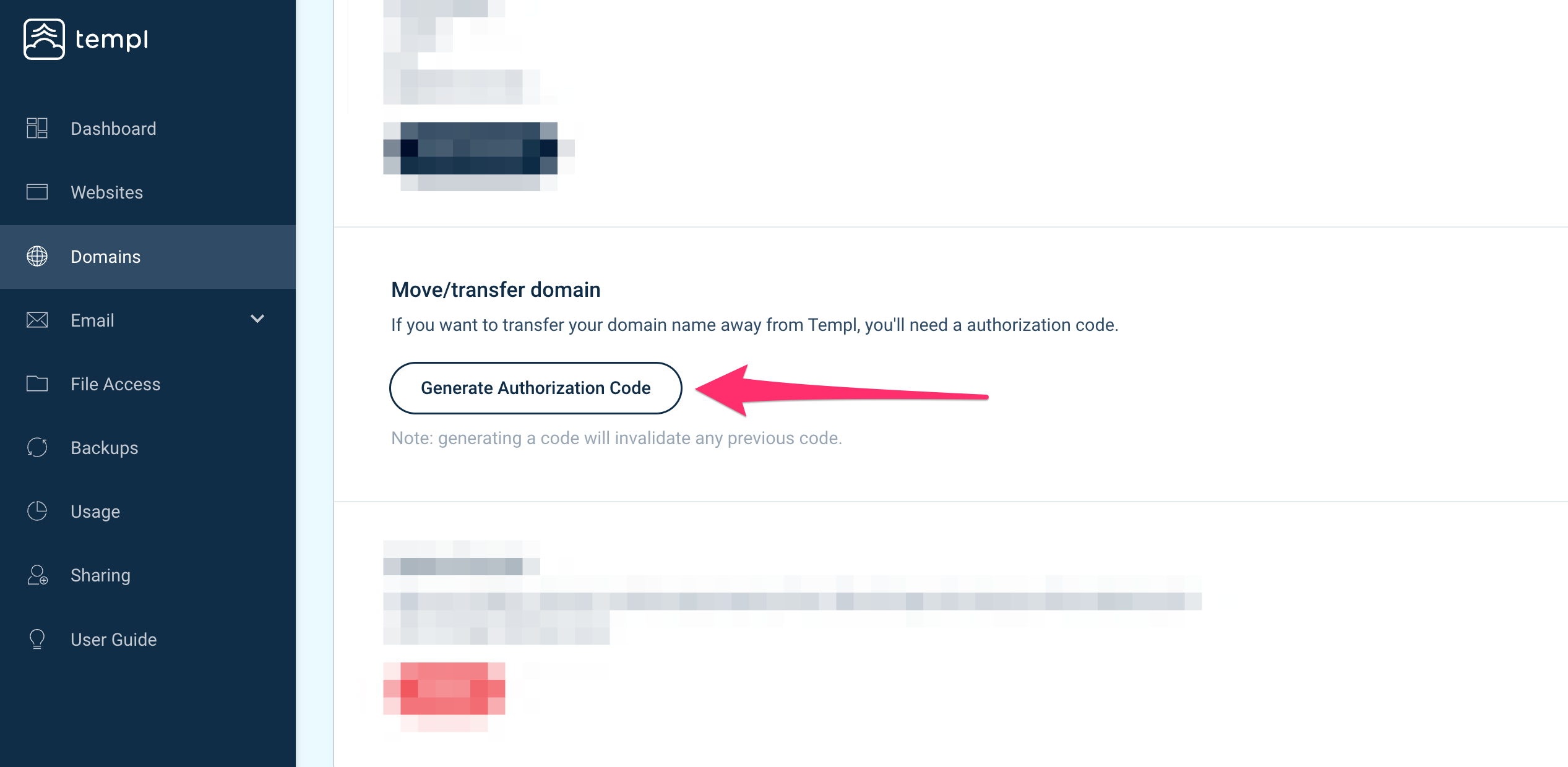
The next step is to paste the authorization code at the registrar you're moving the domain to.
Transferring to another registrar changes who technically manages the registration, not who legally owns the domain. If your goal is to change the domain's owner, see Transfer domain ownership for the right method.
Cancel/delete domain
In the Templ Panel, navigate to Domains and click on the domain you would like to cancel/delete. Then click on Manage Registration followed by clicking on Delete.
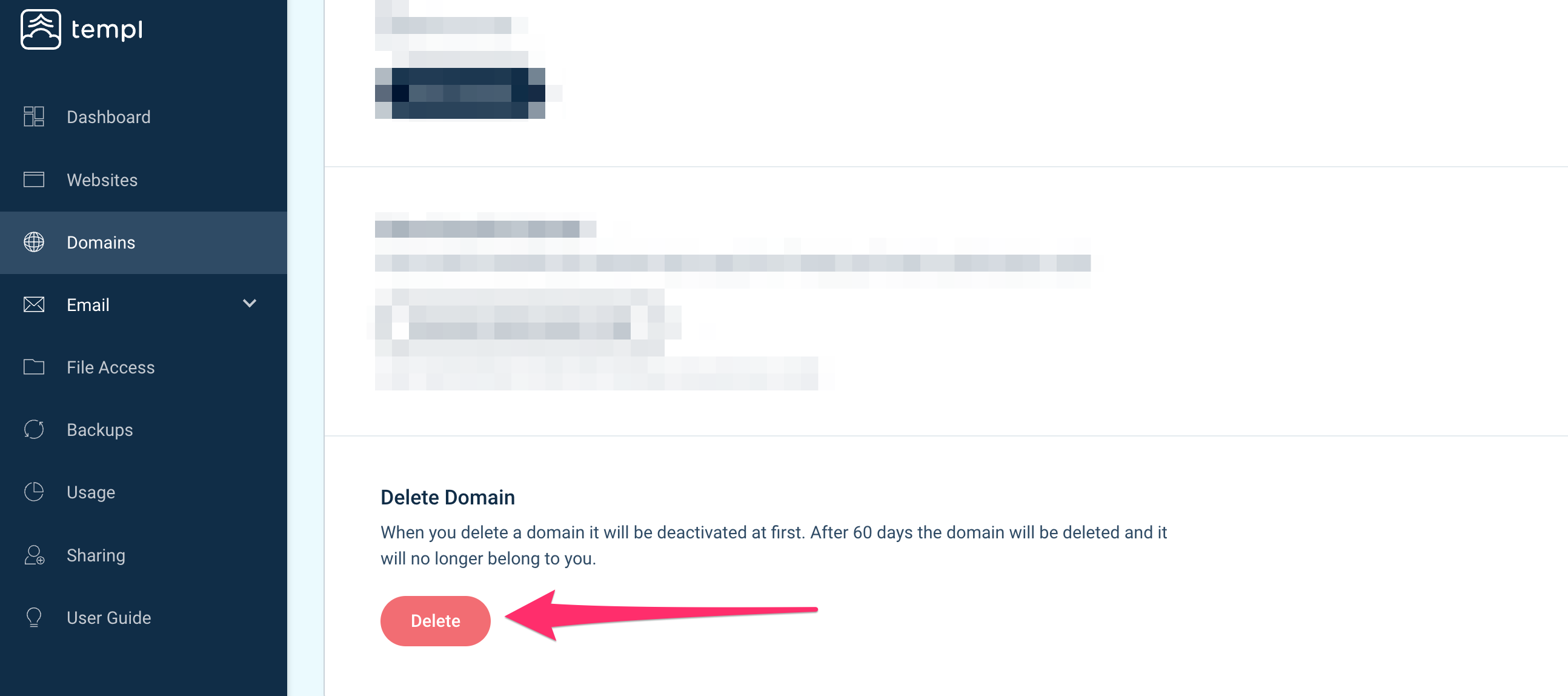
When you delete a domain it will be deactivated at first. After 60 days the domain will be deleted and it will no longer belong to you.
DNSSEC and DS records
In the Templ Panel, navigate to Domains and click on the domain you would like to update DNSSEC or DS records for. Then click on Manage Registration followed by Edit DNS.
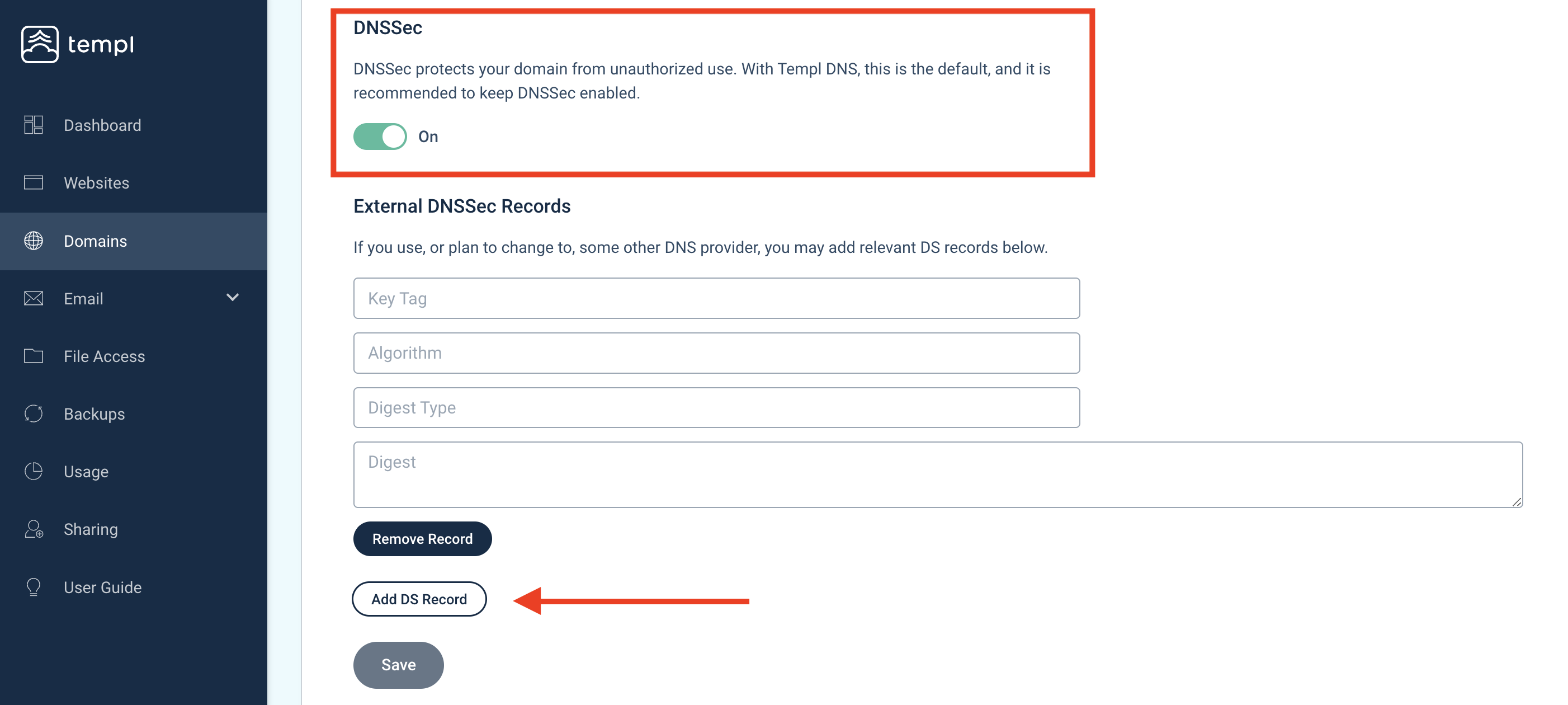
From here you can turn DNSSEC on or off. If you use, or plan to change to, some other DNS provider, you may add relevant DS records by clicking Add DS Record.
Registry lock
Templ does not currently offer registry lock for domains registered through us.
Registry lock is a registry-level protection that blocks transfers, deletions, and nameserver changes until the lock is lifted through a manual verification process.
Transfer domain ownership
Transferring domain ownership can mean three different things:
- Change the legal owner (change of holder) - the domain should belong to a different person or company, for example after selling a business or handing a domain to a client. Update the registrant details under Updating domain contact information.
- Move the registration to another Templ account - someone else takes over managing and paying for the domain, and stays on Templ. This does not change the legal owner. Both parties need Templ accounts - reach out to our support team and we will move the domain for you.
- Transfer the domain to another registrar - the new controller wants to manage the domain outside Templ. This does not change the legal owner either. See Move/transfer domain.