Configure Gmail
Gmail's Send mail as feature connects to Templ SMTP to send from your domain address, while Templ forwards incoming email to your Gmail inbox. The instructions below describe this retiring setup.
If the domain is NOT using our nameservers you first need to do these three things before you configure Gmail.
- Domain verification for email
- Add SPF and DKIM records
- Change to our MX records where your DNS are managed
Create your email forwarding address
Step 1 First, create an email forwarding address that forwards to your Gmail address, for example [email protected] forwarding to your personal Gmail.
Configure Gmail to send as your address
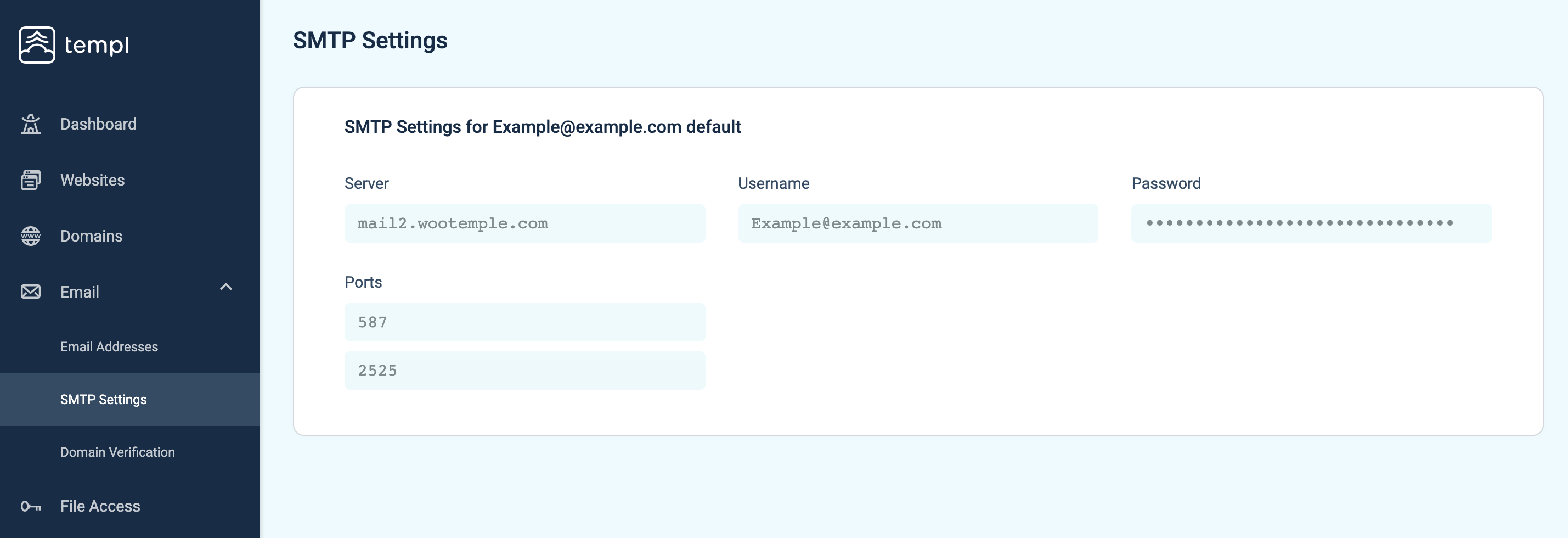
Step 2 Back in the Email section of the Templ Panel, open the SMTP Settings menu. These are the settings we'll configure in Gmail so you can send email as the address you just created.
Step 3 Open a new tab in your browser and log in to your Gmail account, then open the Gmail settings:
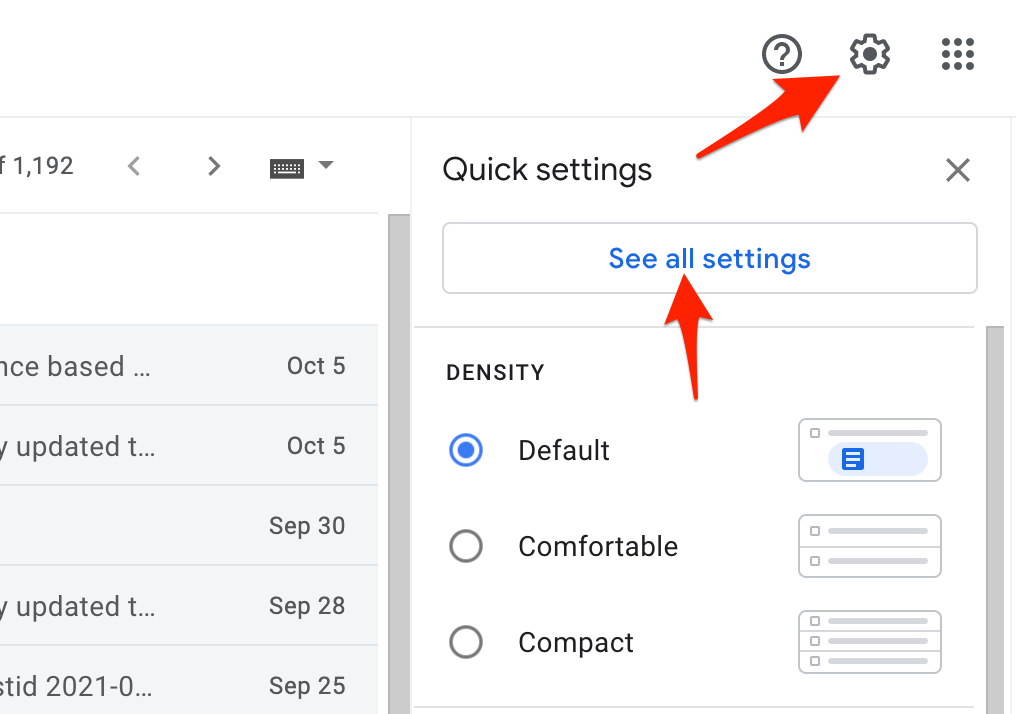
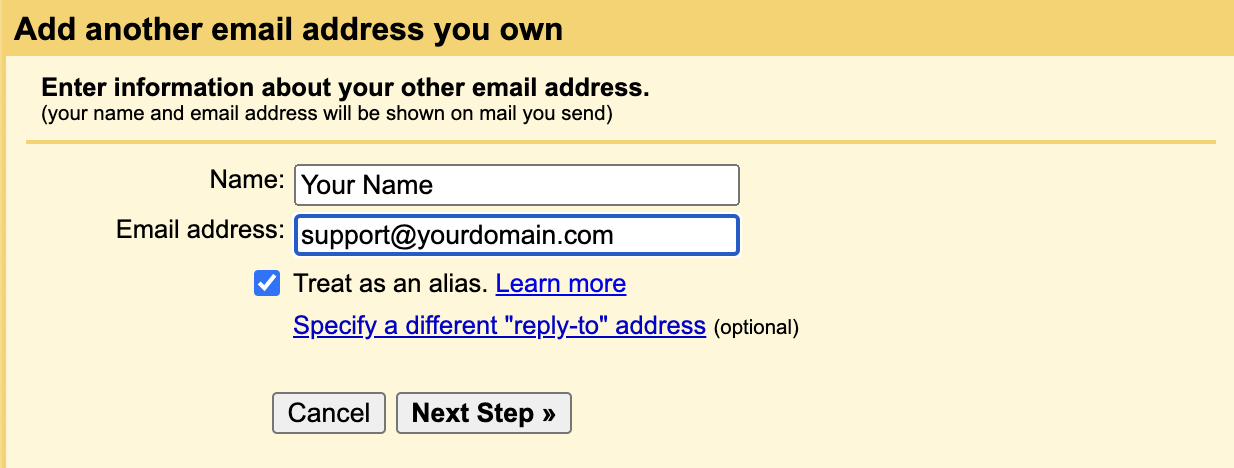
Step 4 Go to the Accounts and Import tab, locate Send mail as, click Add another email address, fill in your information, and click Next Step.
Here you add your own sender name and your address, e.g. [email protected].
Step 5 If you haven't already, open the Templ SMTP Settings page. The details there are used to configure Gmail, and will look similar to this:
In Gmail, fill in your details according to the SMTP Settings from Templ:
- SMTP Server: the server address from your SMTP Settings
- Username: your username from your SMTP Settings
- Password: your password from your SMTP Settings (click Show password to copy it)
- Port: 587
Select Secured connection using TLS (recommended).
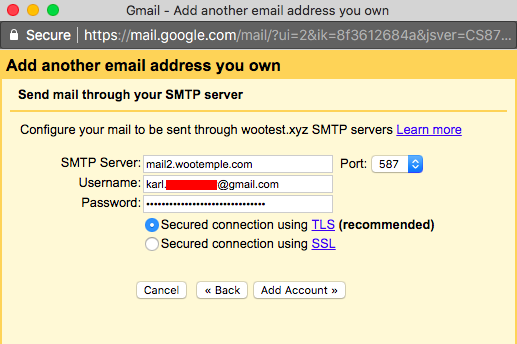
Click Add Account. Then verify your new email address: open the email you just received from the Gmail team (in your Gmail inbox), click the confirmation link, and then click Confirm.
You can now send emails with your new address via Gmail.
Extra tips
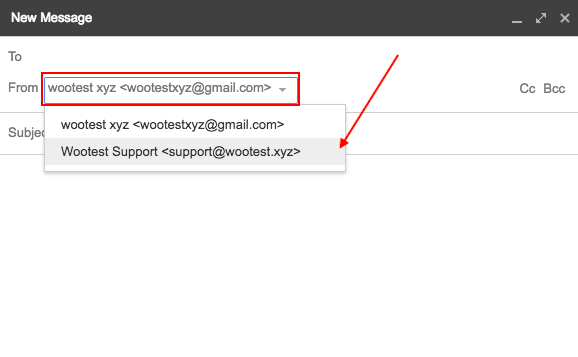
To send a new email from the email you just set up, click the From option and select your newly created email:
You can also make this email the default: go to Gmail Settings → Accounts and Import, locate your email address, and click Make default.