Stuck in maintenance mode
Is your WordPress site stuck in maintenance mode? Don't panic, it happens, and there is an easy fix for it.
When WordPress updates itself, a plugin, or a theme, it briefly puts the site into maintenance mode and shows visitors a "Briefly unavailable for scheduled maintenance" message. If an update is interrupted, the site can get stuck showing that message after the update has finished.
What you're seeing:
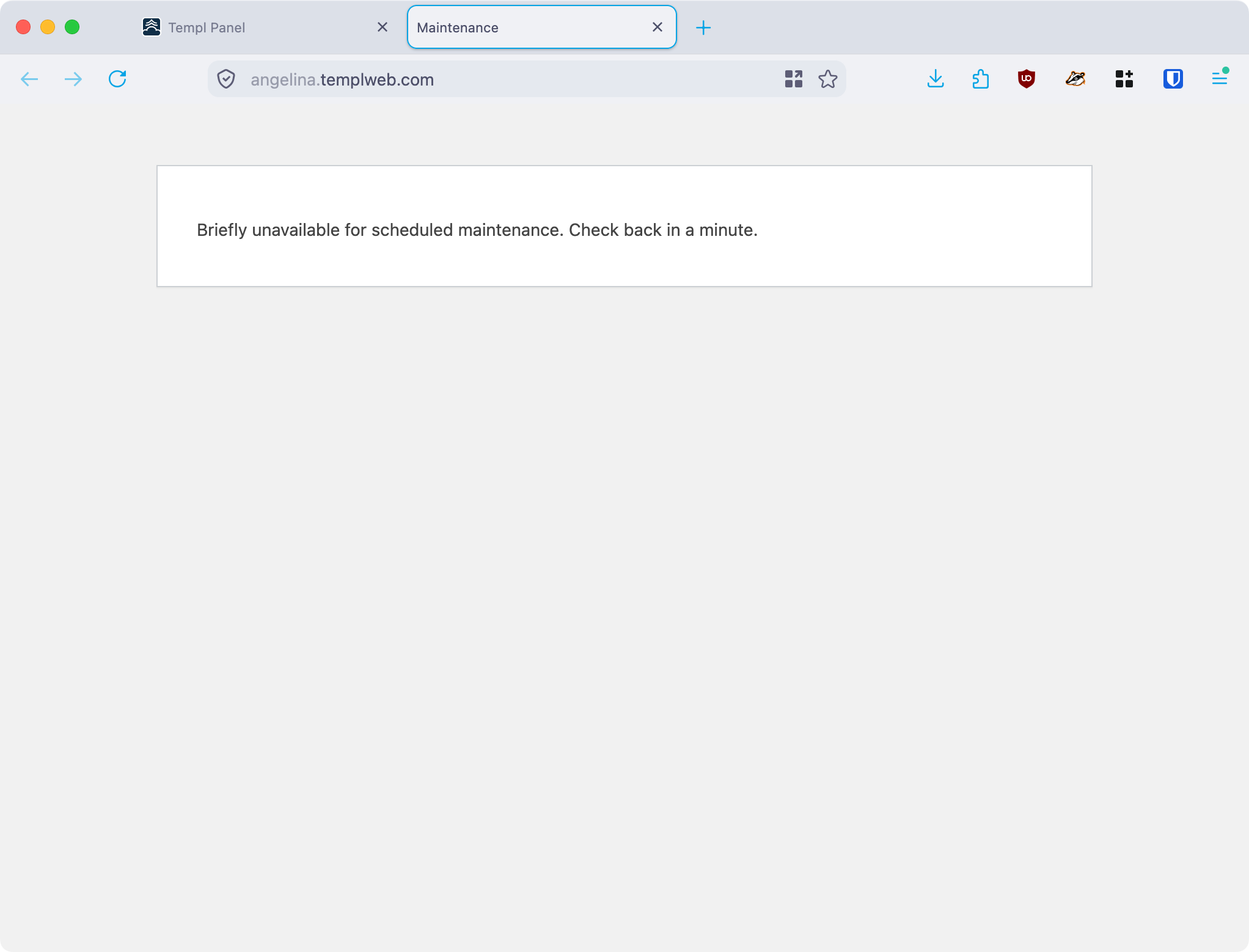
Your site is safe. Only a small file is blocking access to your website, and once it's removed everything returns to normal.
Deactivate maintenance mode from the Panel
The quickest fix is the Deactivate Maintenance Mode tool in the Templ Panel.
- Open the website in the Templ Panel and go to the Tools tab.
- Under Deactivate Maintenance Mode, click Deactivate.
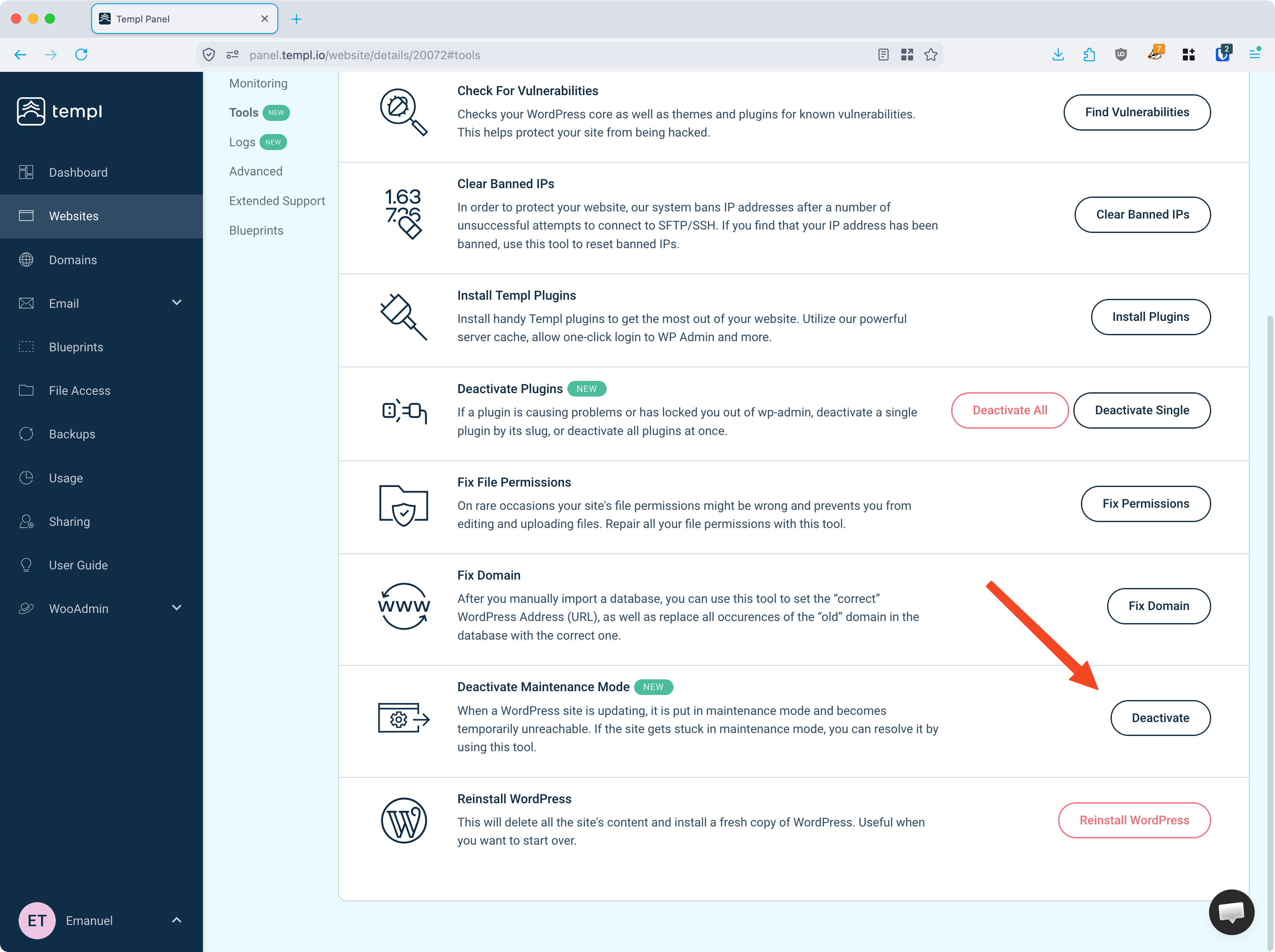
The tool removes the file that holds the site in maintenance mode. When it finishes, reload your site and it should be reachable again.
If the tool reports that the site wasn't in maintenance mode, the message you're seeing has another cause. See Site shows an error to diagnose it.
Delete the file manually
If you'd rather fix it over SFTP, you can delete the maintenance file yourself.
WordPress holds the site in maintenance mode with a file named .maintenance in the root folder of your WordPress site - the same folder as your wp-admin and wp-content folders.
Step 1.
Set up file access and SFTP for your Templ account.
Step 2.
Navigate to the root folder of your WordPress site and delete the file:
.maintenance
as shown in the image below.
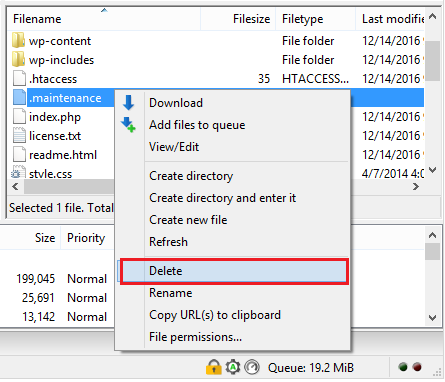
Once the file is deleted, try to access your website and it should now work.
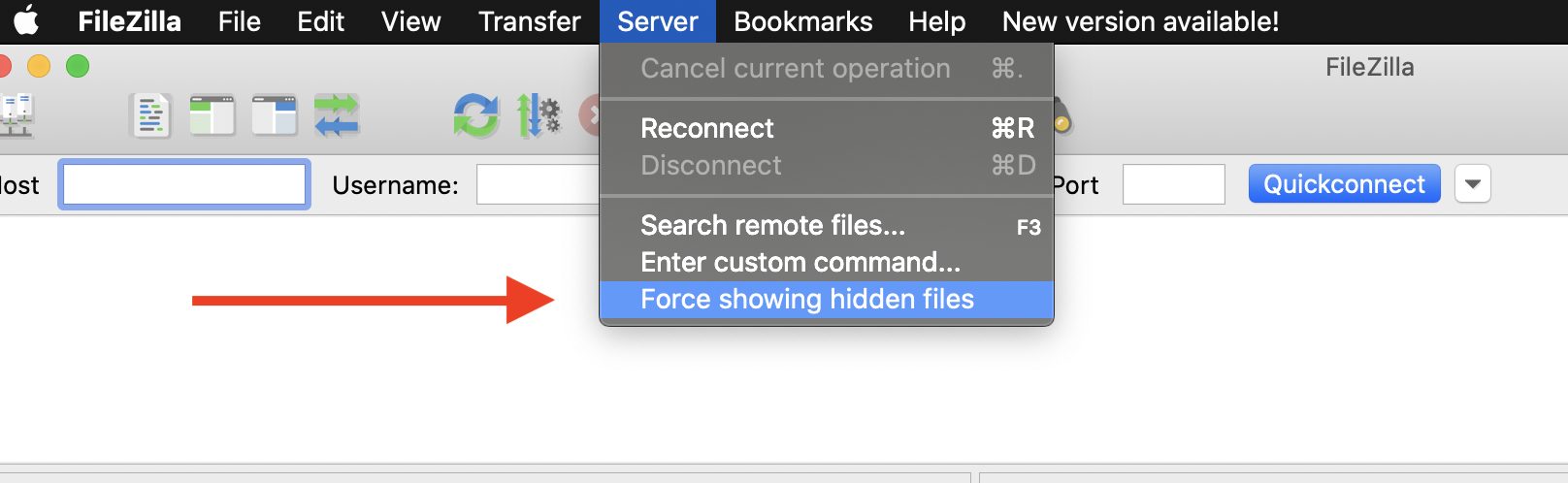
The .maintenance file starts with a dot, so it's hidden by default.
You may need to force show hidden files:
How to prevent WordPress from getting stuck in maintenance mode
Here are some quick tips on how to prevent this from happening again:
- Make sure plugins and themes are compatible with your WordPress version.
- Don't update too many plugins at once - it's better to update them separately as new updates become available.
If none of these steps resolve the issue, contact our support team and we'll help you get your site back up.