Install Templ plugins
Login to your Templ Panel and click on your website. Then click on Tools, followed by Install Plugins.
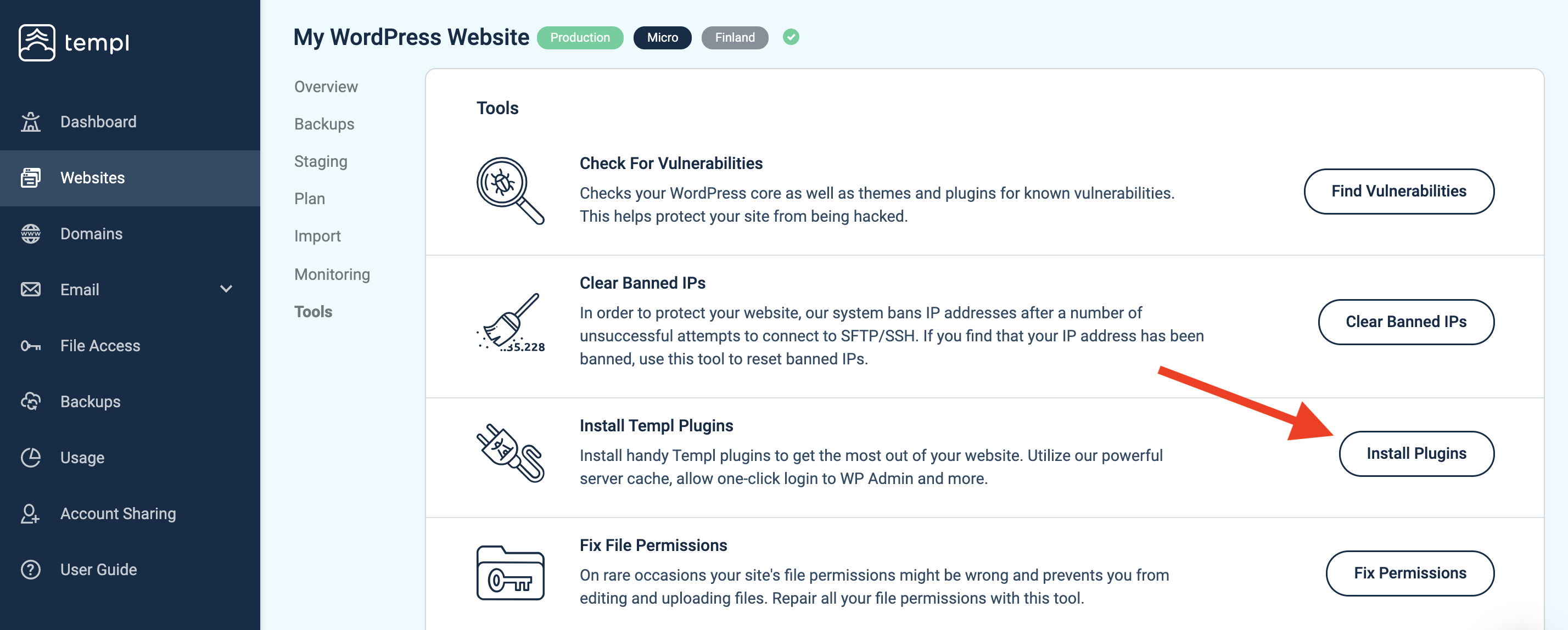
This will install all the Templ WordPress plugins on your site. Some plugins will be inactive after they have been installed. Choose which plugins you want to use and activate them.
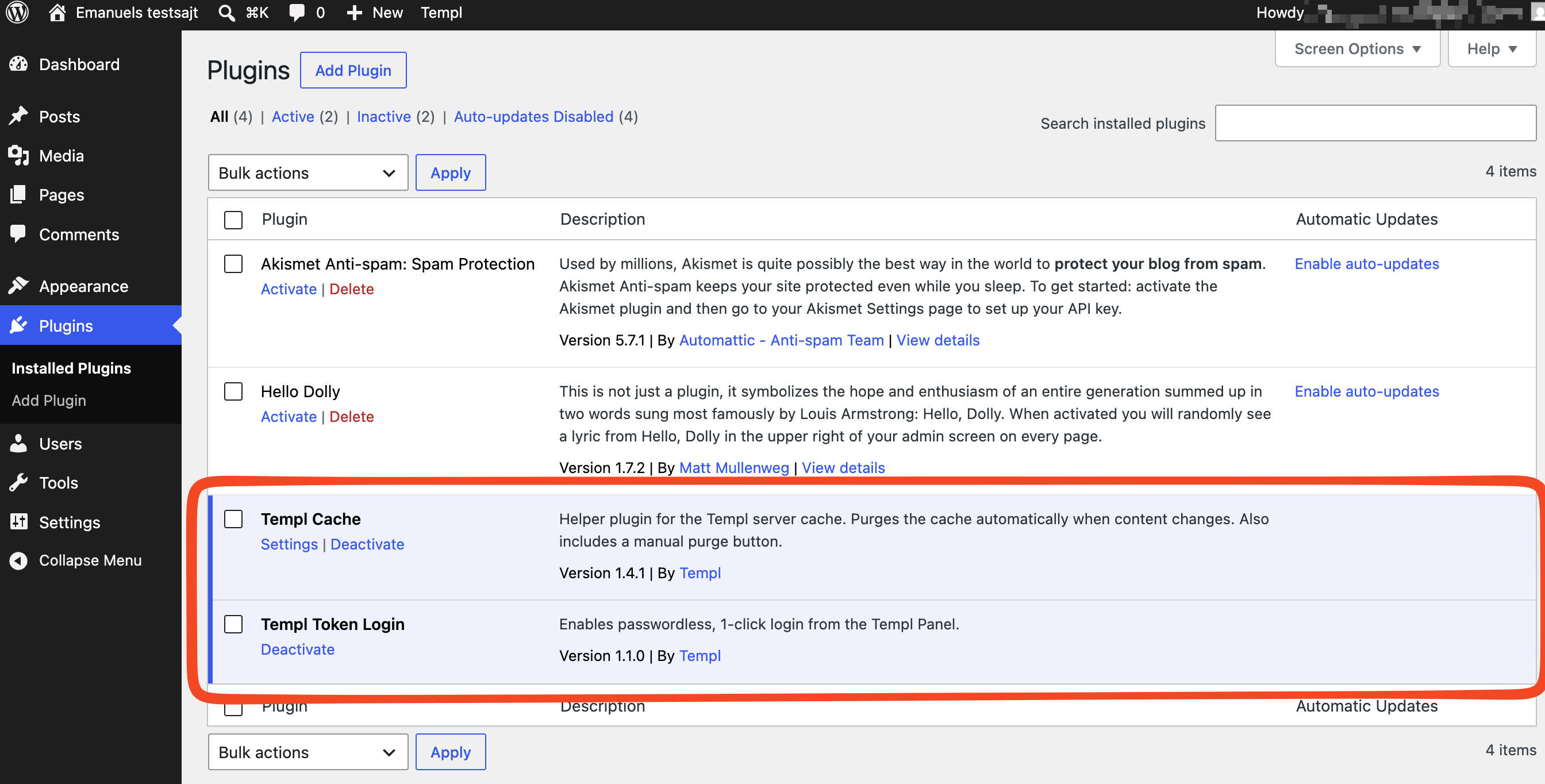
We strongly recommend to use at least Templ Cache and Templ Token Login. Read more about each plugin below.
Templ Cache
This is a helper plugin for our full page server cache. You can purge the cache manually within the plugin. If you want to know more about how our cache works, please read this article.
Templ Set WP Mail Sender (outdated)
This plugin is not installed or needed anymore. What the plugin used to do is now done on server-level instead.
Templ Token Login
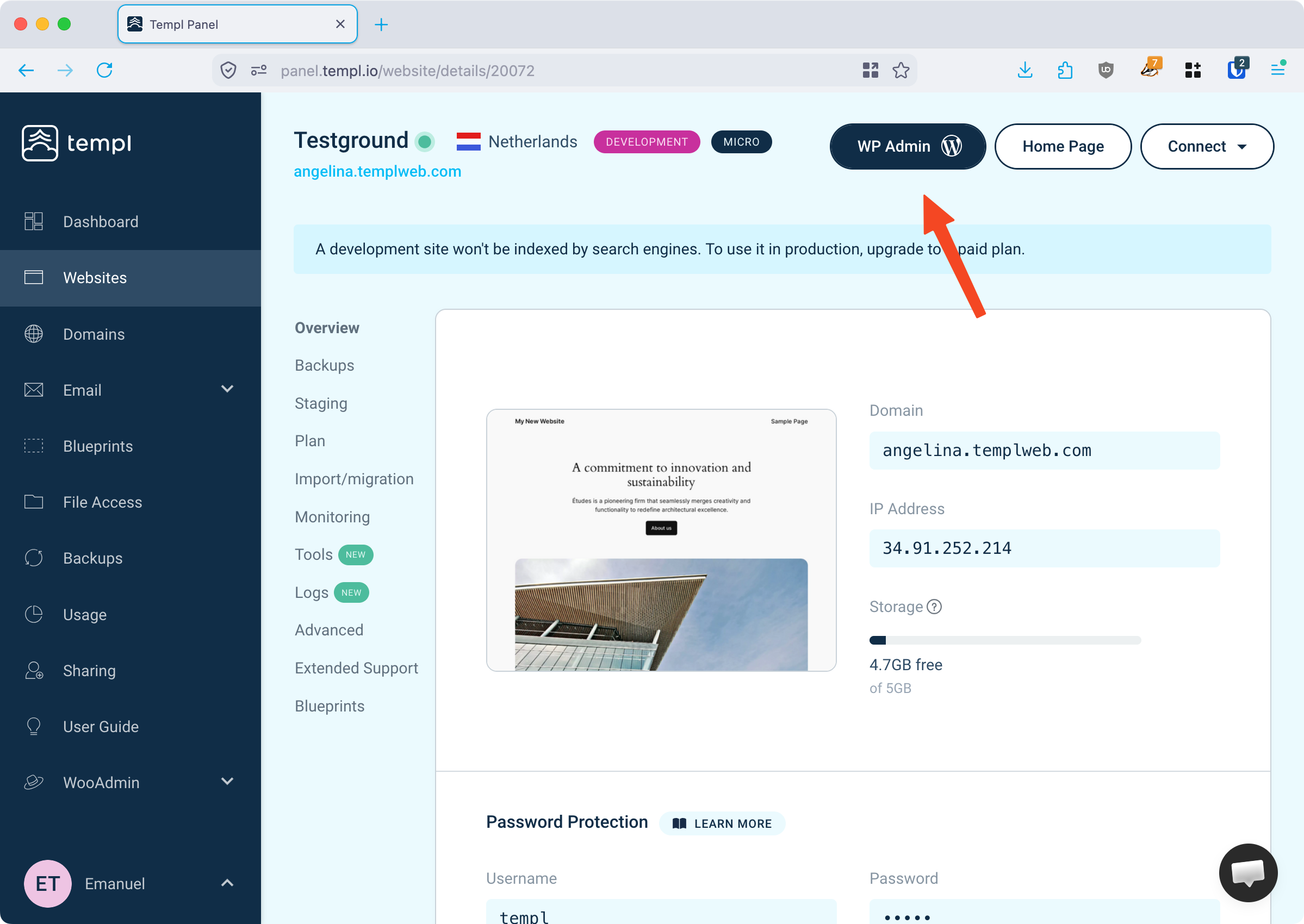
Enables passwordless login to WP Admin directly from the Templ Panel. Login with a single click, without having to fill in your username and password.
How it works
The one-click WP Admin button uses token-based authentication. It does not use the WP Admin password to log you in, so it works even if the password is wrong or unknown - as long as the user still exists on the site.
Everyone with Panel access - including anyone you've shared the site with - logs in through this button as the same WP Admin user, with no WordPress account of their own.
Requirements
For the one-click login to succeed:
- The Templ Token Login plugin must be installed and active.
- The WP Admin user shown in the Templ Panel must exist on the site.
If either isn't met, clicking WP Admin drops you on the normal WordPress login screen instead of the dashboard.
Change the login user
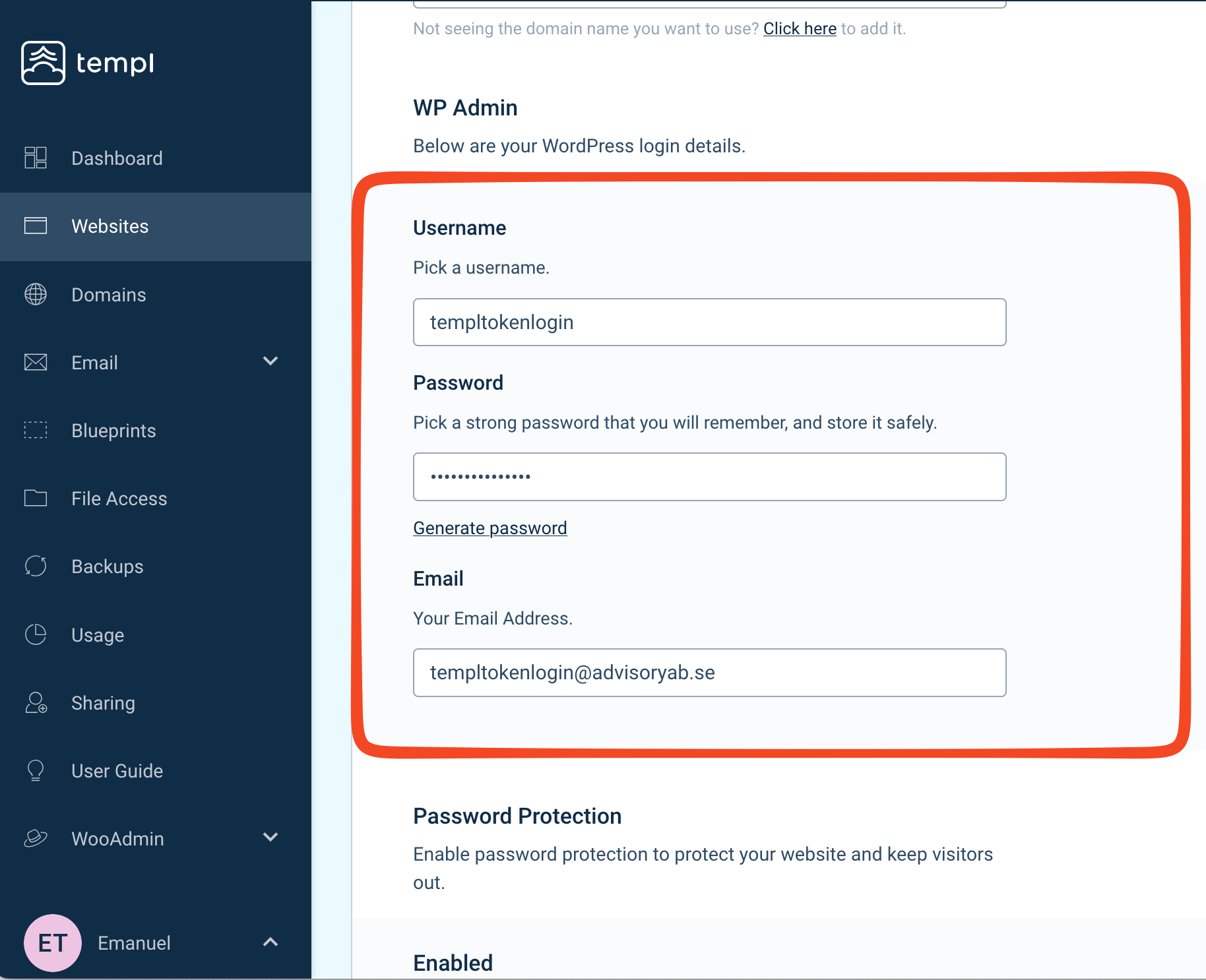
The one-click login signs you in as the WP Admin user configured in the Templ Panel. To change it, open the website in the Templ Panel, click Edit Website Details, and edit the WP Admin form (Username, Password, Email):
- If you enter a user that doesn't exist on the site, it's created with the administrator role.
- If you enter an existing user, both the username and email must match that user.
- The password you enter becomes the user's new password.
Disable one-click login
To turn off Templ's one-click login, uninstall the Templ Token Login plugin.
Templ Optimizer
Cleans and optimizes your WordPress database - removing overhead such as trashed posts, post revisions, and expired transients - to keep your site fast and reduce disk usage. It can also be used to change your site's memory limit.

Templ Optimizer is included with the Templ plugins installed above, so activate it from the plugin list once installed. Alternatively, you can install it from the WordPress plugin directory at wordpress.org/plugins/templ-optimizer:
- In WP Admin, go to Plugins → Add New.
- Search for Templ Optimizer.
- Click Install Now, then Activate.