Templ Companion
Templ Companion gives your WordPress site one place to manage its connection to Templ's hosting platform.
About Templ Companion
The plugin appears as Templ Companion in WordPress; its download uses the slug templ-companion, and its Composer package is templ/templ-companion. It combines the features of the older Templ Cache and Templ Token Login plugins and adds a custom critical error page.
Installing it is optional: it is available for Templ-hosted sites but is not installed on every new or existing site. Sites that have not switched may still use the older plugins.
Features
- Server-level page cache - Speeds up your site by serving cached pages instead of rebuilding them in WordPress for every visitor.
- One-click login - Signs you in to WP Admin from the Templ Panel without a password.
- Custom error page - Replaces the WordPress critical error page with a clearer message and gives signed-in administrators diagnostic details and recovery options.
You can turn each feature on or off independently under Settings → Templ Companion (or Network Admin → Settings → Templ Companion on a multisite network).
Installation
Choose the method that matches how your site is managed.
Upload the ZIP in WordPress
- Download the Templ Companion ZIP to your device. The link always provides the version currently offered by Templ.
- In WordPress, go to Plugins → Add New Plugin → Upload Plugin, select the ZIP, and click Install Now.
- Click Activate Plugin. On a WordPress multisite network, activate it for the network in Network Admin → Plugins.
Install with WP-CLI
Use WP-CLI to run this command from your site's WordPress directory:
wp plugin install https://plugins.templ.io/plugin/templ-companion-latest.zip --activate
On a multisite network, the plugin activates network-wide.
Install with Composer
Composer-managed sites, including Bedrock sites, declare the plugin as a project dependency. Your project must allow composer/installers to place it in the WordPress plugins directory. Bedrock already allows it; for other projects, run composer config allow-plugins.composer/installers true in the project directory before installing.
Run these commands in your project directory and deploy the updated composer.json and lock file:
composer config repositories.templ composer https://plugins.templ.io
composer require templ/templ-companion
The relevant parts of composer.json then look like this (^1.3 is an example; composer require selects the version constraint for your installation):
{
  "repositories": {
    "templ": {
      "type": "composer",
      "url": "https://plugins.templ.io"
    }
  },
  "require": {
    "templ/templ-companion": "^1.3"
  }
}
Activate Templ Companion in WordPress after deployment, or network-activate it for a multisite network. Update this installation through your project with composer update templ/templ-companion, then deploy the updated lock file. A WordPress-side update can be replaced by your next deployment, so manage Composer-installed copies through Composer.
Caching
Templ's server cache stores public pages on the server and serves cached pages without running PHP or WordPress, leaving PHP workers and server resources available for uncached requests. The plugin controls when the cache is cleared and which responses must not be stored.
Open Settings → Templ Companion in WordPress, or Network Admin → Settings → Templ Companion on a multisite network; the network shares one cache and one set of settings.
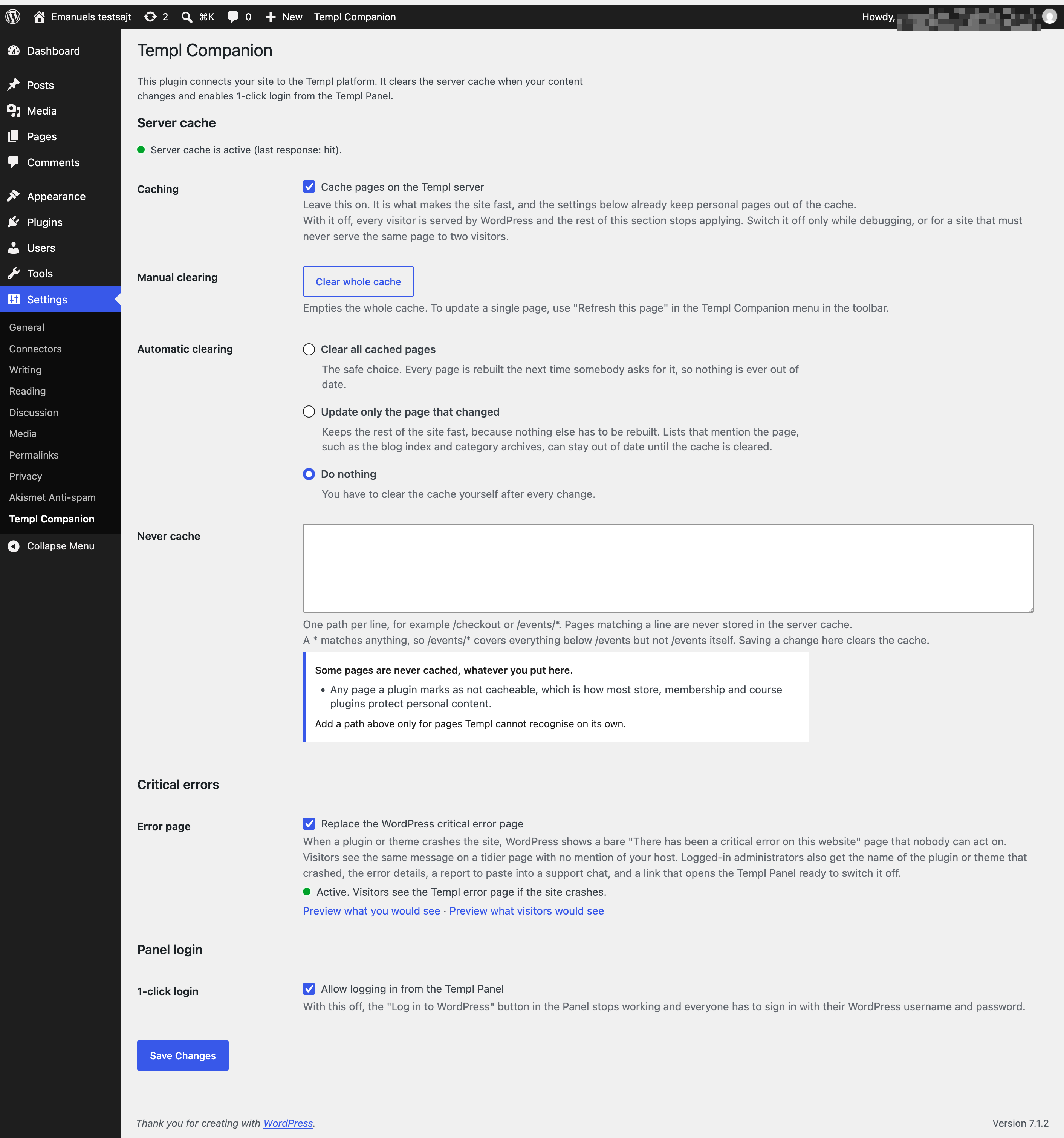
Turn caching on or off
In Settings → Templ Companion, check or uncheck Cache pages on the Templ server, then click Save Changes. Leave it checked for normal use; unchecking it makes WordPress serve every request and disables the plugin's cache clearing and exclusion rules.
Do not run another page cache alongside Templ's server cache. If you use a different page-caching plugin, turn off Cache pages on the Templ server first to avoid conflicts and stale content.
Choose automatic clearing
Under Automatic clearing, choose what happens when published content changes:
- Clear all cached pages (default): Empties the cache so pages rebuild on their next visit.
- Update only the page that changed: Refreshes the edited post or page without emptying the whole cache. Lists of changed posts may remain out of date until you clear the cache.
- Do nothing: Changes do not automatically clear the cache. Clear it yourself after edits, or visitors may see old content.
In Update only the page that changed mode, changes without a page to refresh, such as menu changes or deleted posts, still clear the whole cache. A refresh that cannot be sent also falls back to clearing the whole cache.
To clear the cache yourself, click Clear whole cache under Manual clearing, or use Templ Companion → Clear whole cache in the WordPress toolbar. Use Refresh this page in the toolbar to update just the page you are viewing.
Exclude pages from caching
Add one path per line under Never cache when a page contains visitor-specific content the plugin does not already recognize:
/members
/events/*
/members matches that page; /events/* matches paths below /events/, but not /events itself. * matches any characters.
Paths include the site's subdirectory if WordPress is installed in one: use /shop/checkout, not /checkout, for a site at /shop/. Matching ignores case and trailing slashes.
You can paste a full URL; the plugin uses its path, not its domain or query string. Saving an exclusion clears the existing cache so a previously stored page does not remain visible.
WooCommerce cart, checkout, and account pages are excluded automatically, including their endpoints and pages containing the cart or checkout block. The plugin also respects DONOTCACHEPAGE, a constant many caching, membership, and course plugins use to mark responses as private. Add manual paths only for visitor-specific pages these rules do not cover.
Templ's server also bypasses logged-in WP Admin requests and most URLs with query strings. How caching works explains server-side rules and cache status headers.
How to programmatically purge the cache over SSH
From a deployment script or GitHub Actions job with SSH access, run the Templ CLI on your site's container using its full path:
ssh -p <PORT> <USER>@<IPADDR> /usr/bin/templ-ccli cache purge
Replace <PORT>, <USER>, and <IPADDR> with your site's SSH details from the Templ Panel. The shorter templ cache purge command works inside an interactive SSH session, but remote one-line commands need the full path; see running the Templ CLI remotely.
This clears the whole server cache, including when automatic clearing is set to Do nothing.
Extend caching with WordPress hooks
Add custom PHP to a site-specific plugin or your theme. These hooks require Templ Companion and caching to be enabled; Do nothing disables automatic purge triggers.
To exclude a path programmatically, append it to the configured exclusions with templ_cache_exclusion_patterns. The filter receives an array of paths and accepts * patterns:
add_filter( 'templ_cache_exclusion_patterns', function ( $paths ) {
    $paths[] = '/members/*';
    return $paths;
} );
For a custom import that changes public pages without firing normal WordPress save hooks, add its action name with templ_cache_purge_actions, then fire it after the import finishes. This clears the whole cache in Clear all cached pages and Update only the page that changed modes:
add_filter( 'templ_cache_purge_actions', function ( $actions ) {
    $actions[] = 'my_catalog_import_finished';
    return $actions;
} );

// Call this after the import has finished writing changes.
do_action( 'my_catalog_import_finished' );
Other useful hooks:
| Hook | Type | Use |
|---|---|---|
templ_cache_skip_page | Filter | Return true to mark the current response as non-cacheable. Receives the existing decision and the normalized URL path; preserve true when extending it. |
templ_cache_excluded_post_types | Filter | Add post types whose edits should not trigger an automatic clear. Do not exclude types whose changes affect public pages. |
templ_cache_purged | Action | Runs after the server accepts a whole-cache clear. |
templ_cache_refreshed | Action | Receives the refreshed path and outcome after a refresh is sent; an automatic refresh does not wait for the server to finish rendering it. |
For example, to exclude only a member dashboard response without adding its path to the saved list:
add_filter( 'templ_cache_skip_page', function ( $skip, $path ) {
    return $skip || '/member-dashboard' === $path;
}, 10, 2 );
One-click Panel login
Enable Allow logging in from the Templ Panel in the Panel login section of Settings → Templ Companion to sign in through the Panel's WP Admin button without a WordPress password. The Panel issues a time-limited token for the WordPress user configured for that site.
That user must exist in WordPress; otherwise the button takes you to the normal login screen. People you share the site with use the same configured WordPress user through the Panel, not separate WordPress accounts.
Turn this setting off if you do not want Panel login. Everyone can still sign in with their own WordPress credentials.
Critical error page
Replace the WordPress critical error page is enabled by default in the Critical errors section of Settings → Templ Companion. If WordPress crashes, visitors see an error page without server details.
A signed-in administrator with permission to manage the settings can see the failing plugin or theme when identifiable, along with the error details. They can copy a report for support or open the Templ Panel to disable the culprit.
WordPress recovery-mode emails remain available; this feature does not send separate alerts to Templ.
The plugin installs a WordPress fatal-error handler file in wp-content. If another plugin already owns that file, the settings screen says so; Templ does not replace it automatically.
Use the Templ error page instead moves the existing file aside and activates Templ's page. The same screen offers Preview what you would see and Preview what visitors would see.
If wp-content is not writable, the status explains why the error page cannot be installed. Turn the setting off to restore WordPress's error page.
Multisite
On a WordPress multisite network, Templ Companion is a network-only plugin: activate it under Network Admin → Plugins, not on individual sites. One set of settings under Network Admin → Settings → Templ Companion controls caching, Panel login, and the error page for every site.
You can switch the three features on or off separately, but you cannot configure them per site. Only network administrators can change the settings, clear or refresh the cache from the plugin, and see administrator-only error details.
The network shares one server cache. A whole-cache clear triggered by an edit on one site clears cached pages for every site.
Update only the page that changed can refresh an individual URL instead, but changes that cannot be narrowed to a page still clear the whole cache. Never cache patterns are URL paths: include a subsite's path prefix where applicable, and remember that the same path on multiple domains matches each of them.
The network shares one error handler in wp-content. Each site's WP Admin button uses the WordPress user configured for that site in the Templ Panel.
Updates
Active ZIP and WP-CLI installations receive update offers from Templ through WordPress's regular Plugins screen. You can install an offered update there or use WordPress's Enable auto-updates option.
An inactive copy receives no update offers because the plugin's update check does not run while it is inactive. To update one, replace it with the current ZIP in WordPress or run wp plugin install https://plugins.templ.io/plugin/templ-companion-latest.zip --force.
For Composer-managed sites, run composer update templ/templ-companion and deploy the updated lock file.
Switch back to the older plugins
Deactivate Templ Companion, then reactivate Templ Cache and Templ Token Login as needed. Reinstall the older plugins first if you deleted them.
Deactivating Templ Companion disables its server caching integration and critical error page. One-click Panel login remains unavailable until a login plugin is active.