Templ CDN
This article describes how to enable our globally distributed Templ CDN for static files, such as images.
Content of this article:
Activate CDN in the Templ Panel
The first step is to activate CDN in the Templ Panel.
Navigate to the site you want to activate CDN for, then click on the Advanced tab followed by Site Options and then CDN. From here you can enable CDN yourself.
Once enabled, you will see the website's designated CDN domain name on the same page.
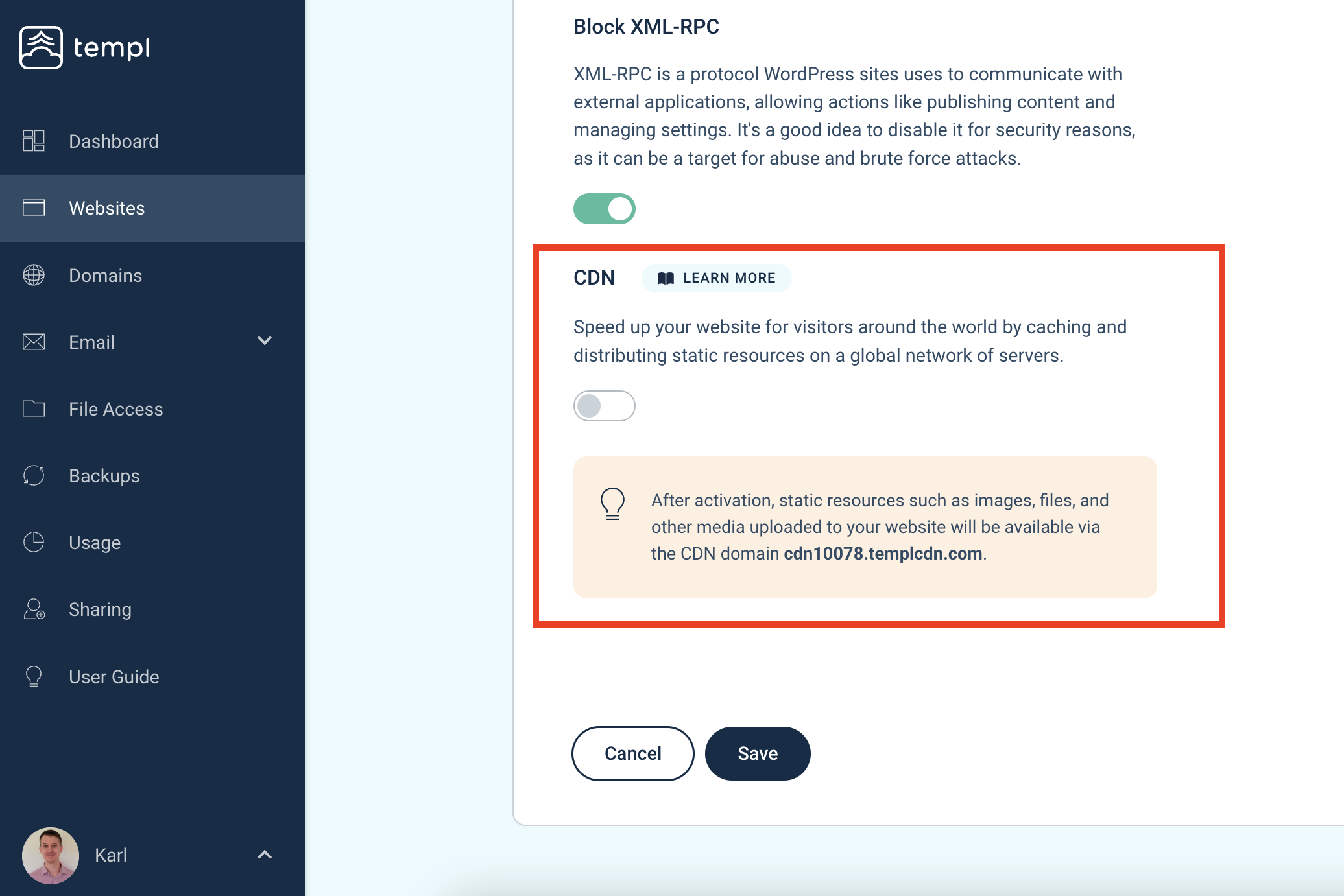
Enable CDN on your site
Once the CDN is activated in the Templ Panel, we'll automatically install and activate a plugin called CDN Enabler on your site.

You then need to enter the CDN address in the CDN Enabler plugin settings yourself. Copy the website's designated CDN domain name from the Advanced → Site Options → CDN page in the Templ Panel and paste it into the CDN Enabler settings. Remember to save your settings and empty the cache on the site afterwards.
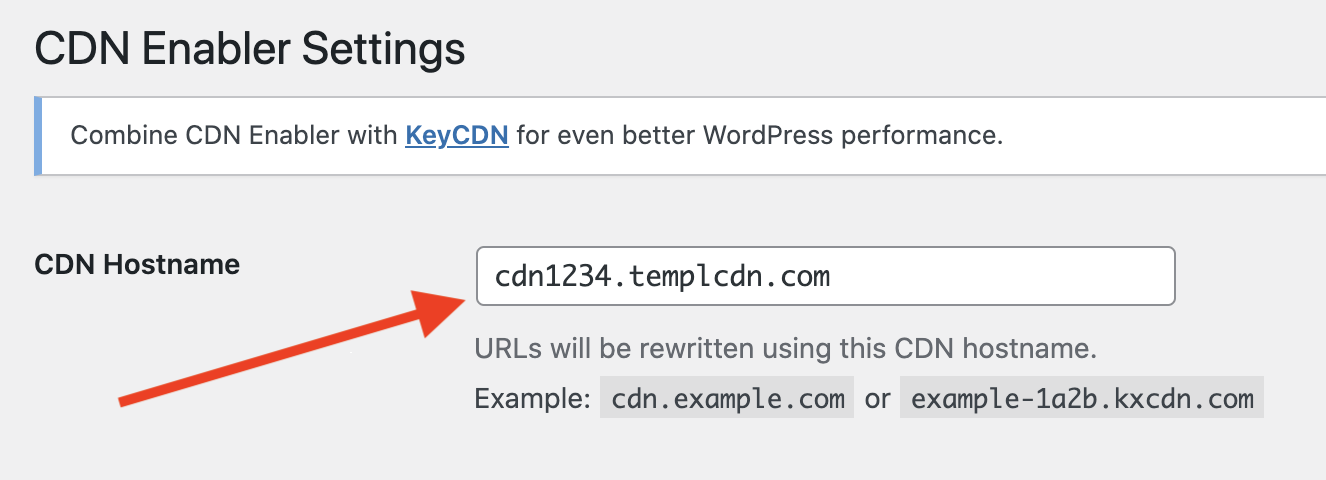
Disable CDN
To disable CDN, deactivate the CDN Enabler plugin and then clear cache.
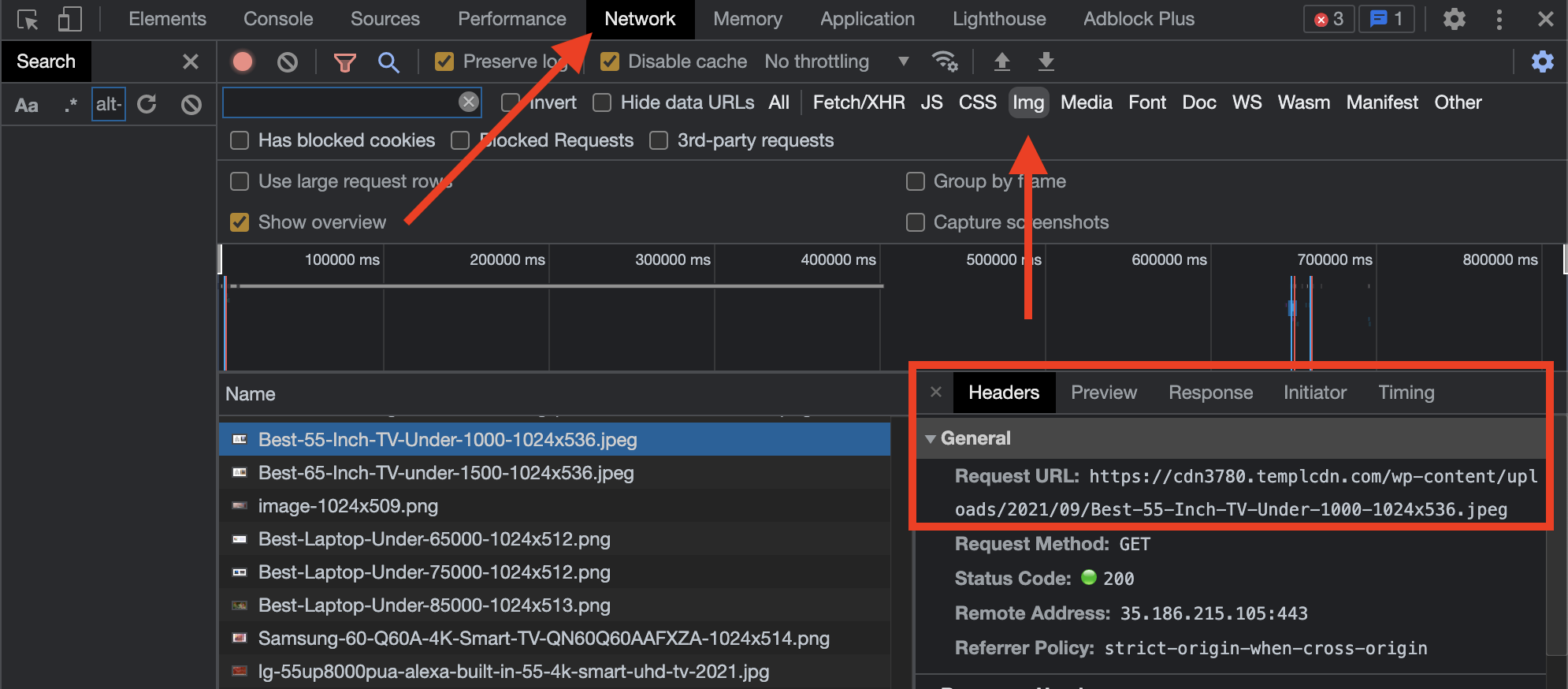
Verify that resources load from CDN
To make sure that CDN is enabled on your site, take a look in the network tab of the Dev Console in Chrome. Check if images or other resources now load from the CDN address like this:
FAQ
Should I be using a CDN?
If you have a global audience with traffic to your site from all over the world, then we recommend using CDN.
If your site gets local traffic only and your site is hosted in, or near, the country of your target audience, then CDN is not a necessity.
Can I use my own domain name for Templ CDN?
Yes. Templ staff can set up a custom CDN domain such as cdn.example.com. Contact support with your website and desired CDN domain.
Does Templ CDN cost extra?
No. Templ CDN is included in each of our plans.
I've updated a file on my site but it doesn't update on the CDN, how do I fix that?
This is usually a caching issue - the old file is still cached in your browser, the server, or the CDN. See Changes don't show up for how to clear each cache layer. For CSS and JavaScript files specifically, another option is to install the Prevent Browser Cache plugin, which handles cache busting for you.
How do I flush the CDN cache?
There is no self-service flush for the Templ CDN cache. Cached files expire on their own after a while, and updated files with new filenames (cache busting) bypass the old cache immediately, so a manual flush is rarely needed. If an outdated file is stuck on the CDN and cache busting isn't an option, reach out to support and we'll flush it for you.
Should I use Templ CDN or Cloudflare?
Both Templ CDN and Cloudflare CDN are two great CDNs. Below is a breakdown of the benefits of each CDN.
Benefits of using Templ CDN:
- Fast global CDN
- Works with our WebP solution (Cloudflare does not).
- Solves GTMetrix "Cookie free domain" complaint (Cloudflare does not).
- Doesn't require a DNS change.
Benefits of using Cloudflare:
- Fast and free CDN, saves bandwidth
- Free security features
Sometimes Templ CDN is more suitable for a site while in other cases Cloudflare will be more suitable. If you have a site with high bandwidth usage then it would make more sense to use Cloudflare since they offer CDN for free, which will help reduce bandwidth costs.
In other cases we recommend using our Templ CDN. It is also easier for us to provide support for, and help set up, our own CDN.