Reduce data transfer
Data transfer (bandwidth) is the total amount of data your site sends to visitors. This guide provides essential tips to help you lower it and avoid unnecessary bandwidth expenses.
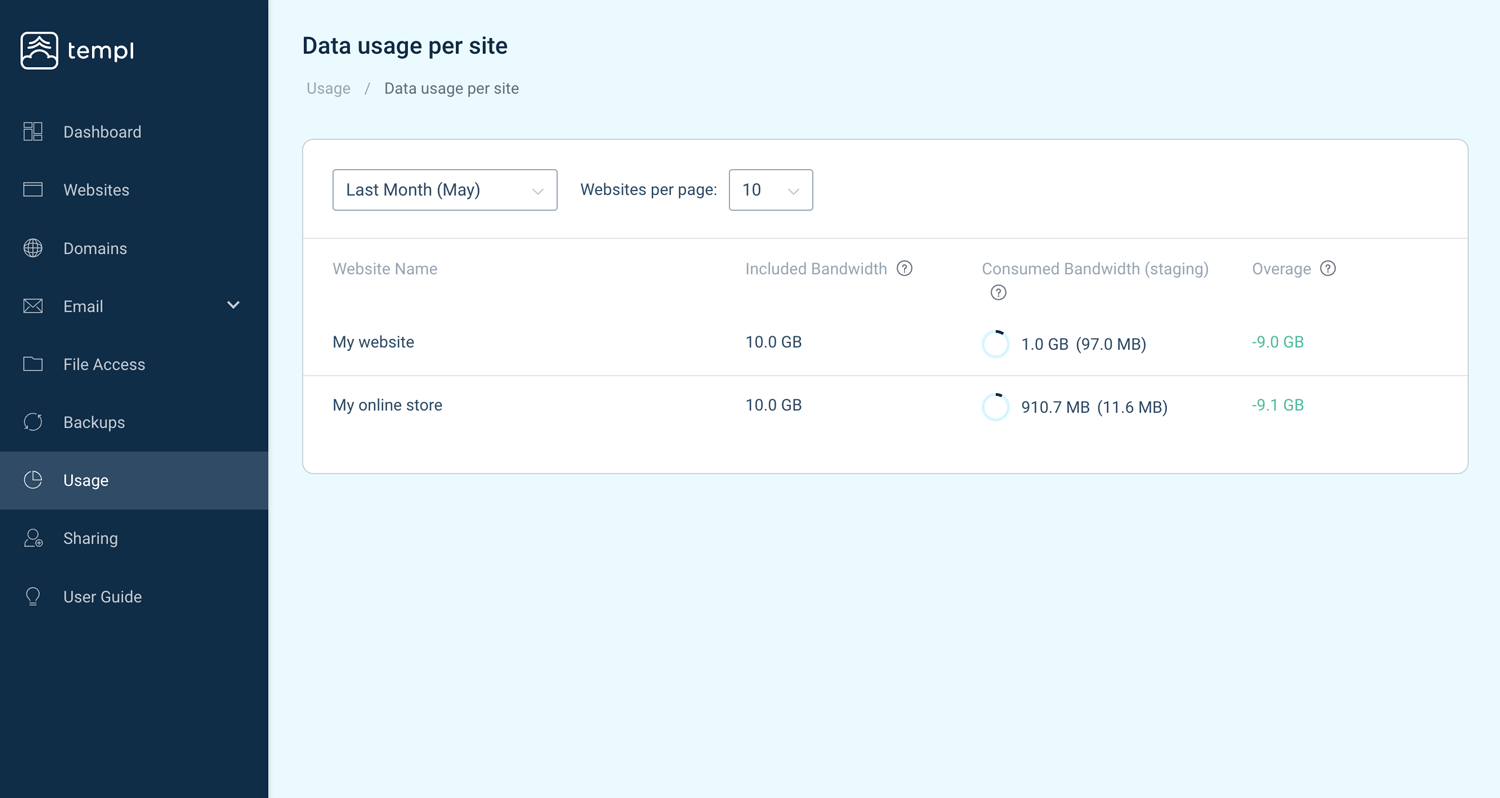
Checking data transfer usage in the Templ Panel
To check the data transfer usage in the Templ Panel:
- Navigate to Usage.
- Click on Go to details under Detailed bandwidth usage.
Here you can see the data transfer usage over time for all your websites. You can also see the possible projected overage for the current month.
Cloudflare
Through our partnership with Cloudflare, we can set up a Cloudflare-based solution for your site that can significantly reduce bandwidth usage and costs. The setup is done manually by our team: we need to be able to change your name servers and have full access to your current DNS zone, so we recommend transferring your domain name and DNS to Templ.
To get started, please contact our support team.
Optimize images
High-resolution images have larger file sizes and increase data transfer usage. Ensure images are not higher resolution than necessary and use the appropriate image format.
Convert images to WebP
WebP is a modern image format that offers more efficient compression than JPEG and PNG, which helps to reduce data transfer usage.
At Templ, you can convert images to WebP directly on the server in the Templ Panel.
Host videos off-site
Uploading videos directly to the website can greatly increase bandwidth usage due to their large file sizes. To avoid this, upload videos to external hosts like YouTube or Vimeo and embed them on your website.
Avoid third-party plugins for backups
Avoid using third-party plugins for backups to prevent high data transfer usage.
Plugins like Updraft Plus, which regularly sync backups to external locations, can consume a lot of data. Instead, rely on Templ's automatic daily backups available on all production websites.
Lazy loading
Lazy loading defers loading images and other resources until the visitor scrolls to them, so only what's actually viewed is downloaded. This saves bandwidth and improves load times.
WordPress lazy loads images natively.
Since WordPress 5.5, images and iframes inserted through the editor automatically get the loading="lazy" attribute - you don't need to do anything for regular content.
Where lazy loading can still be missing:
- Theme or page-builder images that are output without the
loadingattribute. Check your theme or page builder's settings for a lazy loading option, or ask its developer. - Iframes and embeds added via custom code. If you write your own HTML, add
loading="lazy"to the tag.
Performance plugins such as WP Rocket can also apply lazy loading to elements WordPress misses, including CSS background images.
Please don't hesitate to contact support if you would like tips on how to reduce the data transfer usage on your website.