Blueprints
Blueprints let you save a website's plugins, themes, content, and settings as a reusable template, then spin up new sites from it in one step. This page covers what they are, how to create one, and how to use it.
What are Blueprints?
Blueprints are a starting point for new websites that let you get a head start when creating a new website, so that you don't have to start over from scratch.
A Blueprint can contain posts, pages and settings that are stored in the database, as well as plugins, themes and any other uploaded files.
In short, Blueprints let you create a new project faster with all your favorite plugins and themes preinstalled.
Blueprint storage and limits
Each Templ account includes 1 GB of free storage for Blueprints.
If your total Blueprint storage exceeds 1 GB, additional usage is billed according to overage pricing - see the price list.
All Blueprints are stored on a special, non-public website called My Blueprints. You may see references to this site in emails or notifications related to your Blueprint storage.
How to create a Blueprint
Prepare your website
- In the Templ Panel, go to the website you want to use as the base for your Blueprint.
- Install the plugins and themes you want included.
- Configure settings, add content, and make any changes you want to preserve.
Create the Blueprint
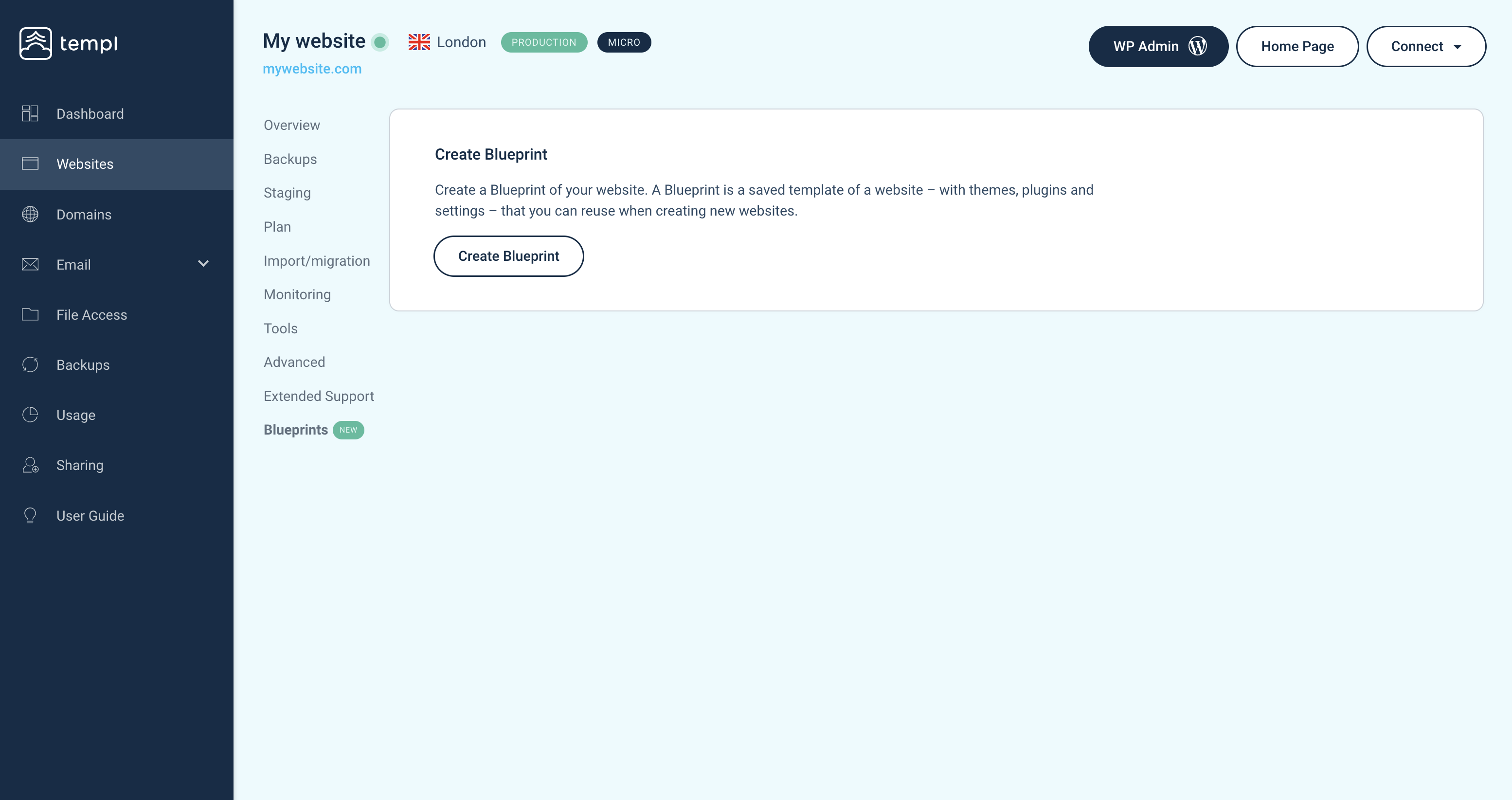
- Navigate to Blueprints.
- Click Create Blueprint.
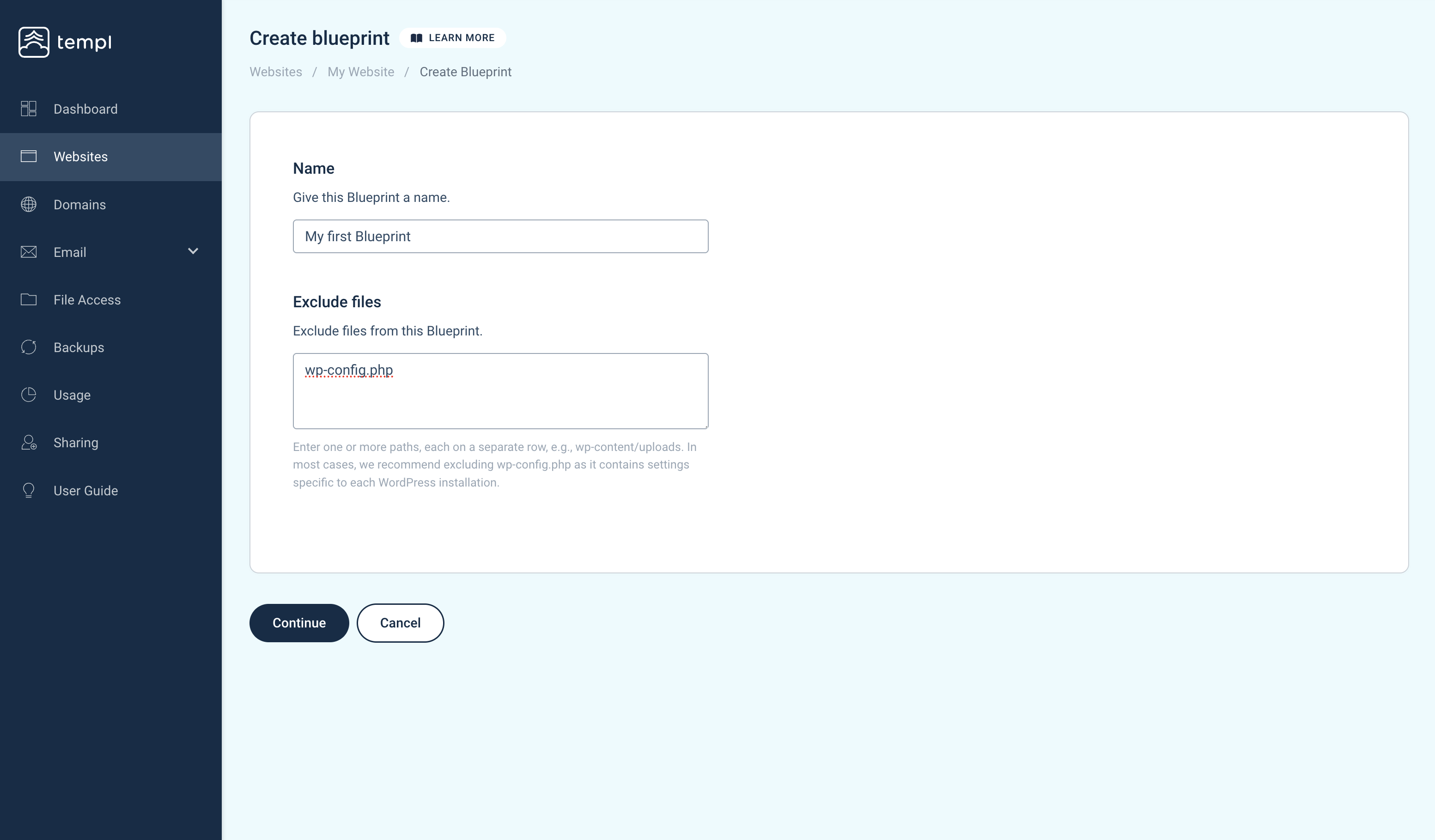
- Give your Blueprint a name.
- (Optional) Choose files to exclude.
- We recommend excluding
wp-config.php, since it contains installation-specific settings.
- We recommend excluding
Once the Blueprint has been created, you are ready to use your Blueprint.
How to use Blueprints
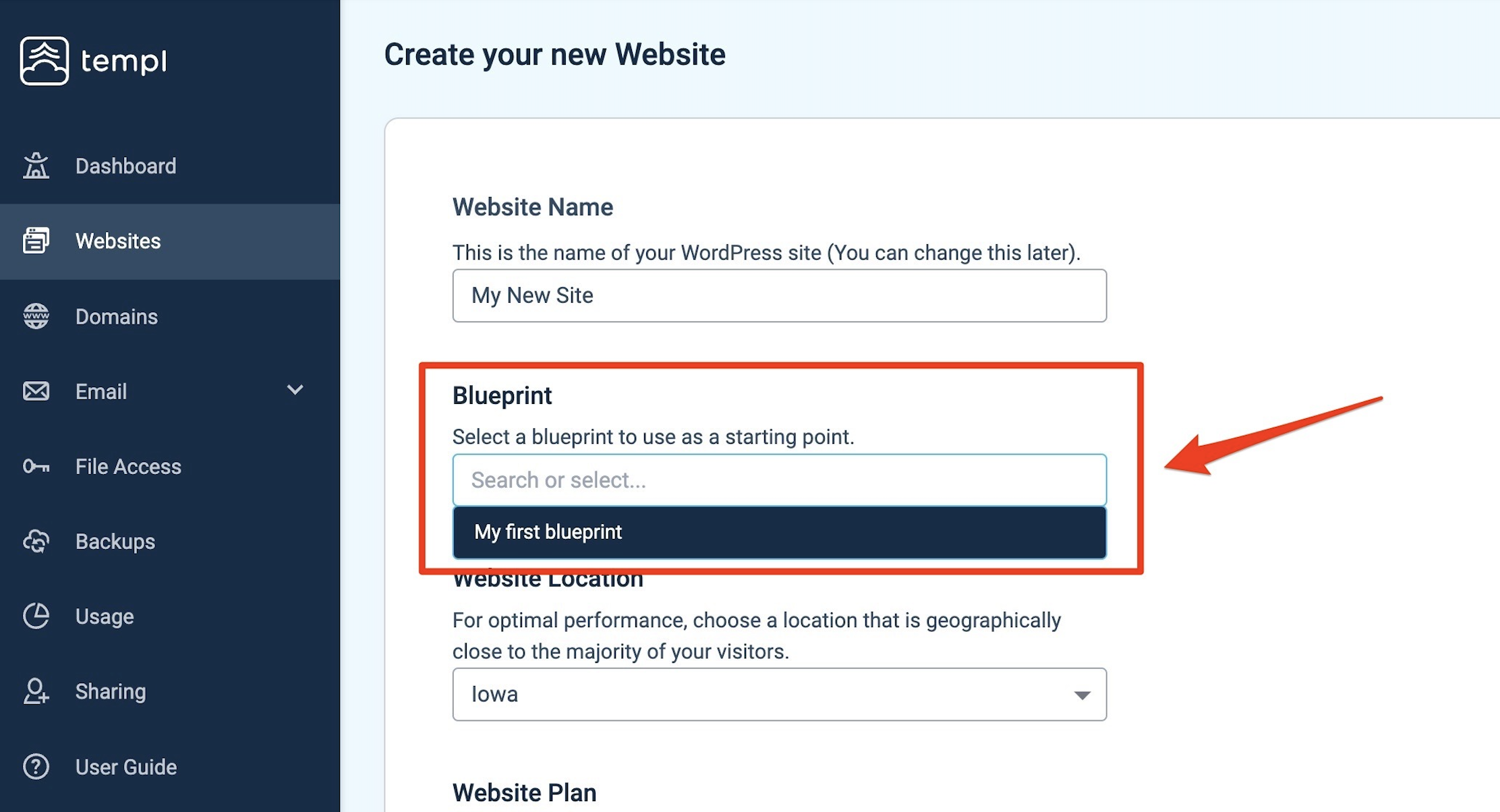
- The next time you create a new website in the Templ Panel, you'll be able to select one of your Blueprints as the starting point.
- The new website will be a copy of the Blueprint - with themes, plugins, and settings already in place.
Managing Blueprints
- Navigate to Blueprints in the menu to view all your saved Blueprints.
- To delete a Blueprint:
- Click the three dots (...) next to the Blueprint.
- Select Delete.